How to Live Stream a Church Service on Your Own Website
To live stream a church service on your own website, send the picture and sound from a camera in the church to a streaming service, and play it on a page of the website, where the congregation comes back every week. On a WordPress site, a live streaming plugin does that on the page itself: one page for the service, a countdown to the next Sunday, a chat for those at home, and the replay for those who missed it.
This post goes through what a service stream needs, the equipment from one phone up to a few cameras, the setup on WordPress with Live Stream, and what it costs. For every way to stream on WordPress, start with How to live stream on a WordPress site.
What a service stream needs
A church service is not a one-off event. It comes back every week at the same time, for much the same people, and those who watch from home are often the ones who cannot come: the ill, the old, those away. So the stream should be:
- In the same place every week. One address the congregation keeps, with the next service on it, so nobody waits for a new link.
- Easy to watch. A page in the browser, no app to install and no account to make for a public service. Grandparents open it from the newsletter and it plays.
- Good in its sound. People forgive a soft picture, not a sermon they cannot hear or music that pumps and cuts out.
- Open to talk. A chat where those at home greet each other and leave prayer requests, read by someone on the team.
- There later. A replay of the service on the same page, for those who were at work or in another time zone.
Equipment, from one phone to a few cameras
Start with what you have. A stream gets better step by step, and the first step is the sound.
| Setup | What it takes | Fits |
|---|---|---|
| One phone or laptop | A phone on a tripod at the back, in the browser | A small congregation, a midweek prayer meeting |
| A camera and the sound desk | A camera or webcam and an audio interface from the mixing desk into a computer | Most Sunday services |
| A few cameras and OBS | Two or three cameras into a computer running OBS, with lyrics and titles over the picture | A church with a volunteer team for the stream |
The sound comes from the desk, not the room. A microphone on the camera hears the room, the echo and the people near it. A line from the mixing desk, through a small USB audio interface, carries what the microphones of the pulpit and the band already pick up. To a computer it is one more microphone.
Music needs the original sound. Browsers tune a microphone for speech: they remove noise and even out the level, which treats an organ or a band as noise. In Live Stream, switch on Original sound, for music before going live, and the sound goes out as the desk sends it, at 128 kbps and in stereo where the input has two channels (Sound). Wear headphones at the stream desk, as nothing then removes the echo of speakers.
The upload. The picture goes out in HD (720p) or Full HD (1080p), which need up to about 4 and 8 Mbps of upload. Test the connection of the church at the time of the service, and use a cable where you can.
Setting it up on WordPress
Live Stream is a live streaming plugin for WordPress. The host goes live from the browser or from OBS, and the congregation watches on a page of the site, about a second behind, with chat beside the picture.
1. Install it
In WordPress, go to Plugins → Add New Plugin, search for WordPlus Live Stream, install and activate it, then enter your licence key under Live Stream → Licence (Getting started). To try it before a Sunday, a test stream works with no subscription. Only you can see it.
2. Create the stream once
Open Live Stream → Studio → Streams and press Create stream, named after the service, such as "Sunday service". Set Who can watch to Everyone for a public service, or to Logged-in users for a stream kept to the members of the church (How to run a private live stream for your members).
3. Plan it every week
In the Schedule setting of the stream, give it the time of the service, then Repeat these weekly for the weeks ahead. Give a time its own title if you like, such as "Advent, second Sunday". The stream keeps one page, one OBS key and one chat, so nothing changes between Sundays (A schedule).
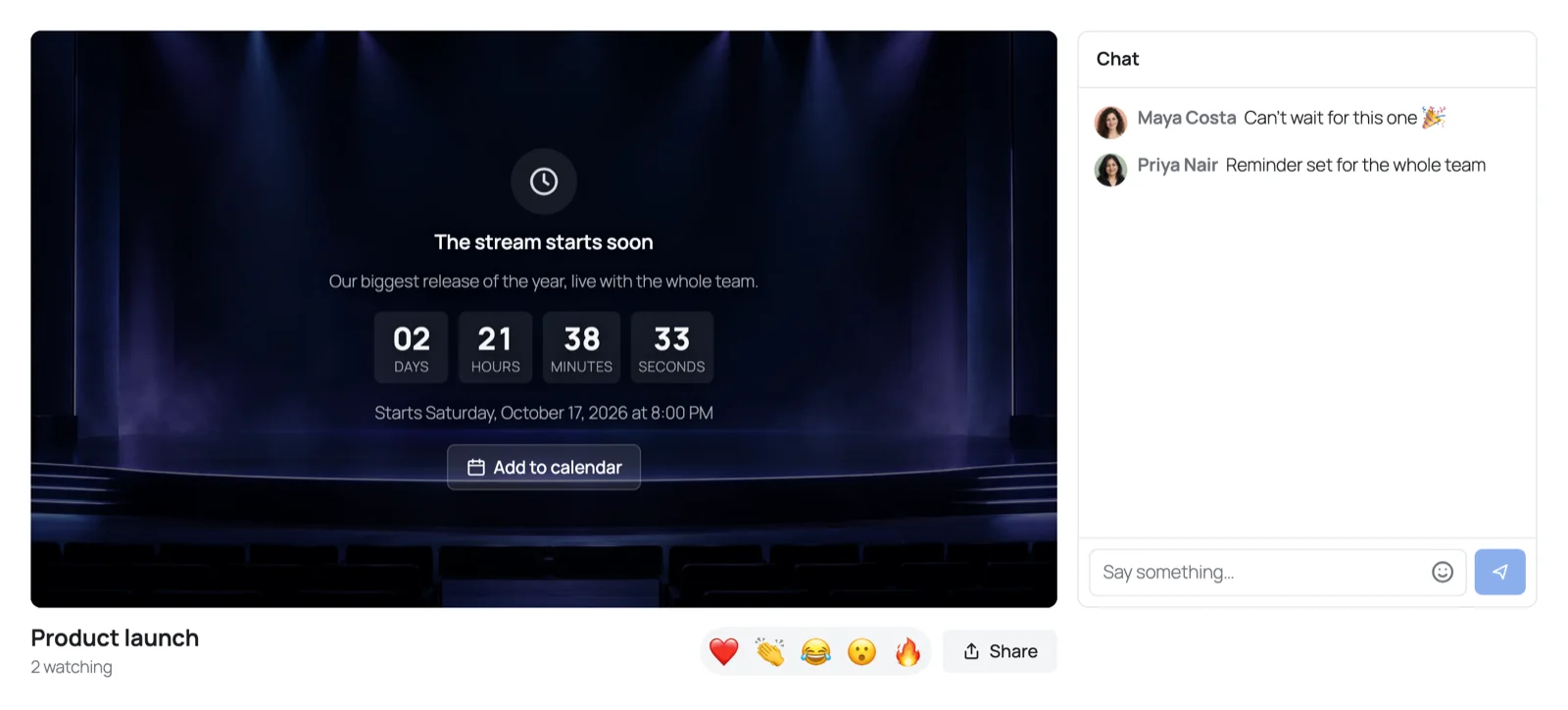
Until the host goes live, the page shows the cover of the stream with a countdown, the date and time, and Add to calendar for Google Calendar, Apple Calendar and Outlook. After a service ends, viewers see the next one under the thanks, then the countdown to it. How to schedule a live stream has the rest of what a schedule does, such as a late start and planning the times from another tool.
4. Put it on a page
Press Create a page beside the stream in the Studio tab, or add the Live stream block to any page and choose a layout (Putting a stream on a page). Link the page from the menu of the site as "Watch live", and put the Live now block in the header as a badge, set to show nothing while no stream is live: the Live badge then appears the moment the service starts, without reloading the page.
5. Choose the chat
The light chat of Live Stream is for the moment: greetings and prayer requests during the service, with moderation, gone a day after the last message. Give one person on the team the job of reading it and pinning the notices, and the tools to mute or remove anyone who should not be there (Moderating a live stream chat). How to add a live stream with chat to your website shows both kinds of chat, the light one and a chat room kept on the site.
6. Record every service
In the studio, turn on Record every time this stream goes live. The recording then starts as the service does and stops as it ends, with nobody needing to remember it, and the page plays the replay once it is ready. Choose in the recording settings whether viewers see REC over the picture and a notice that the service is recorded, which matters for those who would rather not be seen (Recording a live stream and showing the replay).
7. Go live on Sunday
In Live Stream → Studio, choose Go live beside the stream. From the browser, choose the camera and the audio interface as the microphone. From OBS, set the server address and the bearer token the studio gives once, and OBS remembers them for every Sunday (How to stream from OBS to a WordPress site). Going live up to an hour early counts as that time, so start a few minutes before the service with a slide or quiet music.
Music and copyright
Streaming the worship songs of a service needs a licence for them, as showing their lyrics in the church does, and the rules depend on the country and on where the stream plays.
In the United Kingdom, for example, the Evangelical Alliance explains that a church streaming on its own website needs the CCLI Streaming Licence for the video and the lyrics, plus a Limited Online Music Licence from PRS for Music for the performance, while on YouTube or Facebook the CCLI Streaming Licence alone is enough, as those platforms have their own agreements with PRS (Licensing explained for streaming worship songs). Elsewhere, ask CCLI or the music rights body of your country what a stream on your own website needs before the first Sunday. Recorded backing tracks and film clips have licences of their own.
What it costs
The plugin is free. Streaming runs on a WordPlus Cloud subscription, and each site streams to 50 viewers at once unmetered, however long the service runs. Above them, each viewer takes one credit a minute, and recording takes one credit a minute besides. Each WordPress site adds 5,000 credits a month to its account (Viewers and credits).
Two churches, each with a service of 90 minutes every Sunday, four a month, recorded every time:
| Watching at once | Credits a month | Beyond the 5,000 included | |
|---|---|---|---|
| A small church | 40 | 360, for the recording | None |
| A larger church | 120 | 25,200 for the 70 above 50, and 360 for the recording | 20,560 credits, about $4.11 |
Credits are bought on WordPlus Cloud, from 50,000 for $10. What a live stream on your website costs, worked out puts other months through the same sums. The video goes from the church to WordPlus Cloud and from there to each viewer, never through the WordPress server, so the hosting plan of the site needs no change.
Frequently asked questions
How do I live stream my church service on our website?
Put a live streaming plugin on the website, create a stream for the service and put it on a page, then go live from the browser or from OBS at the time of the service. The congregation watches on that page, with chat beside it, and the replay plays there afterwards.
What equipment do I need to live stream a church service?
A phone or laptop is enough to begin. For better sound, take a line from the mixing desk through a USB audio interface into the computer. For more than one camera, use OBS on that computer.
Can we stream every Sunday at the same address?
Yes. One stream keeps its page, its OBS key and its chat for every time planned, and Repeat these weekly plans the Sundays ahead with a countdown to each.
Can people at home take part?
They can greet each other, react and leave prayer requests in the chat beside the service. They cannot come on camera themselves: Live Stream streams the host to the viewers and has no guests on stage.
Can we stream from OBS over RTMP?
Live Stream takes OBS over WHIP, which OBS 30 and later have built in, not RTMP. The studio gives the server address and the token to paste into OBS.
Can the service be kept to our members?
Yes. Set Who can watch to logged-in users or to chosen roles, and only those accounts get the stream. A public service is set to everyone.