WordPress Live Streaming Plugin: What to Check Before You Choose
A WordPress live streaming plugin is worth installing when it plays the stream on your own pages and says plainly where the video runs, how far behind the moment viewers are, and what a bigger audience costs. Check those three first, then how hosts go live, who may watch, the chat and what is left after the stream, and try all of it on a copy of your site before the day it matters.
Plugins with nearly the same name do very different things, so this post goes through ten things to check, names no plugin, and ends with a test you can run on any of them in an afternoon. Then it answers the same ten for Live Stream, the live streaming plugin we make, and says what it does not do. For every way to put live video on a WordPress site, plugin or not, start with How to live stream on a WordPress site.
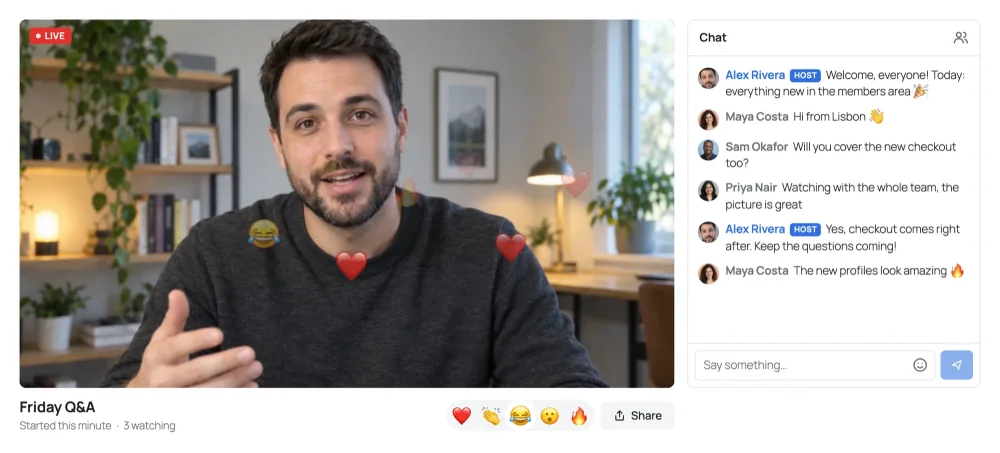
Two kinds of plugin under one name
Search the plugin directory for live streaming, and two kinds come back, often with the same words in their names.
Plugins that embed a stream from elsewhere. You go live on a video platform or a streaming service, and the plugin puts its player on your page, sometimes with a list of past videos or a badge while the channel is live. The video, the audience and usually the chat stay on that platform. They cost little or nothing, and they do neatly what embedding a live stream does by hand.
Plugins that stream on the page itself. The host goes live from the WordPress admin or from an encoder, the picture plays in a player of the plugin on your page, and your site decides who watches. A service behind the plugin carries the video, because a WordPress server answers requests for pages and cannot send a live picture to many viewers at once.
A listing rarely says which kind it is in its first line. Two things in its description tell you: whether you need an account or a channel somewhere else to go live, and whether it gives you a place to go live in the admin.
The ten checks at a glance
| Check | Ask | Why it matters |
|---|---|---|
| 1. Where the video runs | Your server, a platform or a service | It decides how many can watch, and what it costs |
| 2. The delay | How many seconds behind the host viewers are | A question in the chat needs its answer while it still matters |
| 3. Going live | Browser, encoder or both, and over which protocol | Your encoder must speak it |
| 4. Watching | Browser or app, phones, slow connections | Every step between a visitor and the picture loses some of them |
| 5. Who watches | Your users and roles, or a list of its own | A members only stream must know your members |
| 6. The chat | Beside the player, moderated, saved or not | A busy chat without moderation is unreadable |
| 7. On a page | Blocks, shortcodes, a countdown, what is live now | It has to fit the pages you already have |
| 8. After the stream | A recording, a replay, the numbers | Many people watch later |
| 9. The cost | What it counts, and the sum for 50 and for 500 viewers | Plans count hours watched, viewers or hosts |
| 10. Living with it | A free test, updates, support, translations, hooks | You will run it for years |
1. Where the video runs
Every viewer is a stream of video going out from somewhere, for as long as they watch. Two hundred viewers at a few megabits a second each are hundreds of megabits a second leaving one place, all through the stream. There are three places it can leave from:
- Your WordPress server. It is built to answer requests for pages, one after another, not to hold hundreds of video streams open. If a plugin says the video runs on your own server, ask how many viewers one server feeds, and what happens to the rest of your site while it does.
- A video platform. It carries any audience, and the stream, the audience and the rules about what you may stream are its own.
- A streaming service behind the plugin. It carries the video from the host to every viewer, while the plugin keeps your pages, your users and the settings in WordPress. Ask where its servers are, near your audience or not.
Ask one more thing: whether a crowd of viewers is a crowd of requests to WordPress. A plugin whose stream pages work with your page cache serves a public stream like any other page.
2. How far behind the host viewers are
Most video on the web reaches viewers over HLS, in segments of a few seconds each, and a player should start no closer to the live edge than three times the length of a segment (RFC 8216, section 6.3.3). So viewers usually see the host several seconds after it happens. WebRTC sends the picture as it is made, and viewers are about a second behind. WebRTC vs HLS shows where each delay comes from.
It matters wherever the chat talks to the host: a Q&A, a class, a launch with questions, a community show. A few seconds go unnoticed in a concert or a talk with no questions. Ask the number, then measure it yourself (the afternoon test below shows how).
3. How hosts go live
- From the browser. A studio in the WordPress admin, with a camera, a microphone and a shared screen, and nothing to install. Browsers give a page the camera and the microphone only over HTTPS (MDN), so your site needs it. For hosts who stream from home, ask whether the studio can blur the room behind them and take the noise out of the microphone.
- From an encoder such as OBS, for scenes, overlays and several cameras. The plugin gives a server address and a key, and the encoder must speak the protocol it takes: RTMP, the older one, or WHIP, the standard for sending WebRTC (RFC 9725), which OBS sends since version 30 (the OBS guide). RTMP vs WebRTC explains the difference, and What WHIP is how to send it.
Also ask who may go live: administrators alone, or also editors, teachers or members.
4. What viewers need
- A browser, and nothing else. No app to install and no account on another site.
- A phone on mobile data. A good player sends each viewer the picture size that their screen and connection need, not one size for everyone, so a phone gets less than a big screen and a slow connection keeps playing.
- The usual controls: full screen, picture-in-picture, volume, and a way to read the chat in full screen.
- Keys and screen readers, for viewers who use them.
- Something to see before and after. A cover and a countdown before the start, and a clear end when it is over, rather than an empty frame.
5. Who can watch
A stream is for everyone, for logged-in users, for some roles or for paying members. Check whether the plugin asks WordPress who is logged in, or keeps a list, a password or a secret link of its own beside your users. A secret link is forwarded, and a password is shared.
Then check where the rule holds. A plugin may hide the player from those without access while the video itself stays open to anyone who finds its address. A stream for members should refuse them the picture too. How to run a private live stream for your members compares the ways and what each really protects. If your members come from a membership plugin, ask whether the streaming plugin gives it a hook to decide.
6. The chat
- Where it sits: beside the player, in a sidebar of its own, or nowhere.
- Who writes: logged-in users only, or visitors too.
- Moderation: pin a message, delete one, mute or remove a person, ban them, and slow the chat down, and who may do it. A large audience buries every question without slow mode.
- Saved or for the moment: a chat kept on your site with its history, or one that is gone after the stream.
How to add a live stream with chat to your website goes through each of these.
7. On a page
- A block for the block editor, with layouts that put the chat beside the player or under it.
- A shortcode for page builders, widgets and templates.
- A start time, with a countdown, a calendar entry and, for a weekly show, a schedule that repeats.
- A list of the streams live now, for your home page or a sidebar.
- Its look, in your colours and your type, so it does not look like a frame from another site.
Where the streams are the reason the site exists, these parts become its pages, as How to make a live streaming website with WordPress shows one by one.
8. After the stream
Many of your viewers will come later. Ask whether the stream can be recorded, where the recording is kept, on your site or on the service, and whether the replay plays on the same page with the same rule of who may watch. Ask what the plugin tells you afterwards: the peak, the time on air and, for a class, who watched.
9. What a bigger audience costs
The plugin itself is often free or a one-off price, and the cost is the service that carries the video. Services count in different ways: hours watched, viewers at once, hosts, or a plan with a cap. So ask:
- What is counted, and is there a cap of viewers? What happens past it: do new viewers wait, or does the stream stop?
- Do hosts count? Does waiting on the countdown count? Does a recording cost extra?
- What does an hour cost with 50 viewers, and with 500?
10. Living with it
- A free test. Going live in a test, before paying, shows more than any page of features.
- Its page on WordPress.org: when it was last updated, the WordPress version it is tested up to, the PHP it needs, and whether the questions in its support forum are answered.
- Translations, of the player and the chat too, through the translations of WordPress.
- Hooks for developers, to give the groups, courses or events of another plugin a stream, or let members go live.
Test any plugin in an afternoon
- Use a copy of your site, with your theme, your page builder and your cache plugin.
- Go live from the browser, then from your encoder, with the settings you will use.
- Measure the delay. Hold a clock with seconds up to the camera, watch on a phone beside it, and compare the two.
- Watch on a phone on mobile data, and on the slowest connection you have.
- Log out and open the page in a private window. A stream for members must refuse you there, the picture too, not only the page around it.
- Write in the chat from two accounts. Pin a message, mute one of them and turn on slow mode.
- Turn on your page cache, load the page twice, and check that the stream still plays.
- End the stream, and look at what is left: the replay, the numbers, the chat.
- Read the bill for that hour, and multiply it by the audience you expect.
The ten checks with Live Stream
Live Stream is a plugin of the second kind. Hosts go live from the browser or from OBS, viewers watch on the pages of your site over WebRTC, with the chat and reactions beside the picture, and the video and the chat run on WordPlus Cloud.
| Check | With Live Stream |
|---|---|
| 1. Where the video runs | On WordPlus Cloud, never through your WordPress server. The page of a public stream works with page caching |
| 2. The delay | About a second, over WebRTC |
| 3. Going live | From Live Stream → Studio in the browser, with a camera, a microphone and a shared screen, in HD or Full HD, or from OBS 30 or later and any WHIP encoder. No RTMP |
| 4. Watching | In the browser, with no app. Each viewer gets the picture size that their player and connection need, with full screen, picture-in-picture, keys and screen reader announcements |
| 5. Who watches | Everyone, logged-in users or chosen roles, and membership plugins decide with the wordplus_stream_can_watch filter |
| 6. The chat | A light chat with pin, delete, mute, remove, ban and slow mode, gone a day after its last message, or a Better Messages chat room saved on your site, or none |
| 7. On a page | The Live stream block with its layouts, a block and a shortcode for each part, a countdown with Add to calendar, repeating schedules, and the Live now list |
| 8. After the stream | A recording, its replay on the same page, and the files kept on your site. The time on air, the peak, the messages and the reactions |
| 9. The cost | 50 viewers at once on each site unmetered, then a credit a minute for each viewer above them |
| 10. Living with it | On WordPress.org as WordPlus Live Stream, a test stream with no subscription, the translations of WordPress, and hooks for developers |
Where it runs, and how far behind
The host sends the picture to WordPlus Cloud, which passes it on to everyone watching, so a crowd of viewers never reaches your WordPress server, and a page cache can serve the page of a public stream (Page caching). Viewers are about a second behind on a smooth connection (Low latency live streaming: why WebRTC).
Going live
Go live from Live Stream → Studio, from Go live in the admin bar on the page of a stream you host, or from the page itself with the Stream studio block (Going live from the browser). The room behind you can be blurred or replaced with a picture, and AI noise removal takes typing and fans out of the microphone, all in your own browser (Background blur, backgrounds and noise removal). For scenes and overlays, OBS sends over WHIP with the server address and bearer token the studio gives (Streaming from OBS).
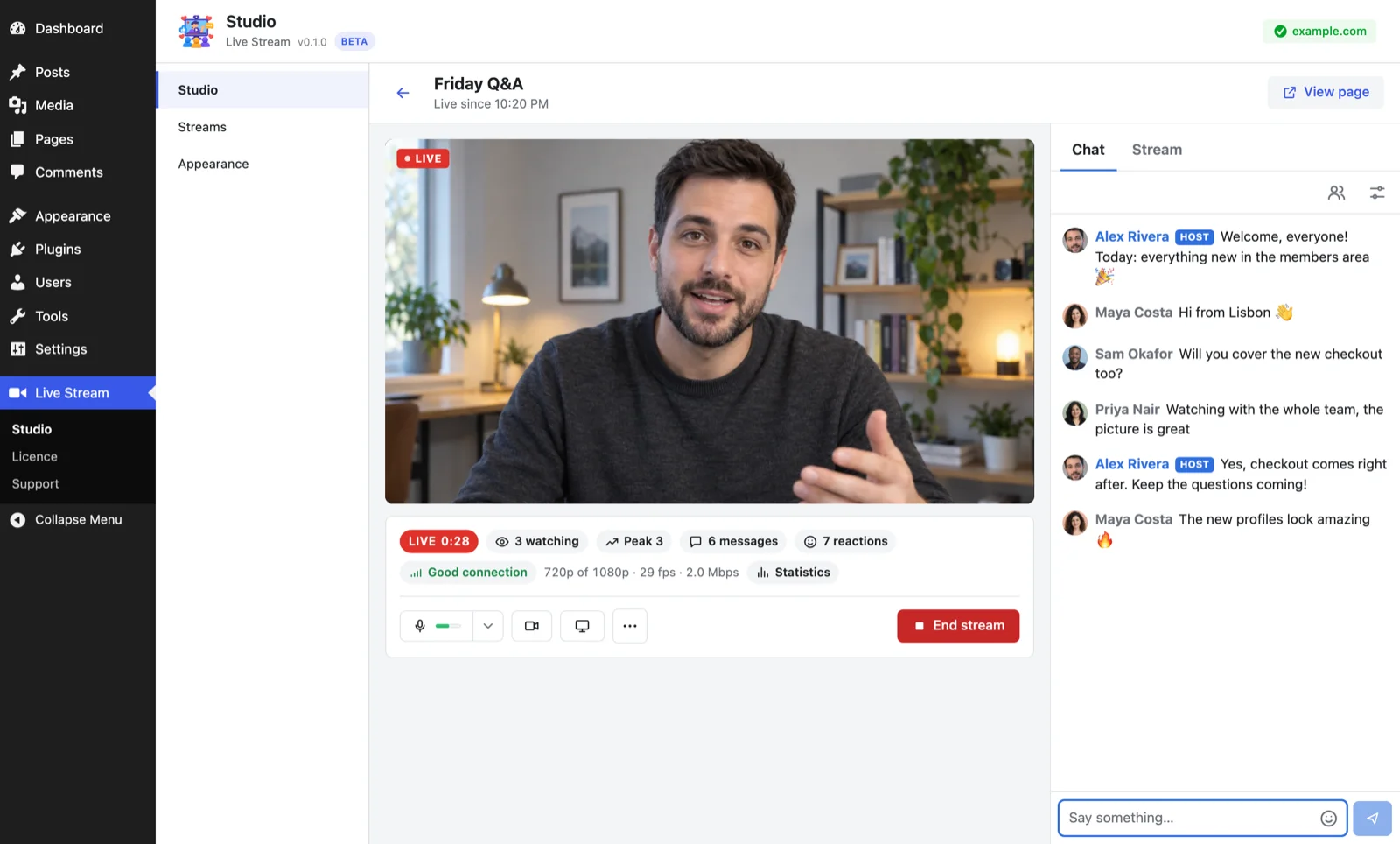
Administrators host every stream. Other users go live only where a developer lets them, with the wordplus_stream_can_host filter or a stream made for a member with wordplus_streams() (Live streams in your plugin).
Who watches, and where the rule holds
Each stream is for Everyone, Logged-in users or Selected roles, and the wordplus_stream_can_watch filter lets a membership plugin have the last word (Who can watch). The rule holds for the picture itself: your site signs a pass for each viewer it lets in, and WordPlus Cloud sends the stream only for a signed pass. A forwarded address sends a page, not a stream.
The chat
The light chat runs on WordPlus Cloud, with the moderation of check 6 and a pinned message, and is gone a day after its last message (Chat and moderation). Where the chat should stay, with history, files and its own community around it, it can be a chat room of Better Messages saved on your site (A live stream inside a Better Messages chat room).
Trying it
Everything on your site works without a subscription. In the studio, turn on your camera, press Start a test stream, then Watch it as viewers do: the page of the stream opens in another tab and plays your test as your viewers will get it, with its chat. Only you can see it, and nothing of it leaves your computer (A test stream).
What Live Stream does not do
- No RTMP. Encoders send over WHIP, as OBS 30 and later do.
- No guests on stage. The host is the one on camera. Viewers watch, write and react, and they do not come on camera.
- Administrators host, and other users only where a developer lets them.
- No checkout of its own. A membership plugin sells access, and its roles or the filter open the stream.
- No sending to other platforms at once. It streams to the pages of your site.
- No library for videos you upload. A replay plays on the page of its stream.
- It needs a WordPlus Cloud subscription that includes live streaming to go live for anyone but yourself.
What it costs
Live Stream is free to download, and streaming runs on a WordPlus Cloud subscription. Each site streams to 50 viewers at once unmetered, however long they watch, and each viewer above that takes a credit a minute. Each WordPress site adds 5,000 credits a month to its account, and more are on the pricing page of WordPlus Cloud.
Three examples:
- A weekly hour with 40 people at once stays within the 50, so it takes no credits, however many weeks it runs.
- A weekly hour with 80 people at once: the 30 above the 50 take 30 × 60 = 1,800 credits a show, 7,200 for four shows in a month, of which 5,000 come with the site and 2,200 from bought credits.
- A launch of an hour with 500 people at once: the 450 above the 50 take 450 × 60 = 27,000 credits.
The hosts take no credits, and neither do people waiting on the countdown. Recording takes a credit a minute besides. The details are in Viewers and credits, and What a live stream on your website costs turns them into the cost of a month.
Frequently asked questions
Which is the best live streaming plugin for WordPress?
The one of the right kind for your stream that passes the ten checks on a copy of your own site. A public show that should also reach the audience of a video platform fits a plugin that embeds from there. A stream for your own audience, on your own pages, with your members and a chat that is answered in the moment, fits a plugin that streams on the page itself.
Is there a free live streaming plugin for WordPress?
Plugins that embed a stream from a video platform cost nothing, and the platform carries the video. A plugin that streams on your own pages needs a service behind it to carry the video, and the service is what costs. Live Stream is free to download, and its streaming runs on a WordPlus Cloud subscription.
Can WordPress stream video from its own server?
Not to many viewers at once. A WordPress server answers requests for pages, and a live stream sends video to every viewer for as long as they watch. A streaming plugin hands that to a service, or to a media server you run yourself.
Do I need OBS?
No. A plugin with a studio in the browser goes live with a camera, a microphone and a shared screen. OBS adds scenes, overlays and several cameras.
Can I stream into WordPress over RTMP?
Some plugins take RTMP. Live Stream takes WHIP, which OBS 30 and later send, and no RTMP.
Do viewers need an app or an account?
With Live Stream, no app: they watch in the browser. An account only when the stream is for logged-in users or chosen roles.
Will live streaming slow down my site?
Not when the video runs on a service. With Live Stream, the video goes from the host to WordPlus Cloud and from there to each viewer, never through your server, and the page of a public stream works with page caching.
Can a stream be for members only?
Yes. Each stream is for everyone, for logged-in users or for chosen roles, and a membership plugin can decide with the wordplus_stream_can_watch filter.
How many people can watch?
With Live Stream, as many as come: a stream has no limit of viewers. The first 50 at once on each site are unmetered, and each viewer above them takes a credit a minute.