Moderating a Live Stream Chat: Pin, Mute, Ban and Slow Mode
To moderate the chat of a live stream, you need people who may act, settings that keep trouble out before it starts, and a tool for each kind of trouble while you are live: slow mode for a crowd, a pin for what everyone should read, a mute for someone too loud, and a ban for someone who has to go. On a WordPress site, Live Stream gives the chat beside each stream all of these, and the moderators are people your site already knows.
A chat on a stream is busier than a comment section. Messages come in while the host is talking, nobody scrolls back, and one person posting the same line twenty times can bury every question. This post goes through the order that works: who moderates, what to set before going live, what to do during, and where the tools stop.
What makes a stream chat hard to moderate
Three things set it apart from comments on a post.
- It moves fast. With a few hundred people watching, a message is on screen for seconds. A moderator who reads, decides and acts has very little time, so the tools have to be one click.
- The host is busy. Whoever is on camera cannot read every line and keep talking. A stream with a real audience needs at least one other person in the chat.
- The harm is live. A comment can wait in a queue for approval. A chat message is seen the moment it is sent, so moderation in a stream chat is mostly about what happens after, and about settings that make trouble less likely.
Choose who moderates
In Live Stream, three kinds of people moderate the chat of a stream:
- Its hosts. Administrators host every stream.
- The comment moderators of your site. Anyone WordPress lets moderate comments, which by default means Editors and Administrators.
- The roles the stream names. The Moderators setting of each stream adds roles, so a community can give the job to a role of its own without making those people editors.
So a moderator needs no extra account and no invitation link. They log in to your site as they always do, open the stream, and the menu is there. Hosts cannot be muted, removed or banned by anyone.
For a regular show, pick one or two people who are not on camera, give them a role, and name that role in the stream. They can moderate the chat of a stream after it has ended too, to clean up what is left.
Set the rules before going live
Most trouble is cheaper to prevent than to clean up. Each stream with the light chat has these settings, in Live Stream → Studio → Streams:
| Setting | What it changes |
|---|---|
| Visitors may write | Off by default: only logged-in users write, and visitors read with Log in to chat |
| Links | On by default. Turned off, only moderators post links, which keeps most spam out |
| While not live | Whether the chat stays open before the start and after the end, or only moderators write then |
| Start empty | Clears the chat each time the stream goes live, so an old argument does not greet new viewers |
| Who is here | Whether everyone sees the list of logged-in people watching, or only moderators |
| Moderators | The roles that moderate this stream, besides hosts and comment moderators |
Two of these matter most. Visitors may write decides whether anyone can post without an account, and the next section shows why that changes what a ban can do. Turning Links off is the single best setting against spam, since most spam is a link.
Some limits hold whatever the settings say. A message is at most 500 characters, and WordPlus Cloud takes no more than one message a second from anyone but a moderator, so no one floods the chat with a script typing faster than a person.
During the stream: the tools, one by one
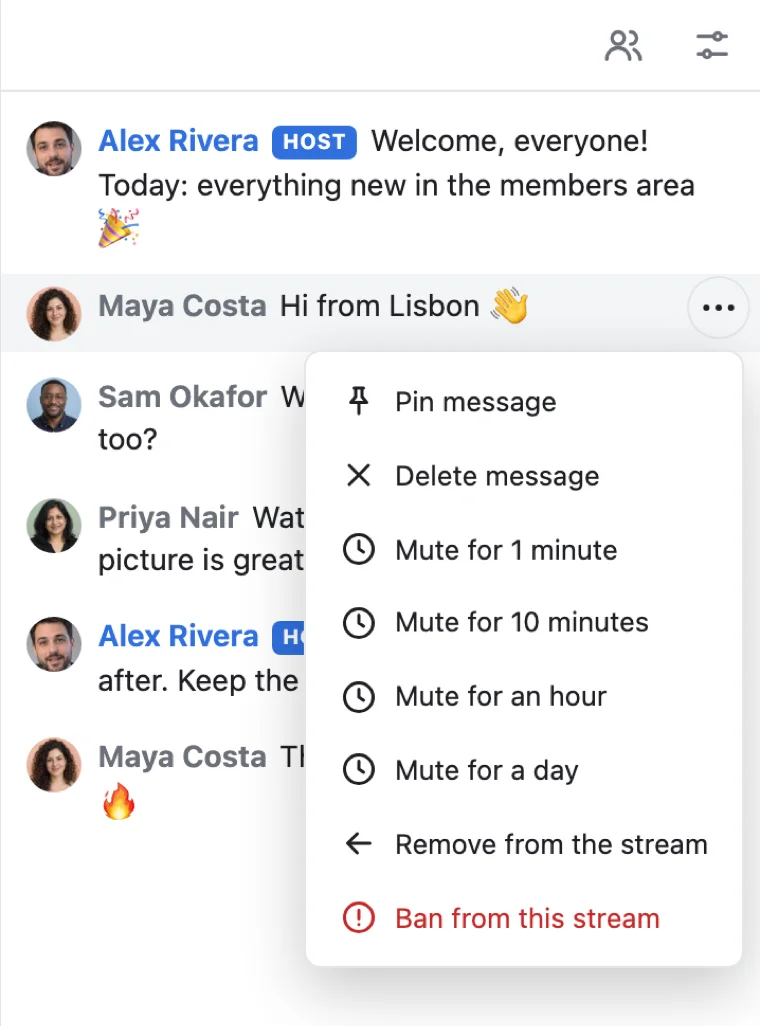
Each message has a menu for moderators, and so does each person in Who is here, the people button in the header of the chat.
Slow mode, for a crowd
When the chat moves faster than anyone can read, turn on Slow mode from the sliders button in the header of the chat: one message every 5, 10, 30 or 60 seconds for each person. Writers see the wait count down on the Send button, and moderators are never slowed.
Slow mode is the right tool when nobody is doing anything wrong and there are just too many people talking. It is often worth turning on at the start of a big stream and off again once it settles, and it makes the questions of a Q&A readable at all.
Pin, for what everyone should read
Pin message holds one message over the chat for everyone: the question the host is answering now, the link to the slides (a moderator can post links even with Links off), or a line of rules. Unpin message takes it down, and deleting a pinned message unpins it.
Delete, for one bad message
Delete message removes it for everyone. Use it for a single message that should not be there, from someone who is otherwise fine.
Mute, for someone too loud
Mute keeps someone from writing for 1 minute, 10 minutes, an hour or a day, and tells them when they can write again. They keep watching. Unmute lets them write at once.
A short mute is usually enough. Someone repeating themselves or arguing with the host often cools down in ten minutes, and it is gentler than taking them out of the stream.
Remove, for someone who needs to stop now
Remove from the stream puts them out at once. They read "A moderator removed you from this stream" and can join again. It is a firm warning, and it ends a scene without a lasting decision.
Ban, for someone who has to go
Ban from this stream takes them out of the stream and its chat, and keeps them from coming back. Moderators see the banned under Who is here, each with Let back, so a ban made in a hurry is easy to undo.
A ban is tied to the account of the person. That works well for logged-in users: they cannot write under that account or watch the stream again. A visitor who is not logged in has no account to ban, and gets a new identity each time they join, so a banned visitor can come back by opening the page again. If visitors start trouble, turn Visitors may write off: from then on they read the chat, and everyone who writes has an account a ban holds on to.
Clear, for a fresh start
Clear the chat, in the same sliders button as slow mode, removes every message for everyone, the pinned one too. It cannot be undone, so keep it for a chat that has turned into something you do not want new viewers to read.
A quick plan for a busy stream
- Before you start, turn Links off and decide whether Visitors may write is needed at all.
- Name a role in Moderators and give it to one or two people who are not on camera.
- Pin a line of rules, or the question of the moment.
- If the chat speeds up, turn on slow mode at 5 or 10 seconds.
- For someone too loud, mute for 10 minutes before anything stronger.
- Remove or ban only those who come back after a mute, or who post something that cannot stay.
Where the light chat stops
The light chat is meant for the moment: text and emoji, run by WordPlus Cloud, and not saved. Its messages are gone a day after the last one. It has no list of banned words, no way for viewers to report a message, and no automatic filter: moderation is done by people. A ban holds for one stream, not across every stream of the site.
If you need the messages kept, with history, files and the moderation tools of a full chat plugin, a stream can take a Better Messages chat room as its chat instead, saved on your site, and moderated in Better Messages. A live stream in a Better Messages chat room shows how that looks.
What it costs
The chat comes with the stream. Streaming runs on a WordPlus Cloud subscription, and each site streams to 50 viewers at once unmetered, however long they watch. Above that, each viewer takes a credit a minute, and the pricing has the credits. Hosts take no credits, and a message in the chat costs nothing.
For setting up the stream and its chat on a page, see How to add a live stream with chat to your website. For a stream only members watch, where a ban means more, see How to run a private live stream for your members. Every way to stream on WordPress is in How to live stream on a WordPress site, and every chat setting and moderation tool is in the docs, Chat and moderation.
Frequently asked questions
What is slow mode in a live chat?
A wait between the messages of each person: with slow mode at 10 seconds, everyone but the moderators can send one message every 10 seconds. It keeps a busy chat readable without stopping anyone from taking part.
What is the difference between muting and banning?
A mute keeps someone from writing for a while, from a minute to a day, and they keep watching. A ban takes them out of the stream and its chat and keeps them from coming back, and a moderator can let them back from Who is here.
Can I moderate the chat without being on camera?
Yes. Hosts moderate, and so do the comment moderators of the site and the roles the stream names. A moderator watches the stream page like anyone else and has the menu on every message.
Can visitors who are not logged in write in the chat?
Only where the stream lets them, with Visitors may write. They write as "Guest". As a banned visitor can come back by opening the page again, keep it off for streams that draw trouble.
Is the chat saved after the stream?
The light chat is not: its messages are gone a day after the last one. A Better Messages chat room keeps them on your site.