How to Run a Private Live Stream for Your Members
To run a private live stream for your members, put the stream on your own site and let its login decide who watches: each member signs in with the account they already have, and nobody else gets a player. A secret link or a shared password also keeps strangers out for a while, but either one can be passed on, and neither knows who your members are.
This post goes through the four ways to keep a live stream private and what each one really protects, then sets up a members only live stream on a WordPress site with Live Stream. For every way to stream on WordPress, private or not, start with How to live stream on a WordPress site.
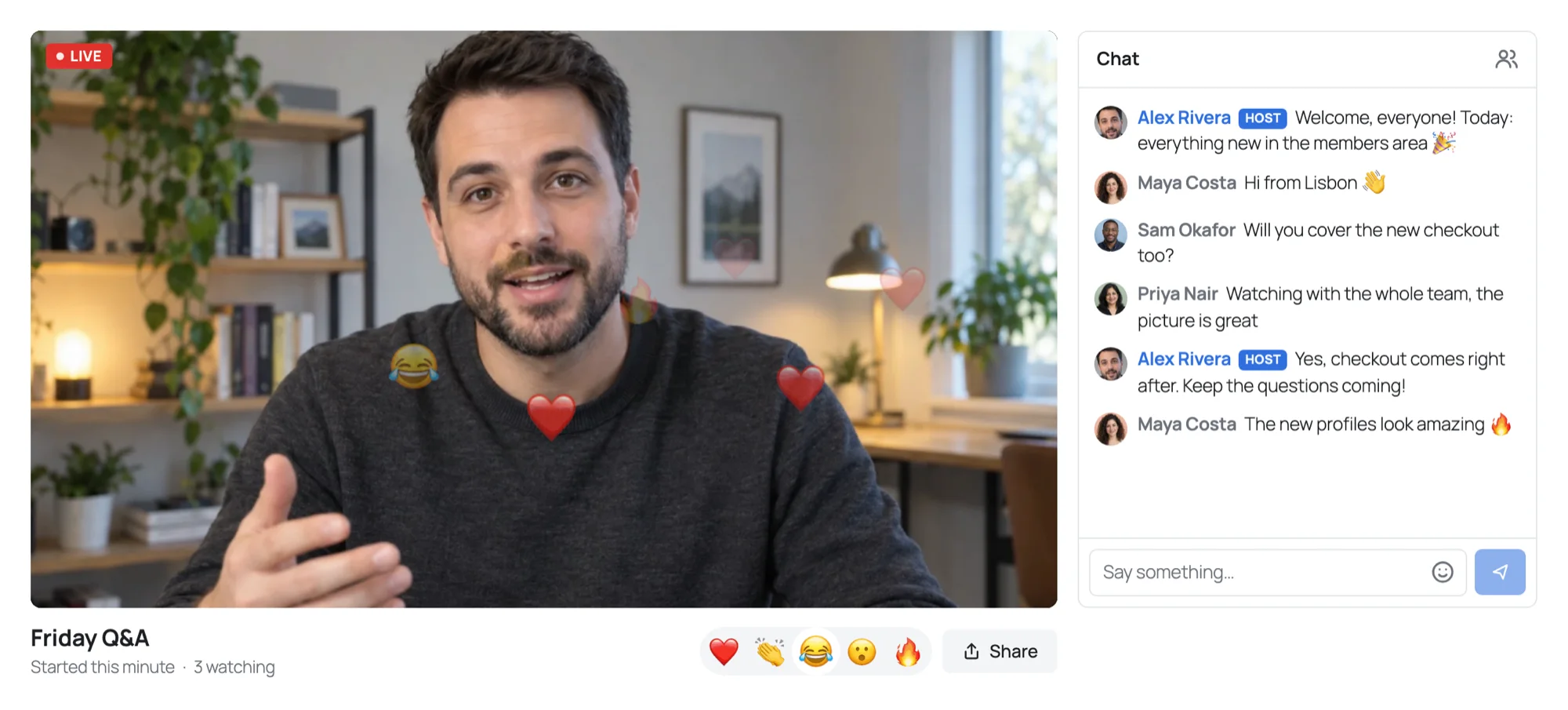
The four ways at a glance
| Way | Who gets in | What it cannot do |
|---|---|---|
| A link kept secret | Anyone who has the link | Stop the link from being passed on |
| An invitation on a platform | The accounts you name there | Follow who joins and leaves your membership |
| A password | Anyone who has the password | Tell one viewer from another |
| The login of your own site | The accounts and roles your site lets in | Let in someone with no account |
The first three are quick, and the fourth is the only one that knows your members. Which one fits depends on what happens if the wrong person watches.
1. A link kept secret
Go live on a platform with the stream set so that only people with its link find it. On YouTube this setting is Unlisted: its help page says an unlisted video stays out of search and recommendations, and that anyone with the link can see it and share it.
That last part is the whole of it. The link is the key, and a key that can be copied is only as private as the most careless person who has it. You cannot see who used it, and you cannot take it back from one person without ending the stream for all.
You can still put such a stream on a page of your site, as How to embed a live stream on your website shows, and hide that page from visitors. The player in the frame checks nothing of that: whoever has the link of the video watches it without your page.
Fits: a stream for people you trust, where nothing bad happens if a few more watch.
2. An invitation on a platform
Some platforms let you name who may watch. On YouTube, the same help page says a Private video can be seen only by you and the people you choose, added by their email addresses, and its address cannot be shared on. YouTube can also stream to the paying members of a channel (Live stream to members-only).
This is a real lock. What it does not know is your site. The list of who may watch lives on the platform, so every member who joins or leaves has to be added or taken off there by hand, and the members of a channel are not the members of your site.
Fits: a handful of people, once.
3. A password
Many streaming services can put a password on a player, and WordPress itself can put one on a page (Protect posts with password). Viewers type it once and watch.
A password is one key for everyone. It travels as easily as a link, changing it locks out the people who should get in, and it cannot tell one viewer from another, so the chat beside the stream has no names you can rely on.
Fits: a single event for a group that has no accounts on your site, such as a family occasion.
4. The login of your own site
The stream plays on a page of your site, and the site checks each viewer against its own users before the player connects. Nothing is handed out that could be passed on:
- Each viewer is an account. A role, a membership plan or a course decides, the same way it decides everything else on your site. For a course, live classes on LearnDash, Tutor LMS and other LMS plugins shows the check of each LMS.
- It follows your members by itself. Someone who joins today watches today, and a membership that ends takes the stream with it.
- One person can be put out. A moderator removes or bans an account, and everyone else keeps watching.
- The chat has real names. People write under the name and avatar they have on your site.
What it takes is a player that asks your site who is watching, which a frame from a platform cannot do. On WordPress, Live Stream does this, and the steps are below.
Fits: members, students, customers and staff, and any stream where it matters who is in the room.
What private does not cover
- Recording a screen. Whoever may watch can point a camera at their screen or record it. No link, password or login prevents that, so say in your terms what members may do with a stream.
- A shared login. A member can give their login to a friend, as on any site with accounts. With accounts, at least, that is a name you can see and remove.
- The page around it. A private stream keeps the picture and the chat from strangers. The title of the page and the text around the player are as public as you publish them.
A members only live stream on WordPress, with Live Stream
Live Stream is a live streaming plugin for WordPress. Hosts go live from the browser or from OBS, and viewers watch on the pages of your site over WebRTC, about a second behind the host, with the chat beside the picture. Your site decides who watches each stream.
1. Install it
In WordPress, go to Plugins → Add New Plugin, search for WordPlus Live Stream, install and activate it, then enter your licence key under Live Stream → Licence (Getting started). To see the page first, a test stream works with no subscription. Only you can see it.
2. Create the stream and choose who can watch
Open Live Stream → Studio → Streams and press Create stream. Its Who can watch setting has three choices:
| Choice | Who watches |
|---|---|
| Everyone | Anyone with the page, logged in or not |
| Logged-in users | Everyone with an account on your site |
| Selected roles | The roles you tick. With none ticked, every logged-in user |
For a private stream, choose one of the last two. Two things to know:
- Logged-in users means anyone who can register. If Anyone can register is on under Settings → General, a stranger can sign up and watch. For paying members, choose their role under Selected roles.
- Administrators always get in. They host every stream.
3. Let your membership plugin decide
If your membership plugin gives its members a role of their own, tick that role and you are done. For the groups of a BuddyPress or BuddyBoss community, Live streams on a BuddyPress or BuddyBoss community lets only the members of each group watch its stream.
If it keeps memberships in its own tables, a few lines ask it. The wordplus_stream_can_watch filter gets what the stream itself decided, its rules, the ID of the user and the number of the stream, and returns whether that user may watch. With Paid Memberships Pro, whose pmpro_hasMembershipLevel() takes a level and a user:
add_filter( 'wordplus_stream_can_watch', function ( $can, $rules, $user_id, $stream_id ) {
    // Stream 12 is for the members of level 3.
    if ( 12 === $stream_id && function_exists( 'pmpro_hasMembershipLevel' ) ) {
        return $can && $user_id > 0 && pmpro_hasMembershipLevel( 3, $user_id );
    }

    return $can;
}, 10, 4 );
With WooCommerce Memberships, the line inside becomes wc_memberships_is_user_active_member( $user_id, 'gold' ), with the slug of your plan. Any other plugin works the same way, with its own check. The number of a stream is the one in its shortcode, shown in its settings. The code goes in a small plugin of your own, and Who can watch has the reference.
Keep the stream itself on Logged-in users, so that visitors are turned away before the filter is asked. The hosts of the stream are never asked: they always watch.
4. Put it on a page
Press Create a page beside the stream in the Studio tab, or add the Live stream block to a page of your members area and choose a layout (Putting a stream on a page).
- Someone kept out sees You do not have access to this stream where the player would be. The player has no login button of its own, so put a line above it with a link to your login or join page.
- The Live now list shows each visitor only the streams they may watch, so a members stream is never listed to anyone else.
- A start time gives members who come early a countdown and Add to calendar. Live classes and webinars on WordPress goes further into scheduled streams.
5. Choose the chat
On a private stream, only those who may watch are in the chat, each under their own name.
- Light chat is for the moment: text and emoji, gone a day after the last message. Its Who is here setting shows the logged-in people watching, to moderators or to everyone.
- A Better Messages chat room is saved on your site, with history. The room made with a stream starts with the same people: for a stream of selected roles, those roles join and write in it. For a community that already talks in rooms, see A live stream inside a Better Messages chat room and Better Messages.
Both are set up step by step in How to add a live stream with chat to your website.
6. Go live, and keep the door
In Live Stream → Studio, choose Go live beside the stream, and go live from the browser or from OBS over WHIP.
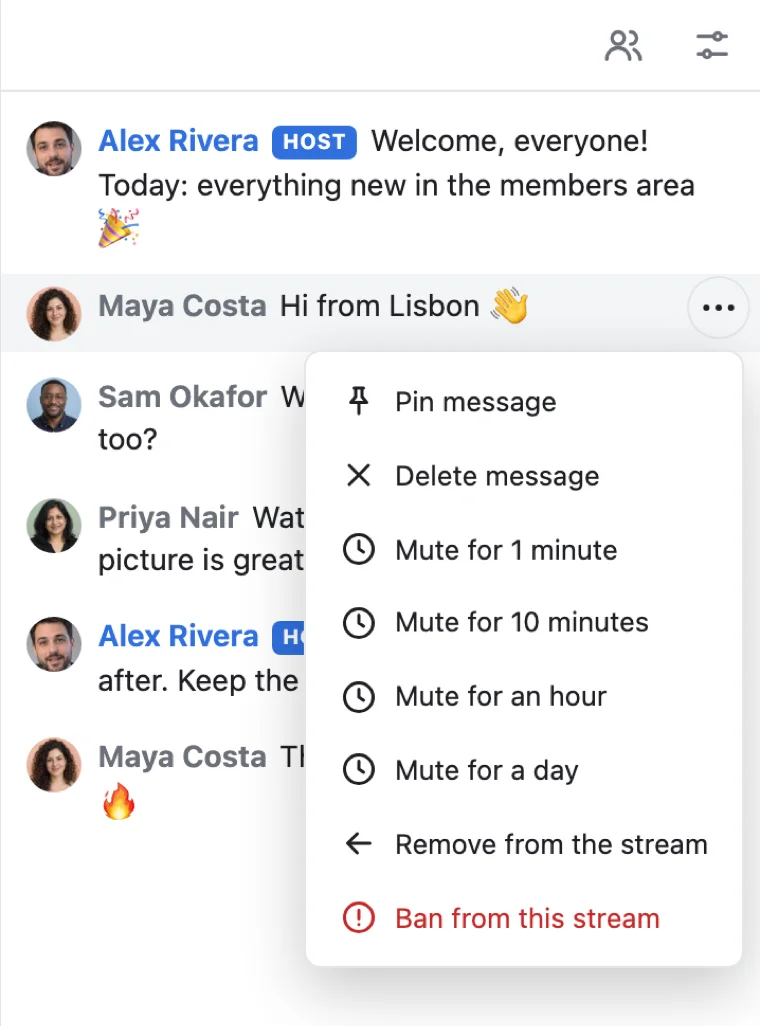
While you are live, moderators have a menu on each message and on each person in Who is here. Remove from the stream puts someone out now, and Ban from this stream keeps their account out of the stream and its chat until a moderator lets them back (Chat and moderation). Moderating a live stream chat says when to mute, remove or ban.
To keep the size of the audience to yourself, turn Viewer count off in the Appearance tab. Hosts and moderators still see it.
7. Give members the replay
Press Record in the studio, or turn on Record every time this stream goes live. Where the replay is for viewers, the page of the stream plays it a few minutes after the end, to everyone who may watch the stream and to nobody else (Recording and replays).
How your site keeps strangers out
A private stream with Live Stream has no address of its own to pass on. This is what happens when someone opens its page:
- The browser asks your site for a pass. Your site checks Who can watch and any filter, for the account that is logged in.
- Your site signs the pass, for that one person and that one stream. It lasts a few minutes, and a browser on another website cannot use it.
- WordPlus Cloud lets in only a signed pass. Without one, it sends no picture and no chat.
- The stream travels encrypted, as every WebRTC session does (RFC 8827).
So a member who forwards the address of the page sends a page, not a stream: whoever opens it without the right account reads You do not have access to this stream. WebRTC vs HLS explains why a connection made for one viewer is simple to keep private.
Seeing who watched
For a course or a paid event, you may need to know who was there. Two actions tell your code as a signed-in person starts and stops watching, wordplus_stream_joined and wordplus_stream_left, the second with the seconds they watched while the stream was live. A few lines keep that with the user (Hooks).
What it does not do
- No password and no invitation link for a stream. Every viewer of a private stream has an account on your site.
- It sells nothing itself. A membership plugin sells the plan, and a role or the filter lets its members in.
- Members do not go live from its settings. Administrators host. A developer can give each member a stream of their own with the API (Example: members going live).
- No RTMP and no guests on stage. Encoders send over WHIP, hosts are on camera, and viewers write and react.
- It needs WordPress and a WordPlus Cloud subscription that includes live streaming.
What it costs
A private stream counts like any other. The plugin is free to download, and streaming runs on a WordPlus Cloud subscription. Each site streams to 50 viewers at once unmetered, however long they watch, and each viewer above that takes a credit a minute. Each WordPress site adds 5,000 credits a month to its account, and more are on the pricing page of WordPlus Cloud.
An example: 80 members watch at once for an hour. 50 of them are unmetered, and the 30 above them take 30 × 60 = 1,800 credits, out of the 5,000 the site adds that month. Recording takes a credit a minute besides. Hosts take no credits. The details are in Viewers and credits.
Frequently asked questions
What is a private livestream?
A live stream that only the people you choose can watch, where a public one is open to anyone who finds it. The choice is made by a link kept secret, an invitation, a password, or the login of the site it plays on.
Do I need a private live streaming platform?
Not a separate one, when your members already have accounts on your site: the site is the place, and its login is the lock. A platform of its own fits viewers who have no account with you.
Can I make a live stream private on WordPress?
Yes. With Live Stream, set Who can watch to Logged-in users or Selected roles, and only those accounts get the stream on your pages. A membership plugin can decide with the wordplus_stream_can_watch filter.
Can someone share the link to my private stream?
They can share the address of the page. The stream stays shut: the player on that page connects only for an account your site lets in, and everyone else reads You do not have access to this stream.
Can people without an account watch a private stream?
No. A private stream is for accounts of your site. For people without one, make the stream for Everyone, or let them register first.
Can I put a password on a stream?
Not with Live Stream. It works with accounts and roles. A password on the WordPress page hides the page, while the stream on it stays open to whoever its Who can watch setting lets in.
Can I sell access to a private live stream?
Through a membership plugin, yes. Live Stream has no checkout of its own: the membership plugin sells the plan, and its role or the wordplus_stream_can_watch filter opens the stream to those who have it.
Does a private stream show in the Live now list?
Only to those who may watch it. Everyone else sees the list without it.
How many members can watch a private stream?
As many as come: a stream has no limit of viewers. The first 50 at once on each site are unmetered, and each viewer above them takes a credit a minute.
Is a private stream encrypted?
On the way, yes: WebRTC always encrypts the picture and the sound between each viewer and the media servers. Private in this post means who gets in, which your site decides.