How to Live Stream on a WordPress Site
Live streaming on a WordPress site sounds like one feature, and it is several. Someone goes live with a camera or an encoder. The picture travels to everyone watching, close enough to the moment that they can react. A player shows it on your page, a chat sits beside it, and your site decides who may watch and who may go live.
WordPress itself does none of that, so every way to stream on it hands the video to something else. This guide goes through each of them, what it takes to set up and to run, and then walks through going live with Live Stream, the plugin we make for it.
The ways at a glance
| Way | What viewers get | What it takes |
|---|---|---|
| Embed a stream from YouTube, Facebook or Twitch | The player and chat of that platform, on your page | A channel there. Free |
| A paid streaming service | An embedded player, often without the platform around it | A plan, usually priced by viewing hours |
| Your own streaming server | Whatever player you build | Servers, bandwidth and someone to run them |
| A meeting tool | A meeting or webinar, usually in its own app | A licence for each host |
| A live streaming plugin | A player and chat on your pages, for the people your site lets in | The plugin and the service behind it |
1. Embed a stream from YouTube, Facebook or Twitch
The quickest way needs no plugin at all. Go live on YouTube, Facebook or Twitch, copy the embed code of the stream, and paste it into a Custom HTML block. For YouTube, pasting the address of the stream into a YouTube block works too.
Good: it costs nothing, these platforms carry any audience, and many people already know how to watch there.
Not so good:
- The stream lives on the platform. Viewers watch in its player, the chat and the audience belong to its account, and its rules decide what you may stream.
- Your site cannot say who watches. Anyone with the link can, and a members only stream needs the private or unlisted settings of the platform, which know nothing of your members.
- These platforms deliver video in segments of a few seconds, so viewers see the host several seconds after it happens, and a question in the chat is about a moment the host has already moved past.
Fits: a public show that should also reach people on the platform itself.
2. A paid streaming service
Hosted streaming services give you an ingest address for your encoder and a player to embed, without the branding and suggestions of a social platform. Many are priced by the hours watched, or by a plan with a monthly allowance.
Good: a clean player on your page, and the service handles the scale.
Not so good: the player still knows nothing of your members, so access needs tokens or passwords from the service. The chat is a separate product, if there is one. Most deliver over HLS, with the same few seconds of delay as the platforms above.
Fits: a company that streams events to a large public audience and wants its own look.
3. Your own streaming server
Open source servers take an RTMP or WebRTC stream in and send it out to players. You rent a server, install one, and embed its player.
Good: full control, and no service in between.
Not so good: you run it. Every viewer is a stream out of your server, so bandwidth grows with the audience, and a crowd needs more servers in more places. The player, the chat, who may watch and keeping it all up to date are yours to build.
Fits: a team with someone who runs servers, and a reason to.
4. A meeting tool
Zoom, Google Meet and Microsoft Teams run webinars, and a WordPress plugin can create the meetings for you and put the link on a page.
Good: everyone can come on camera, and these tools record.
Not so good: people leave your site for the app of the meeting, and a meeting is not a broadcast: it is built for people who talk to each other, and its webinar plans are priced by host and by audience size.
Fits: a class where students speak on camera, a team meeting.
5. A live streaming plugin
A plugin can put the whole stream on your own pages: the host goes live from the WordPress admin, viewers watch on a page of your site, and the chat sits beside the player. The plugin needs a service behind it to carry the video, because a WordPress server cannot send a live picture to many viewers at once.
This is what Live Stream does. Its video and chat run on WordPlus Cloud, and your site keeps the decisions:
- Hosts go live from the browser, with a camera, a microphone and a shared screen, in Live Stream → Studio, or from OBS 30 or later over WHIP.
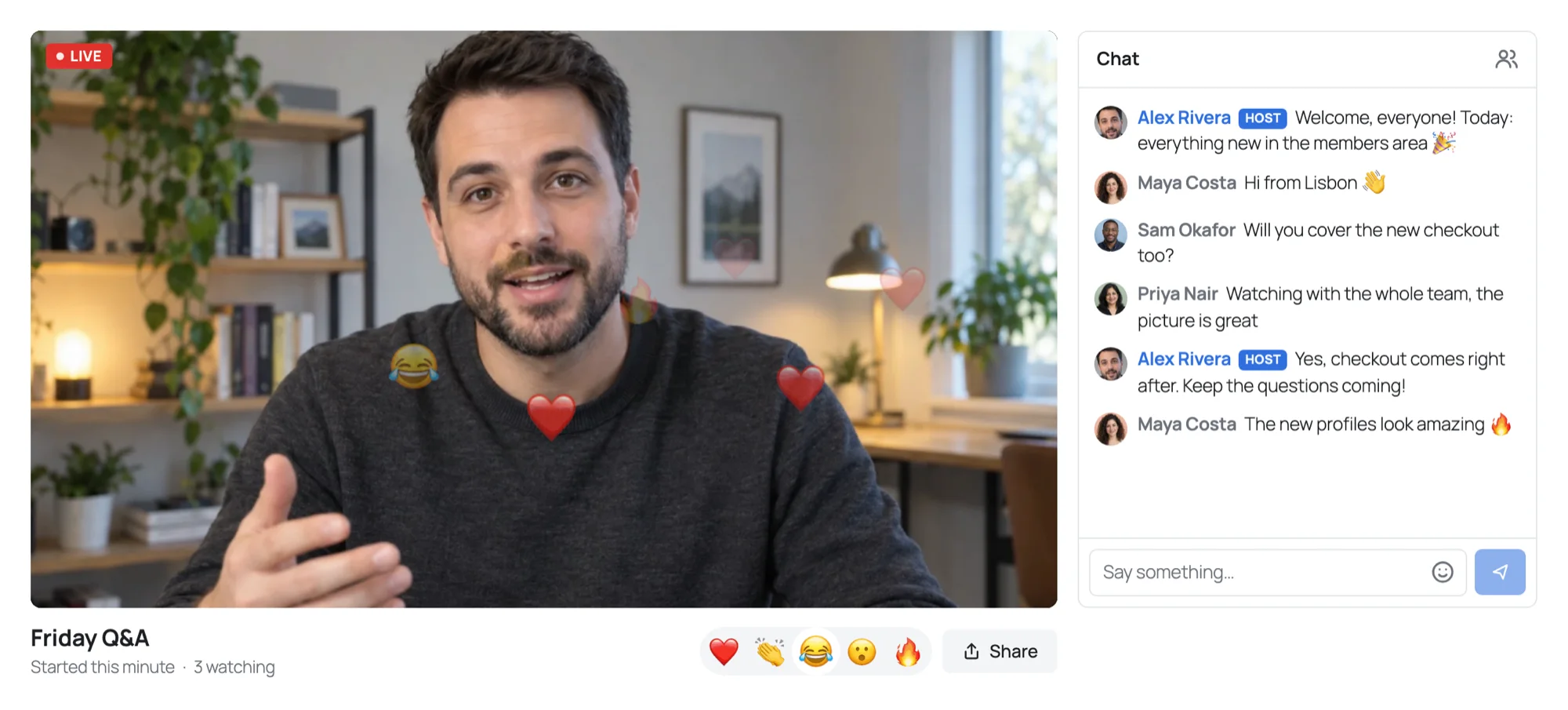
- Viewers watch in the browser over WebRTC, with low delay and no app, on any page you put the stream on, with the block or the shortcode.
- Your site decides who watches: everyone, logged-in users, or the roles you choose, and a membership plugin can decide with a filter.
- The chat is beside the stream, with reactions and moderation, or a Better Messages chat room saved on your site.
Not so good: it needs a WordPlus Cloud subscription that includes live streaming, and it is a beta.
Fits: streams for your own audience, on your own site: classes, members only shows, Q&A sessions, launches, community streams.
Going live on WordPress with Live Stream
What you need
- WordPress 6.0 or later and PHP 7.4 or later.
- Your site on HTTPS. Browsers let a page use the camera and the microphone only over HTTPS.
- A WordPlus Cloud subscription that includes live streaming. Each site streams to 50 viewers at once unmetered, however long they watch, and each viewer above that takes a credit a minute (Viewers and credits).
- An upload that carries your picture: up to about 4 Mbps for HD, up to about 8 Mbps for Full HD.
1. Install the plugin
In WordPress, go to Plugins → Add New Plugin, search for WordPlus Live Stream, press Install Now, then Activate. A Live Stream menu appears in the admin.
2. Activate the licence
Go to Live Stream → Licence and enter your WordPlus Cloud licence key. A site that already runs Better Messages on the subscription is connected already.
3. Create a stream
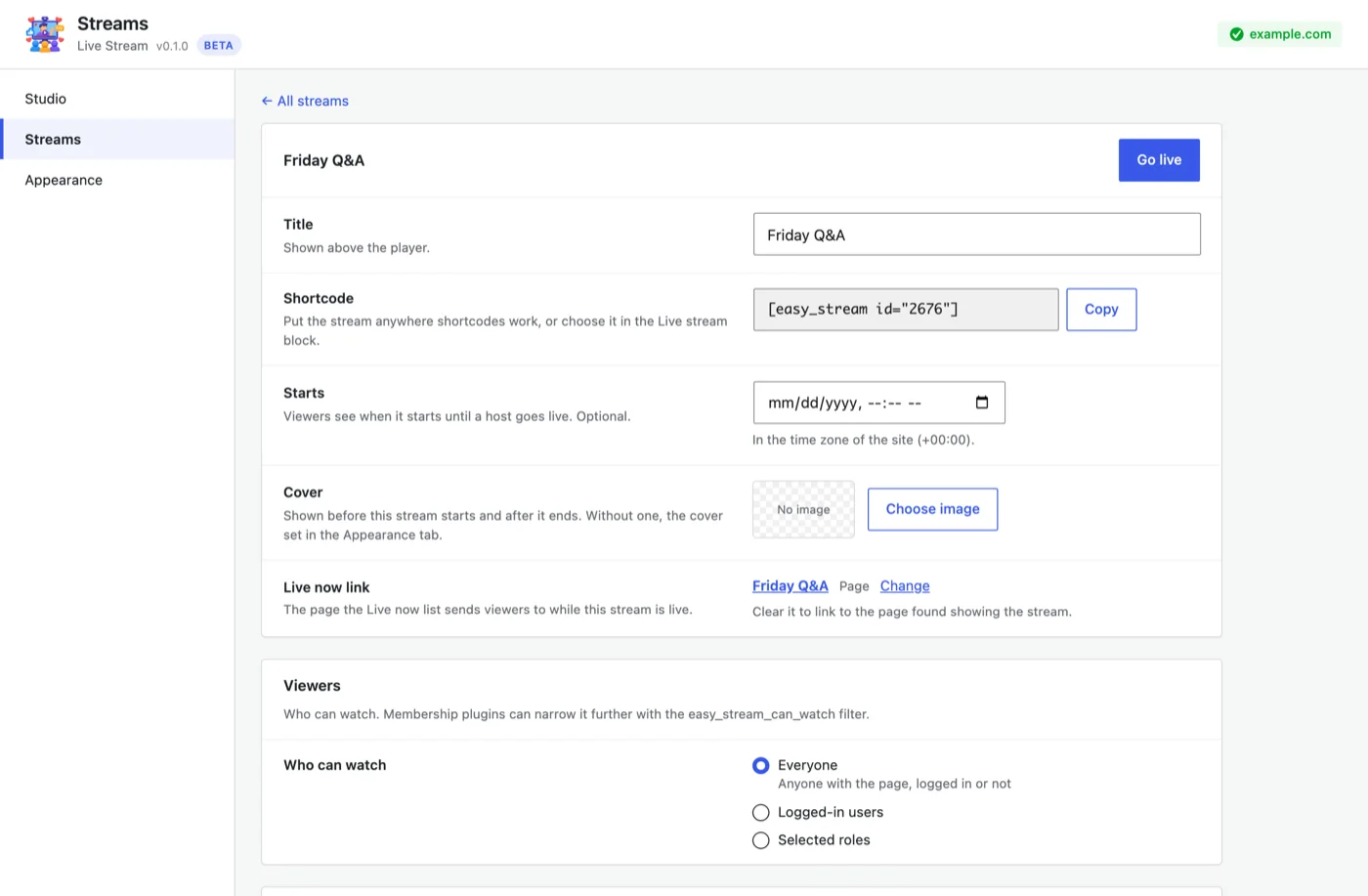
Open Live Stream → Studio → Streams and press Create stream. Give it a title, a start time if you like, a cover, and choose who can watch. Press Save changes.
4. Put it on a page
Press Create a page beside the stream in the Studio tab, and Live Stream publishes a page with the stream on it, the chat beside the player. Or add the Live stream block to any page, or paste its shortcode, such as [wordplus_stream id="12"], into a page builder.
A stream with a start time shows a countdown until you go live, with Add to calendar.
5. Go live
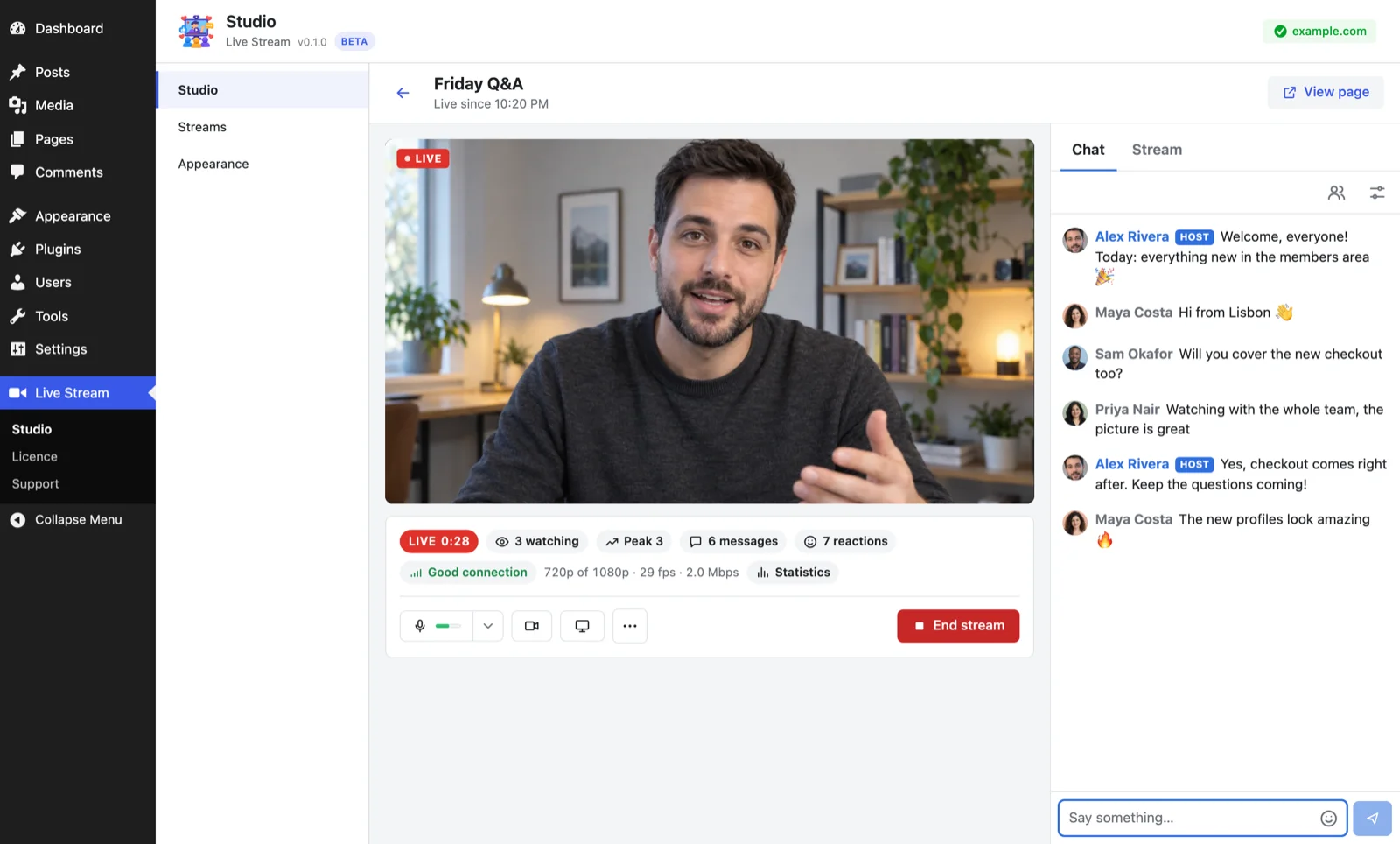
In Live Stream → Studio, choose Go live beside the stream to open its studio. Choose Turn on camera and microphone, pick your devices and the quality, and press Go live. Everyone on the page sees the stream begin, without reloading.
For scenes, overlays and several cameras, stream from OBS instead: How to stream from OBS to WordPress over WHIP.
Before your first stream
- Try it on a page nobody else knows. Go live, and watch it from another device, on another network if you can.
- Watch the statistics. While you are live, the studio shows how your picture goes out, and Statistics opens the details (When your stream goes out badly).
- Plan the start. A start time gives viewers a countdown and a calendar entry, and your page can collect them before you begin.
- Choose the chat. The light chat is for the moment and is gone a day after. A Better Messages chat room keeps every message (Chat and moderation).
Frequently asked questions
Can I live stream on WordPress for free?
Embedding a stream from YouTube, Facebook or Twitch costs nothing. Live Stream is free to download, and streaming with it needs a WordPlus Cloud subscription, which streams to 50 viewers at once on each site unmetered.
Will live streaming slow down my WordPress server?
Not with a plugin built on a streaming service. The video goes from the host to WordPlus Cloud and from there to each viewer, never through your server, and the page of a public stream works with page caching, so a crowd of viewers is not a crowd of requests to WordPress.
Do viewers need an account?
Only if you want them to. Each stream is for everyone, for logged-in users, or for the roles you choose.
Can I go live from my phone?
Yes. The studio works in the browser of a phone, with its front or back camera.
Can I record the stream?
Yes. A stream can be recorded while live, and its page then plays the replay (Recording and replays).