How it works
Three steps from nothing to live
Everything happens in your WordPress admin. There is no streaming server to run: WordPlus Cloud carries the video and the chat, and your site decides who watches and who goes live.
- 1
Create a stream
In Live Stream → Studio, open Streams and create one: its title, when it starts, who watches and who hosts.
- 2
Put it on a page
Press Create a page, or add the Live stream block to any page. Page builders take its shortcode, such as
[easy_stream id="12"]. - 3
Go live
Open the stream in the Studio, turn on your camera or start OBS, and press Go live.
Features
A studio for your hosts, a player for everyone
Hosts get the controls they need without leaving WordPress. Viewers get a player and a chat on your own pages, in your site's look.
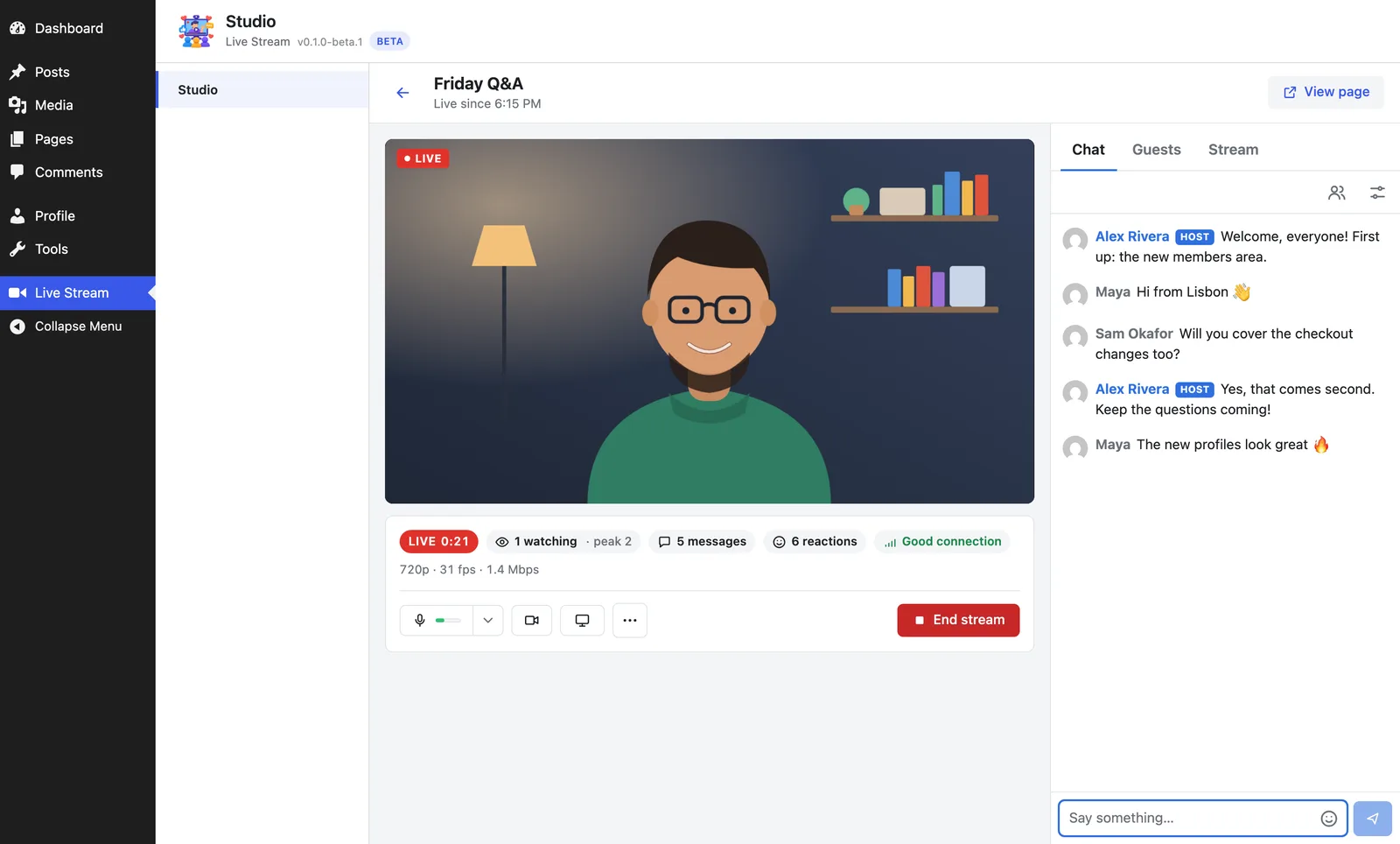
Go live from your dashboard
Live Stream → Studio puts the picture, the controls and the chat side by side. Every host has it, not only administrators, and a host on the stream's page finds Go live in the admin bar.
- Choose the camera, microphone and speakers, with the microphone’s level as you speak
- Share your screen, and count down 3, 2, 1 before going live
- See time on air, viewers, messages, reactions and the connection while live
Or stream from OBS
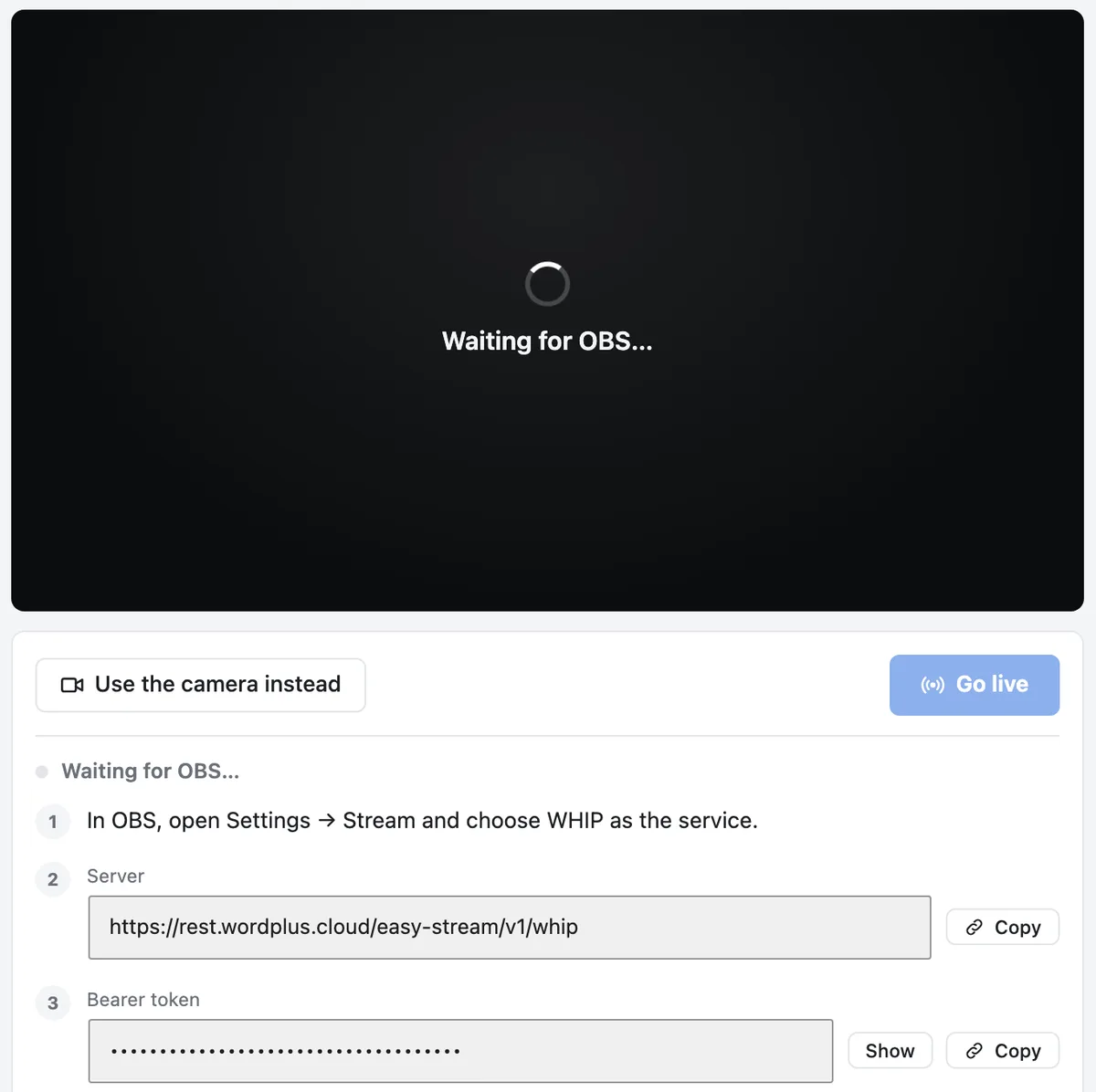
Scenes, overlays, several cameras: stream from OBS 30 or later, or any encoder that sends WHIP. The studio gives the server address and a bearer token to paste into OBS, says what to set its output to, and shows OBS's picture before you go live.
A chat beside the stream, and the tools to keep it friendly
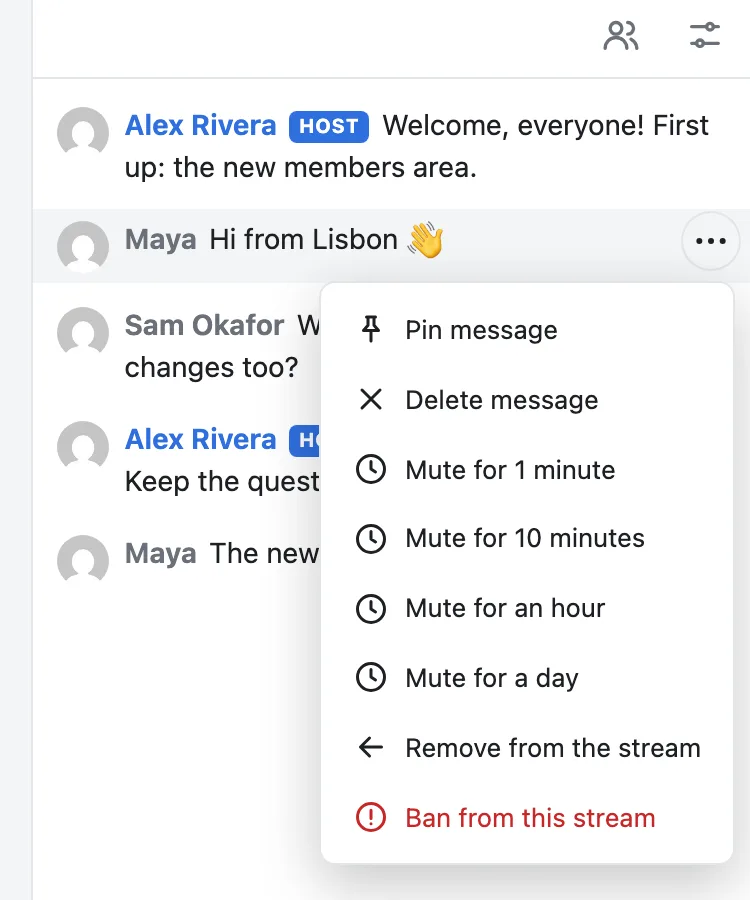
Names, avatars and roles, reactions that rise over the picture, emoji in your site's style, a pinned message and slow mode. Moderators mute someone for a minute or a day, remove them from the stream or ban them, and clear the chat. Keep it open before and after the stream, or only while live.
On any page, laid out your way
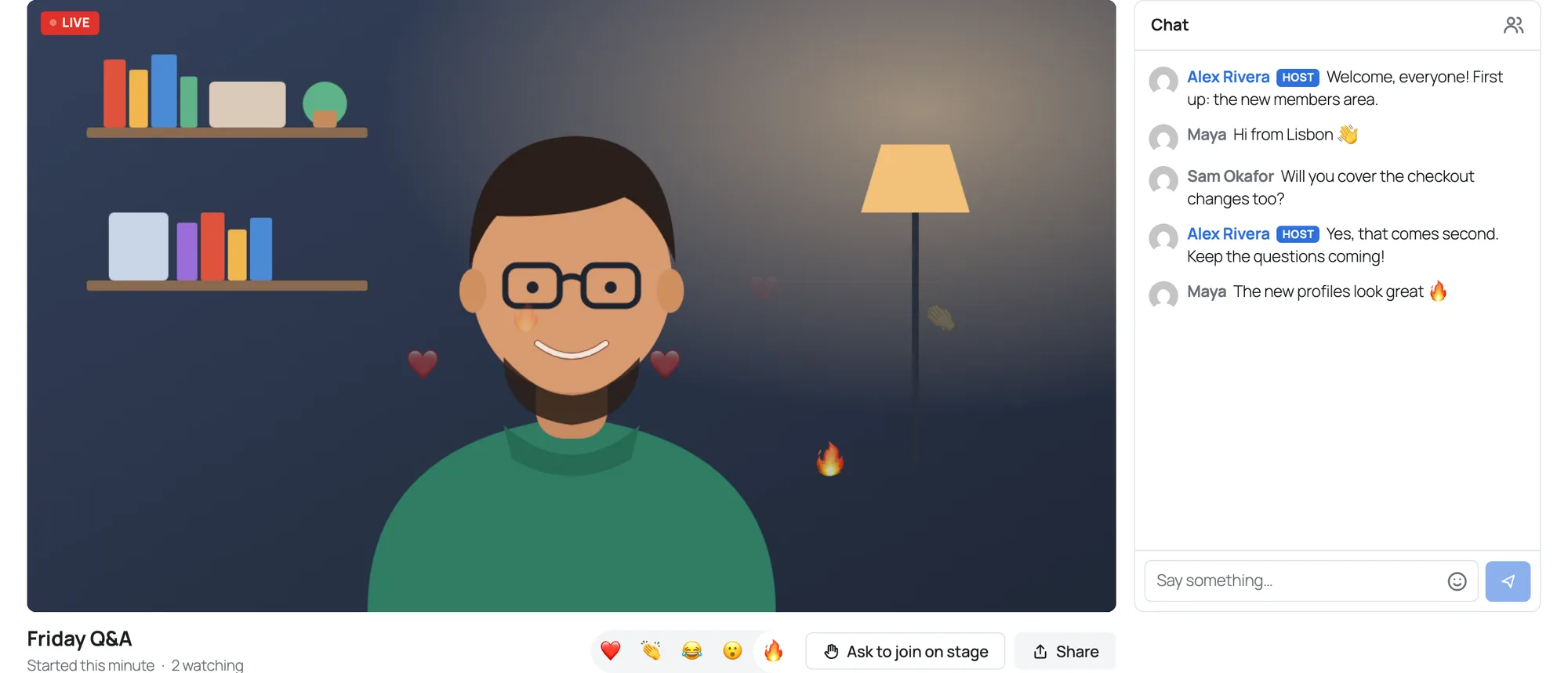
The Live stream block shows a stream in a ready layout: the chat beside the player, below it, a vertical video, or the player alone. Or lay it out with the stream's own blocks, the player, the chat, the details and the studio, between any others. The editor draws each one as visitors will see it.
Blocks, each with its shortcode
- Live stream
[easy_stream id="12" layout="side"] - Stream player
[easy_stream_player id="12"] - Stream chat
[easy_stream_chat id="12" height="600"] - Stream details
[easy_stream_details id="12"] - Stream studio
[easy_stream_studio id="12"] - Live now
[easy_stream_live show="both"]
Made to look like your site
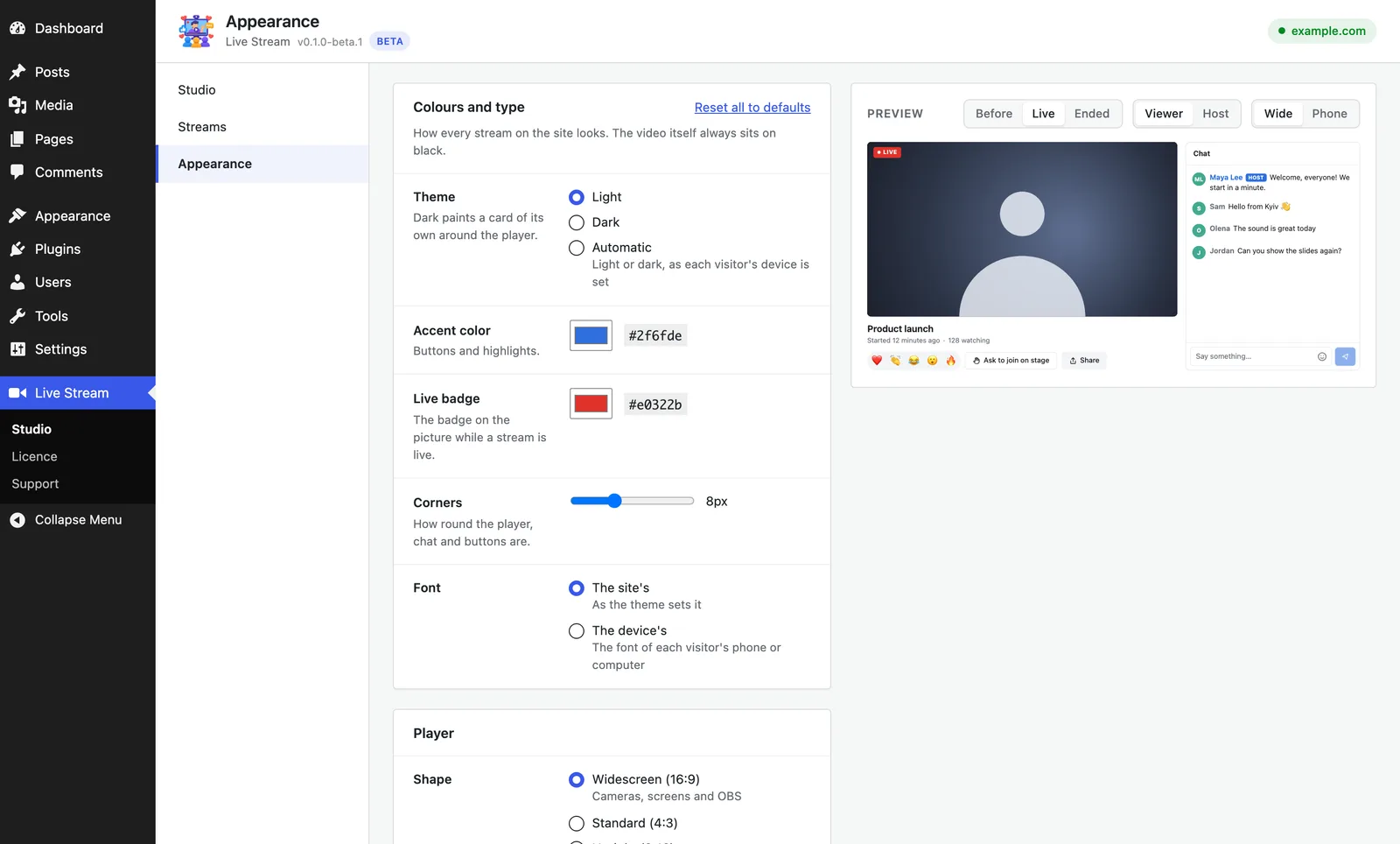
Light, dark or automatic, your accent colour and font, round or square corners, a wide, standard or upright player, your logo over the picture and a cover before the start. A live preview shows each moment, as a viewer or as the host, wide or on a phone.
Low delay, sized for each viewer
Viewers watch over WebRTC, right in the browser. Each gets the picture their player's size and connection need, and can pick a lower quality to save data. Quality
Scheduled streams
Give a stream a start time and its page counts down to it, with Add to calendar for Google Calendar, Apple Calendar or Outlook. Scheduling
Public or private
Everyone, logged-in users, or the roles you choose. Membership plugins can decide too, with the easy_stream_can_watch filter. Who can watch
Live now
A block or a shortcode lists the streams live right now and changes the moment one goes live or ends. It can list those coming up, show cards, or sit in a header as a Live badge. Live now
In your site's language
Every word, in the admin and in the player, goes through WordPress's own translations. Translations
Light on your server
The video and the chat run on WordPlus Cloud's servers, and a public stream's page works from your page cache, so a crowd of viewers doesn't mean a crowd of WordPress requests.
The beta
Try it on your site while it's in beta
Live Stream works, and it still changes. It comes with a WordPlus Cloud subscription, which runs the video and the chat. Download the plugin from the Downloads page of your WordPlus Cloud account; it isn't on WordPress.org yet.
50
viewers a stream at once, during the beta
The hosts don't count among them. When a stream is full, the next viewer waits and joins as soon as a place frees up.
Questions
What people ask first
What does Live Stream need?
WordPress 6.0 or later, PHP 7.4 or later, and a WordPlus Cloud subscription, which includes live streaming. The video and the chat run on WordPlus Cloud's servers, so there is no streaming server to set up. Getting started
Where do I get it?
From the Downloads page of your WordPlus Cloud account, as a zip to upload under Plugins → Add New Plugin. It isn't on WordPress.org yet.
How many people can watch?
During the beta, up to 50 viewers a stream at once. The next ones wait and join as soon as a place frees up. About the beta
Can I stream from OBS?
Yes, from OBS 30 or later, or any encoder that streams over WHIP. The studio gives you the server address and a bearer token to paste into OBS. Streaming from OBS
Can a stream be for members only?
Yes. Each stream is for everyone, for logged-in users, or for the roles you choose, and membership plugins can decide with the easy_stream_can_watch filter. Who can watch
Does it record streams?
Not yet. Recordings and replays are planned.