How to Run Live Classes and Webinars on WordPress
A live class and a webinar have the same shape. A teacher or a speaker goes live at a set time, shows their face and their slides, and talks to people who signed up for it. Those people ask questions in a chat, and someone keeps the chat friendly. Afterwards, everyone wants to know when the next one is.
Most sites run them on a meeting tool and send people a link. This post shows how to run them on your own WordPress pages instead, with Live Stream, for the people your site already knows: what each part takes, how to set it up, and where a meeting tool is still the better choice.
What a live class needs
- A time, and a way to remember it. A countdown on the page, and an entry in the calendar of each student.
- Only the right people in. Students of the course, members of a plan, or everyone with an account.
- The teacher and the slides. A camera, and a screen to share, or a produced picture from OBS.
- Questions. A chat beside the picture, close enough to the moment that the teacher answers while it still matters, and tools to keep it on topic.
- A page for each class, and a list of what is coming up.
Schedule the class, with a countdown
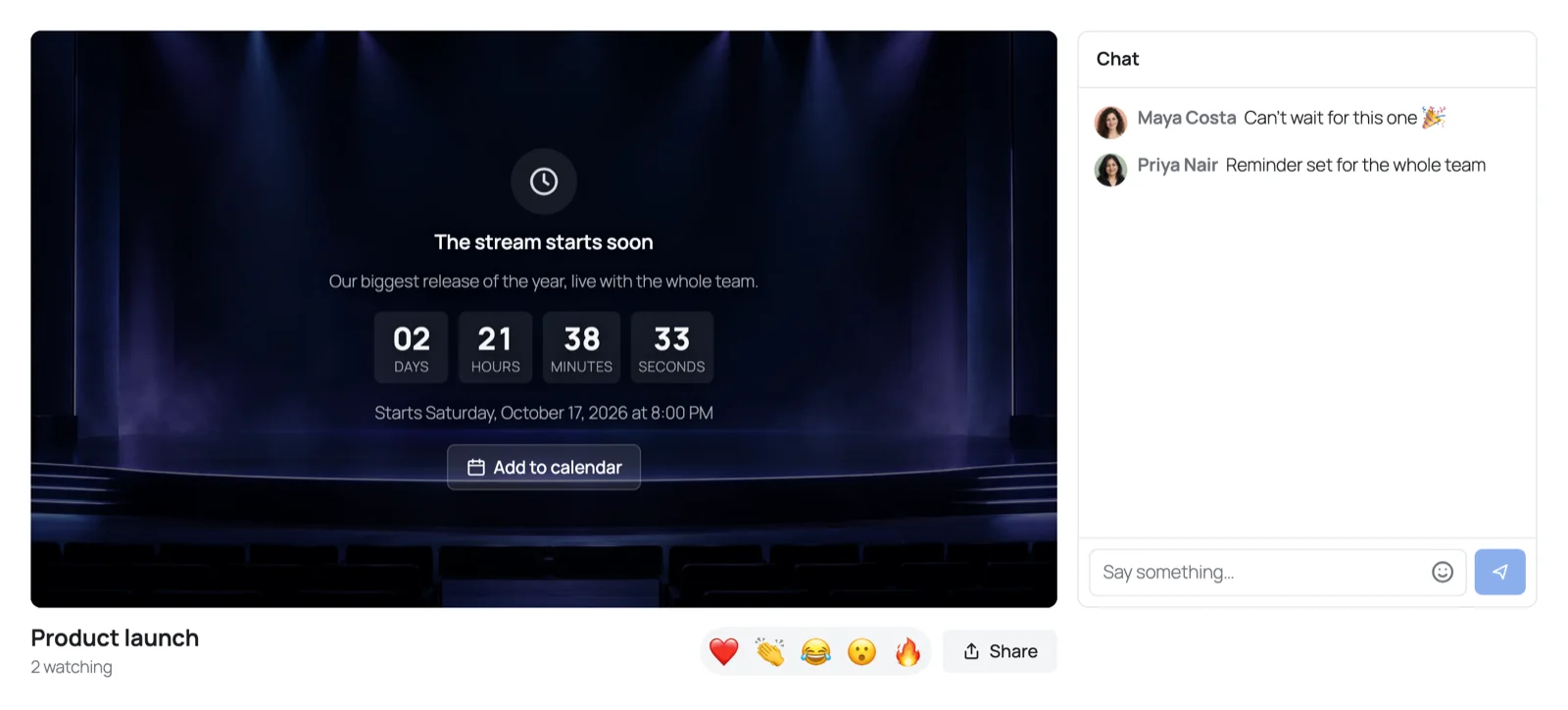
Create a stream in Live Stream → Studio → Streams and give it a time in its Schedule setting. Until the teacher goes live, its page shows the cover, a countdown to the start with its date and time, and Add to calendar, for Google Calendar or a calendar file for Apple Calendar and Outlook. When the teacher goes live, everyone waiting sees the class begin without reloading.
A weekly class or a webinar series keeps one stream with many times: one page, one chat and one OBS key, with nothing to change between sessions.
- Give each time a title of its own, such as "Spanish for beginners, lesson 4", and the countdown says it.
- Repeat these weekly copies the times on for the weeks you choose.
- After a session ends, viewers see the thanks with the next time under it, then the countdown to it.
The Live now block, or [wordplus_stream_live show="both"], lists the classes live right now and those coming up, each at its next time.
Let only your students in
Each stream has a Who can watch setting: everyone, logged-in users, or selected roles. For a class of paying members, choose their role.
Membership and course plugins can decide more finely with the wordplus_stream_can_watch filter, which gets the decision of the stream and the ID of the user, and returns whether that user may watch:
add_filter( 'wordplus_stream_can_watch', function ( $can, $rules, $user_id ) {
    // Only students with an active membership watch.
    return $can && my_membership_is_active( $user_id );
}, 10, 3 );
Nobody else can join it.
Teach with your camera and your screen
The teacher goes live from Live Stream → Studio in the browser: the camera, the microphone, and Share screen for slides, a document or a browser tab. The microphone is tuned for speech, with echo and background noise removed by the browser. The room behind the teacher can be blurred or replaced with a picture, and AI noise removal takes typing and fans out of the microphone (Background blur, backgrounds and noise removal).
For a produced class, with the slides and the camera in one picture, a lower third with the name of the teacher, or a second camera on a whiteboard, stream from OBS instead (How to stream from OBS to WordPress over WHIP).
Viewers watch in the browser over WebRTC, about a second behind the teacher on a smooth connection, so the chat is about what is on screen (Low latency live streaming: why WebRTC).
Questions, and a chat that stays on topic
The chat beside the player is where students ask. For a class, these tools help:
- Pin message holds the topic, a link to the slides or the question being answered over the chat.
- Slow mode allows one message every 5, 10, 30 or 60 seconds, so a big class does not drown the questions.
- Links only from moderators keep spam out.
- Moderators are the hosts, the comment moderators of the site, and the roles you choose, such as teaching assistants. They delete messages, mute someone for a minute or a day, remove them from the stream or ban them.
For a class whose conversation should stay, with files and history, make the chat a Better Messages chat room (A live stream inside a Better Messages chat room).
A page for each class
Create a page beside the stream in the Studio publishes a page with the stream and the chat beside it. Or start a page from the Webinar or Live event block pattern, or add the Live stream block to the page of a course or a lesson.
Course plugins can go further with the API of Live Stream, which gives each course its own stream, made and found by the course:
$stream_id = wordplus_streams()->create( array(
	'title'       => 'Weekly class',
	'object_type' => 'my_course',
	'object_id'   => 42,
	'settings'    => array( 'access' => 'logged_in', 'chat_with' => 'light' ),
) );
Hooks decide who hosts each stream, so the teacher of a course can go live from the page of the course, without access to the WordPress admin (Live streams in your plugin).
Where a meeting tool is still better
- Students on camera. Live Stream is a broadcast: the teacher is on camera, and students write. For a seminar where everyone speaks, use a meeting tool.
- Recordings. Live Stream records a class and plays the replay on its page (Recording and replays).
- Hosts. Administrators host every stream, unless a plugin lets more people host with the hooks above.
What it costs
Live Stream is free to download and streams on a WordPlus Cloud subscription. Each site streams to 50 viewers at once unmetered, however long the class lasts, and each viewer above that takes a credit a minute. Each WordPress site adds 5,000 credits a month to its account (Viewers and credits).
Frequently asked questions
Can students join without an account?
Yes, if you let them: a stream for everyone needs no account. Students who are not logged in read the chat, and write in it as Guest where the stream allows it.
How many students can watch?
As many as come: a stream has no limit of viewers. The first 50 at once on each site are unmetered.
Can I run a class every week on the same page?
Yes. Give the stream a time for each session, or Repeat these weekly, and it keeps its page, its chat and its OBS key.
Does it work with my LMS?
Any course or membership plugin can decide who watches with the wordplus_stream_can_watch filter, and its pages can show a stream with the block or the shortcode. The developer API gives each course a stream of its own.