How to Add a Live Stream with Chat to Your Website
To add a live stream with chat to your website, you need a player for the picture and a chat beside it, and there are three ways to get both: embed them from a platform such as YouTube or Twitch, put a separate chat next to a player, or use a plugin that brings the two together. On WordPress, Live Stream is that plugin: you add one block, choose Chat beside, and viewers watch and write on your own page.
The player is the easy part. Whether live streaming and chat work as a conversation depends on how far the picture runs behind the host, who may write, and who keeps it tidy. This post goes through each way, then sets one up step by step. For every way to stream on WordPress, with or without a chat, start with How to live stream on a WordPress site.
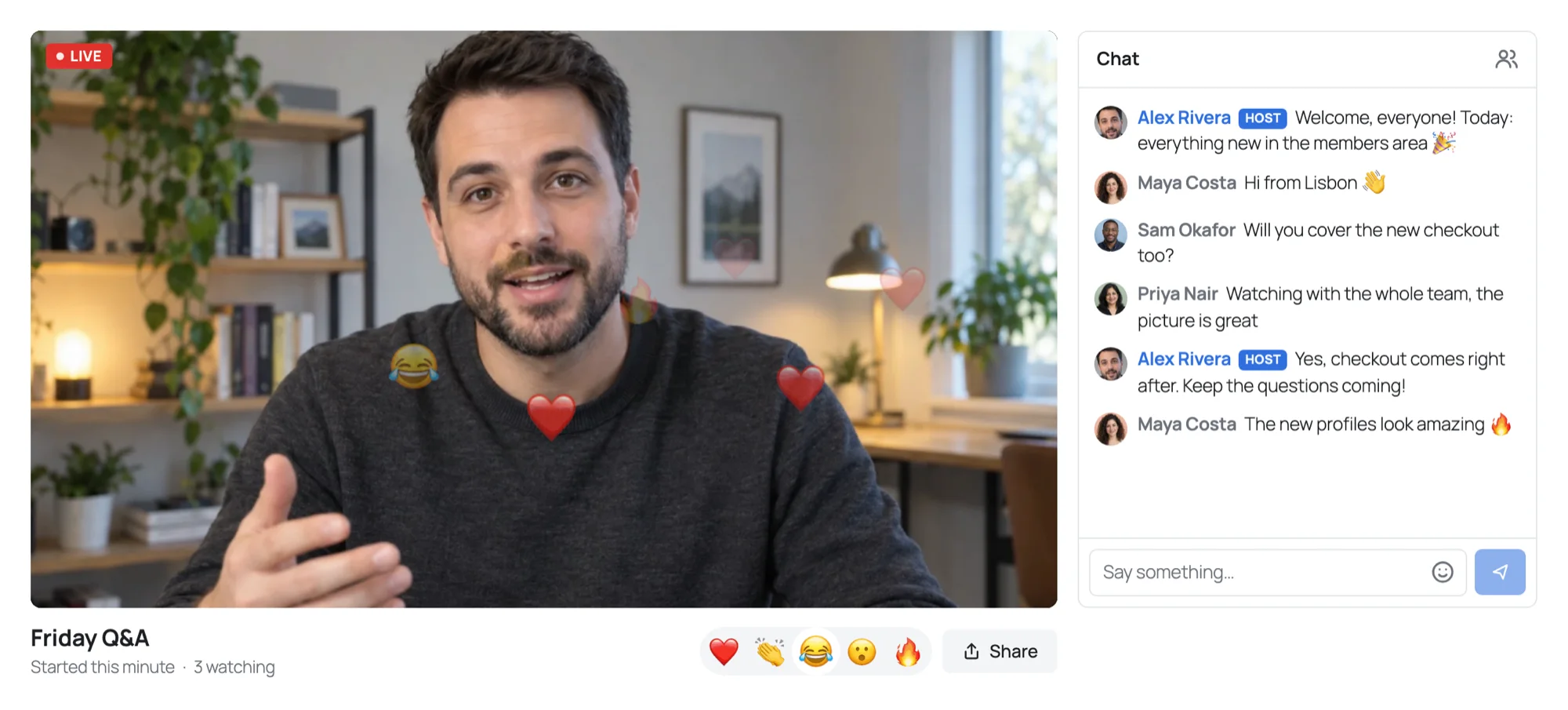
The three ways at a glance
| Way | What viewers get | What it takes |
|---|---|---|
| Embed both from a platform | The player and chat of that platform, as two frames on your page | A channel there and a few lines of HTML. Free |
| A player and a separate chat | Any player, with a chat widget next to it | A streaming service or server, a chat service, and a way to tell the chat who is who |
| A plugin with both | A player and chat made for each other, for the people your site lets in | The plugin and the service behind it |
1. Embed the stream and its chat from a platform
Go live on the platform, then put its player and its chat on your page as two frames. On YouTube, the chat has an address of its own, which takes the ID of the video and your domain. This puts the two side by side, and stacks them on a narrow screen:
<div style="display: flex; flex-wrap: wrap; gap: 16px">
  <div style="flex: 3 1 480px">
    <iframe
      src="https://www.youtube.com/embed/VIDEO_ID"
      title="Live stream"
      style="width: 100%; aspect-ratio: 16 / 9; border: 0"
      allowfullscreen></iframe>
  </div>
  <div style="flex: 1 1 300px">
    <iframe
      src="https://www.youtube.com/live_chat?v=VIDEO_ID&embed_domain=www.example.com"
      title="Live chat"
      style="width: 100%; height: 480px; border: 0"></iframe>
  </div>
</div>
On WordPress, that goes in a Custom HTML block. If a frame stays empty, the post on embedding a live stream goes through the usual causes. What to know before you rely on it:
- YouTube checks the domain. Its help page says
embed_domainmust match the address of the page, or the chat will not open. - Phones. The same page says embedded live chat is not available on mobile web, and that it works only during a live stream.
- Twitch has its own form. Its chat embed needs a
parentvalue for each domain of your site, and its embed of both shows the video and the chat side by side, with the chat under the video at narrow sizes. - The chat belongs to the platform. People write with their accounts there, its moderators keep order, and your site cannot say who may join.
Fits: a public show that should also reach people on the platform itself.
2. A player and a separate chat
Keep any player you like, from a streaming service or a server of your own, and put a chat widget next to it. Many chat services give you a line of code to paste. Before choosing one, check these:
- Names. Does the chat know the logged-in users of your site, or does each viewer type a name? With a typed name, anyone can write as the host.
- Moderators. Who can delete a message or mute someone, and do they need one more account for it?
- Full screen. A browser shows one element and what is inside it in full screen, so a player in a frame of its own covers the chat next to it.
- Phones. The chat falls under the player, and reading it scrolls the picture out of sight unless the player stays at the top.
- Delay. The widget cannot change how far the player runs behind (below).
Fits: a site that already has a player and wants to keep it.
3. A plugin with both
A plugin can put the player and the chat on your pages as one thing. This is what Live Stream does on WordPress. Both run on WordPlus Cloud, never through your web server, and your site decides who is there:
- One block. The Live stream block has ready layouts with the chat beside or below the player, and on a phone the chat goes under the picture.
- Their own names. Logged-in users write with the name and avatar they have on your site, and each stream can let visitors write as "Guest".
- Moderators you already have. The hosts of the stream, those who moderate the comments of your site, and the roles you choose.
- Full screen with the chat. The player and the chat fill the browser window together, and Hide chat gives the picture the whole of it.
- Low delay. Viewers watch over WebRTC, about a second behind the host on a smooth connection.
And what it does not do. It needs a WordPlus Cloud subscription that includes live streaming, and it runs on WordPress only. Encoders send to it over WHIP, not RTMP. Hosts are on camera while viewers write and react, so for a conversation with everyone on camera, a meeting tool fits better.
Fits: streams for your own audience on your own site, such as live classes and webinars, members only shows and Q&A sessions.
Why the delay decides whether a live stream chat works
A chat message reaches everyone almost at once. The picture may not. Players that fetch video in segments wait for several of them first: the HLS standard tells a player not to start less than three segment lengths from the live end. With segments of 4 seconds, that is 12 seconds behind the host before anything else adds to it.
So a viewer writes about something the host finished saying 12 seconds ago, and the host reads it in the middle of the next thing. Low latency modes bring this down to a few seconds. For a show nobody answers, it does not matter. For a Q&A or a class, it is the difference between a conversation and a string of late replies.
Live Stream plays over WebRTC, with no segments to wait for, so the chat beside the picture is about what is on screen. More on how: Low latency live streaming: why WebRTC.
Setting up a stream and its chat with Live Stream
1. Install it
In WordPress, go to Plugins → Add New Plugin, search for WordPlus Live Stream, install and activate it, then enter your licence key under Live Stream → Licence (Getting started). To see the page first, a test stream works with no subscription. Only you can see it.
2. Create a stream and choose its chat
Open Live Stream → Studio → Streams and press Create stream. Its Chat setting has three choices: Light chat, Better Messages chat room and No chat.
| Light chat | Better Messages chat room | |
|---|---|---|
| Messages | Gone a day after the last one | Saved on your site, with history and export |
| What people send | Text and emoji | Files, GIFs and stickers too |
| What it needs | Nothing more | Better Messages 3.1 or later, its WebSocket version |
The light chat suits a show for the moment. A community that should keep the conversation is better served by a Better Messages room (A live stream inside a Better Messages chat room). A new stream gets a room by itself where Better Messages runs its WebSocket version with an active licence, and the choice stays yours.
3. Put it on a page
Press Create a page beside the stream in the Studio tab, and Live Stream publishes a page with the stream on it, wide, the chat beside the player. Or add the Live stream block to any page, and choose a layout:
| Layout | What it shows |
|---|---|
| Chat beside | The player and its details, the chat beside them, under them on a phone |
| Chat below | The player, its details, then the chat, in one column |
| Vertical video | An upright player, as from a phone, with the chat beside it |
| With blocks | The player, the details and the chat as blocks to move and change |
For a page builder, the shortcode takes the same layouts: [wordplus_stream id="12" layout="side"]. The chat can also sit anywhere on its own, in a sidebar for one, with the Stream chat block or [wordplus_stream_chat id="12" height="600"]. To keep the picture in sight while people read on a phone, use [wordplus_stream_player id="12" sticky="yes"] or the same choice on the Stream player block. The rest is in Putting a stream on a page.
4. Decide who writes
Who can watch comes first: everyone, logged-in users, or the roles you choose. Logged-in users then write, and visitors read and get Log in to chat, which brings them back to the stream. With the light chat, these settings of the stream change the rest:
| Setting | What it does |
|---|---|
| Visitors may write | Visitors who are not logged in write too, as "Guest" |
| While not live | Keeps the chat open before the start and after the end. Otherwise only moderators write then |
| Links | Lets everyone post links. Otherwise only moderators can, which keeps spam out |
| Start empty | Clears the chat each time the stream goes live |
5. Go live and keep it tidy
In Live Stream → Studio, choose Go live beside the stream, and go live from the browser or from OBS over WHIP. Everyone on the page sees the stream begin, without reloading.
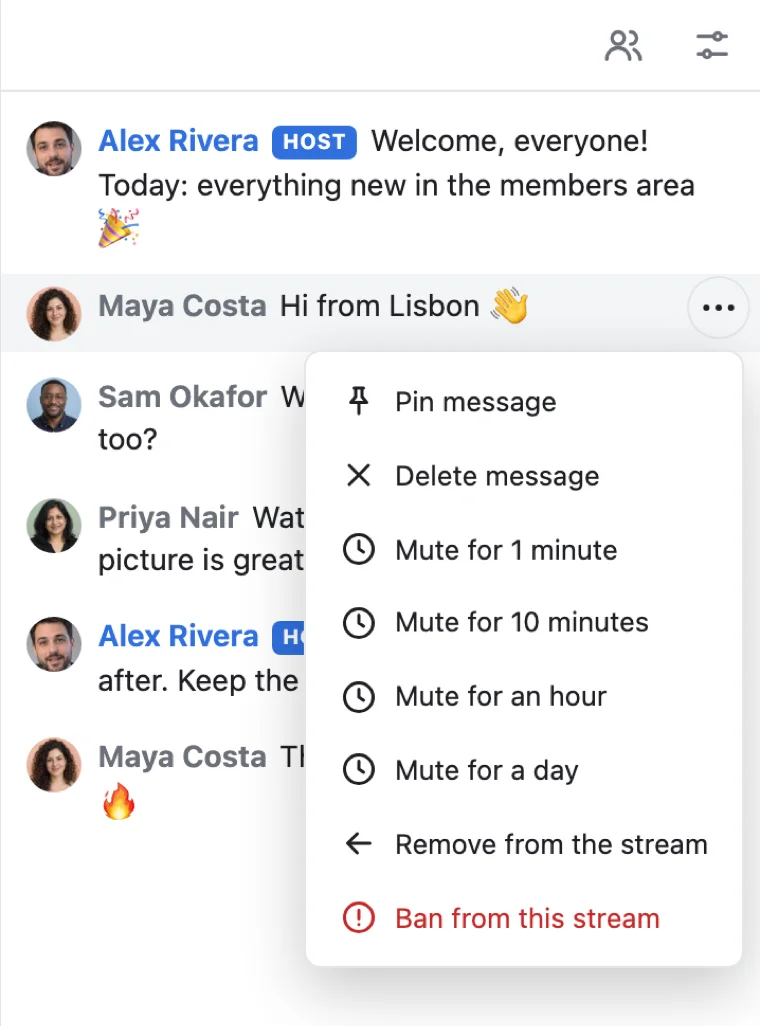
While you are live, each message has a menu for moderators:
- Pin message holds the topic or the question being answered over the chat.
- Delete message removes it for everyone.
- Mute keeps someone from writing for a minute, ten minutes, an hour or a day.
- Remove from the stream puts them out now, and Ban from this stream keeps them out until a moderator lets them back.
The sliders button in the header of the chat has Slow mode, one message every 5, 10, 30 or 60 seconds, for when a crowd drowns the questions. Viewers also send reactions, which rise over the picture, and a setting of the stream turns them off if they turn into spam. Everything is in Chat and moderation, and Moderating a live stream chat goes through when to use each tool.
What it costs
Live Stream is free to download and streams on a WordPlus Cloud subscription. Each site streams to 50 viewers at once unmetered, however long they watch, and each viewer above that takes a credit a minute. Each WordPress site adds 5,000 credits a month to its account, and more are on the pricing page of WordPlus Cloud.
The chat has no charge of its own. Credits count the audience, never the hosts, and with the light chat someone on a page that shows only the chat counts among them (Viewers and credits).
Frequently asked questions
Can viewers chat without an account?
Yes, if you let them. Turn on Visitors may write and they write as "Guest". Otherwise they read the chat and get Log in to chat.
Can I put the chat somewhere other than beside the player?
Yes. The Stream chat block or its shortcode goes anywhere on a page, with a height from 240 to 1200 pixels, and the parts of one stream on a page share one connection.
Is the chat saved?
The light chat is not: its messages are gone a day after the last one. A Better Messages chat room is saved on your site, with its history.
Can I stream without a chat?
Yes. Choose No chat in the settings of the stream. Reactions stay, unless you turn them off too.
Can viewers come on camera?
No. Live Stream is a broadcast: hosts are on camera, and viewers write and react. For a conversation with everyone on camera, use a meeting tool.
My site is not on WordPress. Can I still do this?
The first two ways work on any website. Live Stream is a WordPress plugin, and on other stacks the same player and chat come with the live streaming API of WordPlus Cloud.