How to Make a Live Streaming Website with WordPress
To make a live streaming website with WordPress, you need WordPress on HTTPS hosting, a live streaming plugin that carries the video for you, and a handful of pages: a home page that shows what is live, a page for each show, a schedule and the replays. With Live Stream each of those pages is a block or a shortcode, and the video runs on WordPlus Cloud, never on your server.
Most guides stop at "install a plugin and embed the player". This one goes through the site as a whole: what each page is for, how to build it, the choices to make before you start, and what Live Stream leaves to the rest of your site.
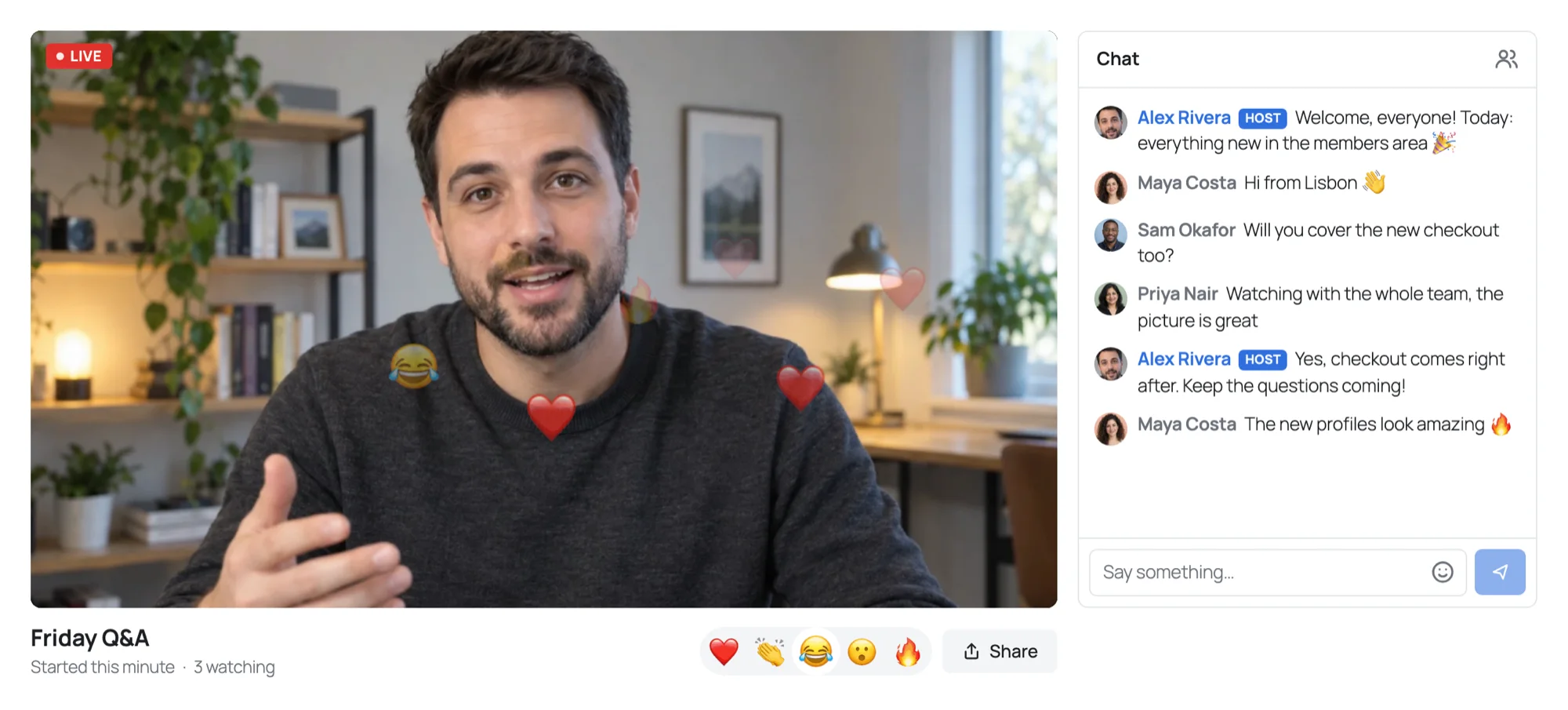
What a live streaming website is made of
A live streaming website is a site where people come to watch, again and again. It needs more than one player on one page:
| Page | What it does |
|---|---|
| The home page | Says what is live now and what comes next, and takes a visitor there in one click. |
| A page for each show | The player with the chat beside it, on the same address every time the show goes live. |
| The schedule | When each show goes live, with a way to put it in a calendar. |
| The replays | Each show after it ended, for those who missed it. |
| A badge in the menu | Tells a visitor on any page that something is live. |
| The studio | Where the hosts go live, which only they see. |
The rest is any WordPress site: an about page, a contact form, posts. That is the strength of building it on WordPress: the stream sits among everything else you publish, under your own name.
Decide three things first
Who watches. A public show for anyone with the link, or a stream for the members of your site. In Live Stream each stream is for everyone, for logged-in users or for the roles you choose, and a membership plugin can narrow it with the wordplus_stream_can_watch filter (How to run a private live stream for your members).
Which chat. The light chat of WordPlus Cloud is for the moment, with moderation, and is not saved. A Better Messages chat room is saved on your site, so a community keeps its talk between streams. Or no chat at all. How to add a live stream with chat to your website compares the two and where each sits on the page.
How you go live. From the browser, with a camera, a microphone and a shared screen, or from OBS and other encoders over WHIP, for scenes, overlays and several cameras (How to stream from OBS to WordPress over WHIP). Live Stream takes no RTMP.
1. The site itself
- Hosting with HTTPS. Browsers let a page use the camera and the microphone only over HTTPS, and most hosts give a free certificate. The hosting does not carry the video: it goes from the host to WordPlus Cloud and from there to each viewer, so a plan for an ordinary WordPress site is enough. Hosted or self-hosted live streaming: what each takes shows what carrying the video on servers of your own would mean.
- A theme with wide blocks. A stream looks best wide, with the chat beside the player. A block theme, or any theme that supports wide and full width blocks, gives it the room.
- WordPress 6.0 or later and PHP 7.4 or later, as Live Stream needs.
2. Install Live Stream and connect it
In WordPress, go to Plugins → Add New Plugin, search for WordPlus Live Stream, press Install Now, then Activate. Then go to Live Stream → Licence and enter your WordPlus Cloud licence key. A site that already runs Better Messages on the subscription is connected already.
Before you subscribe, the studio offers Start a test stream: your camera on a page as your viewers will see it, with its chat, seen by you alone (A test stream). It is a good way to build every page below before anyone watches.
3. A stream for each show
In Live Stream → Studio → Streams, create one stream for each show, not one for each broadcast. A stream keeps its page, its chat and its OBS key from one time to the next, so a weekly show is set up once.
Give it a title, a cover and who can watch. In its Schedule setting, add the times it goes live. Add a time adds one a day after the last, Repeat these weekly copies them on for the weeks you choose, and each time can have its own title, such as "Weekly Q&A, No. 12".
4. A page for each show
Press Create a page beside the stream in the Studio tab, and Live Stream publishes a page with the stream on it, wide, with the chat beside the player. To lay it out yourself, add the Live stream block to any page and choose a layout: Chat beside, Chat below, Player only, Vertical video for streams from a phone, or With blocks to place the player, the details and the chat in columns of your own. In a page builder, paste the shortcode, such as [wordplus_stream id="12"].
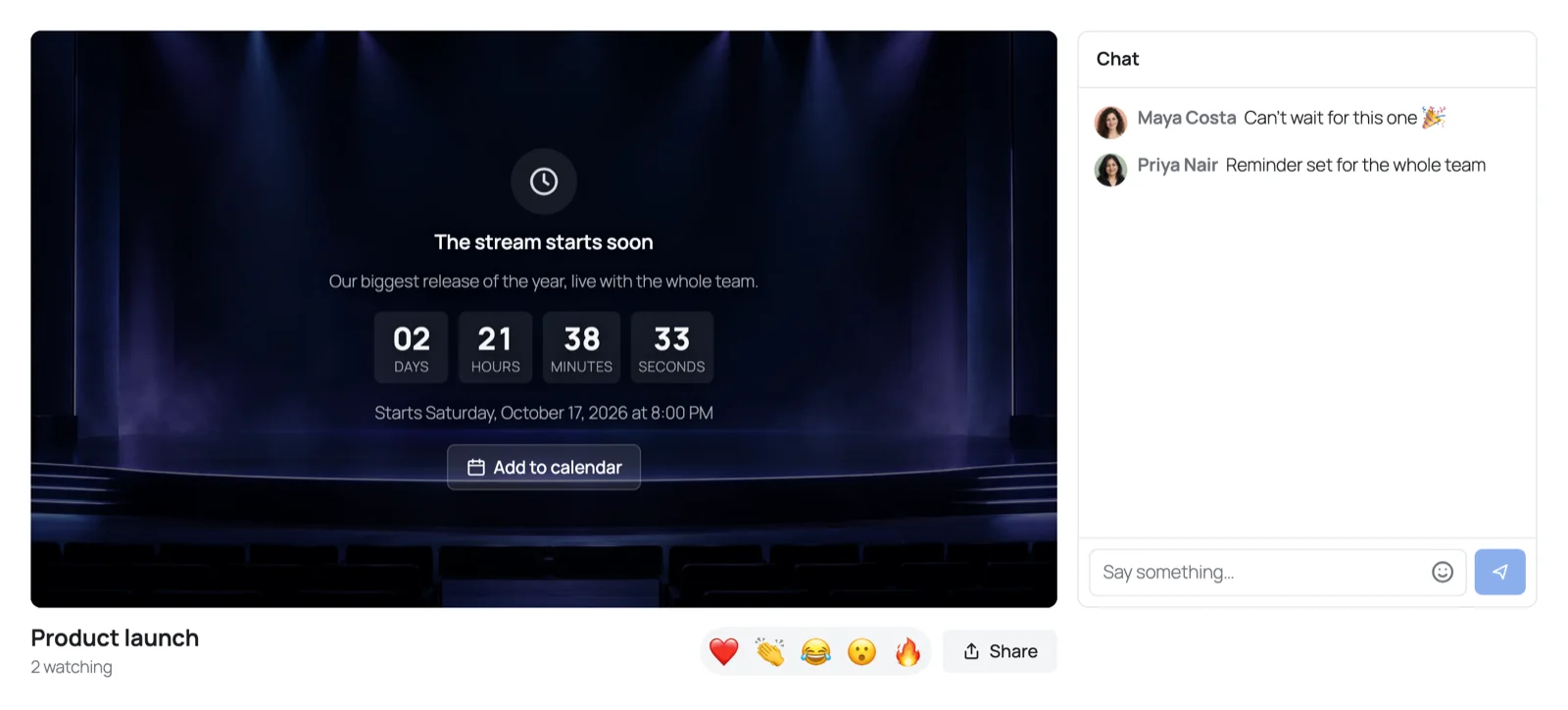
The block patterns give a start: Live event, Webinar, Vertical stream and Go live on the page. Each page says what a visitor needs at every moment: a countdown with Add to calendar before the start, the stream while it is live, then the thanks and the next time (Putting a stream on a page).
5. The home page and the schedule
The Live now block, or [wordplus_stream_live], is what makes a set of pages a streaming website. It lists your streams with a link to the page of each, and changes the moment one goes live or ends, without a reload:
- On the home page, set it to show the streams live now and those coming up, as cards with the cover of each:
[wordplus_stream_live show="both" display="cards"]. A visitor sees what is on and what is next. - As the schedule, a page with the streams coming up alone,
show="upcoming", the soonest first, each at its next time with its own title. - In the header or the menu, the small Live badge,
display="badge", which shows only while something is live.
Each visitor sees only the streams they may watch, so a members only show stays off the list for everyone else. A stream that no public page shows yet is left out (Live now).
6. The replays
In the studio of a stream, press Record, or turn on Record every time this stream goes live. A few minutes after the stream ends, its page can play the replay to everyone who may watch it, so the page of a show is also where its last broadcast waits (Recording and replays). The files go to the storage of your site, or its uploads folder.
Live Stream keeps no library of past shows on its own. For an archive of every episode, record each one, and link to its post or page from a page of your own, as you would any other content.
7. The look
Live Stream → Studio → Appearance sets how every stream on the site looks: light, dark or as the device of each visitor is set, the accent and Live badge colours, the corners, the font of the site or of the device, the player and the chat, the reactions, and CSS of your own. The preview beside the settings is the player itself, before the start, live and after the end, on a wide screen and on a phone (Appearance).
8. Go live, and watch it as a viewer
In Live Stream → Studio, choose Go live beside the stream, turn on the camera and microphone, choose HD or Full HD and press Go live. Everyone on the page sees the stream begin, without reloading, about a second behind on a smooth connection, as it runs over WebRTC (Going live).
For the first one, open the page on another device, on another network if you can, and watch the statistics in the studio while you are live.
What Live Stream leaves to the rest of your site
- Selling access. Live Stream has no checkout of its own. Who may watch comes from the roles of your site, or from a membership plugin through the filter above.
- Guests on stage. One host is on camera, and viewers write in the chat. A show where several people speak from their homes needs a meeting tool.
- RTMP. Hosts stream from the browser or over WHIP.
- Administrators host every stream. Letting others go live, such as the authors of your site, takes the
wordplus_stream_can_hostfilter (Who may do what). - Email. It sends no reminders. The countdown and Add to calendar are its reminders, and a newsletter plugin can do the rest.
If you are still weighing plugins, WordPress live streaming plugin: what to check before you choose lists the questions to ask of any of them.
What it costs
Live Stream is free to download and streams on a WordPlus Cloud subscription. Each site streams to 50 viewers at once unmetered, across all its streams, however long they watch. Each viewer above that takes a credit a minute, and a recording takes a credit a minute while it runs. Each WordPress site adds 5,000 credits a month to its account, and more are on the pricing page of WordPlus Cloud (Viewers and credits).
A weekly show with 40 viewers costs nothing beyond the subscription. A show with 80 viewers for an hour takes the 30 above the 50, 30 credits a minute, about 1,800 credits for the hour.
For every way to stream on WordPress, embedding included, start with How to live stream on a WordPress site, and for a stream on one page of a site that is about something else, How to embed a live stream on your website.
Frequently asked questions
Do I need a special theme for a live streaming website?
No. Any theme works, as the stream is a block or a shortcode. A theme with wide and full width blocks gives the player and the chat the most room.
Will a crowd of viewers slow down my site?
The video never goes through your server, and the page of a public stream works with page caching, so a crowd of viewers is not a crowd of requests to WordPress.
Can I have several shows on one site?
Yes. Each show is a stream with its own page, chat and schedule, and the Live now list shows them all. The 50 viewers unmetered are counted across all of them at once.
Can viewers watch on their phones?
Yes, in the browser, with no app. Each viewer gets the picture that the size of their player and their connection need.
Can I go live from my phone?
Yes. The studio works in the browser of a phone, with its front or back camera, and the Vertical video layout suits a stream held upright.