Live Classes on LearnDash, Tutor LMS and Other LMS Plugins
To run a live class inside LearnDash, Tutor LMS, LifterLMS or LearnPress, put a live stream on the lesson page and let only the students of the course watch it. With Live Stream that is a block or a shortcode in the lesson, and a few lines that ask the LMS whether each viewer is enrolled.
Students then watch on the page they already learn on, logged in as themselves, with no link to send and no other app to open. This post goes through it step by step, with the enrolment check for each of the four plugins, and says plainly what Live Stream leaves to the LMS.
What a live class in a course needs
- A place in the course. The class sits on a lesson, a topic or the course page, where students already go.
- Only the enrolled students in. Not every member of the site, but those who are in this course.
- A time to come back to. A countdown, an entry in the calendar, and the same page every week for a series.
- The teacher going live without being an administrator of the site.
- Questions in a chat beside the picture, and a replay for those who missed it.
A course plugin already knows who is enrolled and who teaches. Live Stream brings the stream, and one filter joins the two. It has no ready-made setting for each LMS, so the steps below are the whole of it.
1. Make a stream for the class
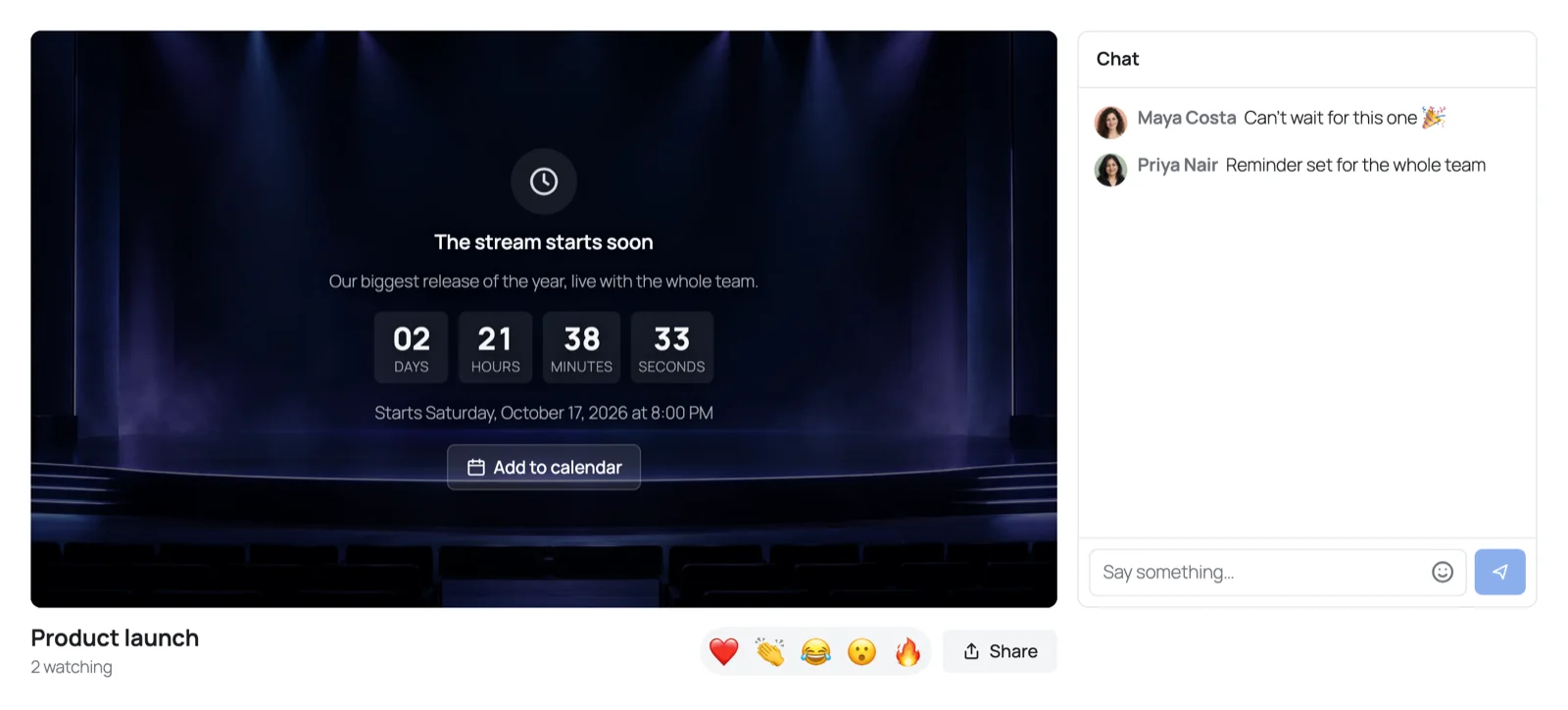
In Live Stream → Studio → Streams, create a stream and give it the title of the class. In its Schedule setting, set the time it starts, or a list of times for a weekly class, with Repeat these weekly to copy them on. Until the teacher goes live, the page shows a countdown and Add to calendar, and the class begins for everyone waiting without a reload.
Set Who can watch to Logged-in users. Visitors stay out, and the enrolment check below narrows it to the course.
Note the ID of the stream, the number in its shortcode, such as [wordplus_stream id="12"].
2. Put it on the lesson
Open the lesson, the topic or the course page in its editor:
- In the block editor, add the Live stream block and choose the stream. It has ready layouts, with the chat beside the player or below it.
- In an editor without blocks, such as a course builder with a plain content field, paste the shortcode,
[wordplus_stream id="12"]. It works wherever the content of the lesson goes through WordPress as a post does.
The player shows the countdown before the class, the class while it is live, and the replay afterwards where the stream is recorded (Putting a stream on a page).
3. Let only the enrolled students watch
The wordplus_stream_can_watch filter asks your site, for each viewer, whether they may watch. Give it the course of each stream, and the check of your LMS. Put it in a small plugin of your own or in the functions.php of a child theme:
// The course of each class: stream ID => course ID.
function my_class_course( $stream_id ) {
	$courses = array(
		12 => 345,
	);

	return $courses[ $stream_id ] ?? 0;
}

add_filter( 'wordplus_stream_can_watch', function ( $can, $rules, $user_id, $stream_id ) {
	$course_id = my_class_course( $stream_id );

	if ( ! $course_id || ! $can ) {
		return $can;
	}

	return $user_id && my_is_enrolled( $course_id, $user_id );
}, 10, 4 );
Then my_is_enrolled() asks the LMS you run. Each of these calls is in the code of that plugin today:
// LearnDash
function my_is_enrolled( $course_id, $user_id ) {
	return sfwd_lms_has_access( $course_id, $user_id );
}

// Tutor LMS
function my_is_enrolled( $course_id, $user_id ) {
	return (bool) tutor_utils()->is_enrolled( $course_id, $user_id );
}

// LifterLMS
function my_is_enrolled( $course_id, $user_id ) {
	return llms_is_user_enrolled( $user_id, $course_id );
}

// LearnPress
function my_is_enrolled( $course_id, $user_id ) {
	$student = learn_press_get_user( $user_id );

	return $student && $student->has_enrolled_or_finished( $course_id );
}
Keep only the one for your LMS. Another course plugin works the same way, with its own function that says whether a user is in a course.
A student who is not enrolled sees You do not have access to this stream in the player, and cannot join it: what the filter decides goes into the grant each viewer joins with, which WordPlus Cloud holds them to. The hosts of the stream are never asked (Who may do what). How to run a private live stream for your members covers the same check for membership plugins.
4. Let the teacher go live
Administrators host every stream. A teacher who is not one goes live from the lesson page itself, once two things are in place:
- Add the Studio to the lesson beside the stream, with the Stream studio block or
[wordplus_stream_studio id="12"]. Only the hosts of the stream see it, and everyone else sees nothing. - Make the teacher a host with the
wordplus_stream_can_hostfilter. Here, the author of the course:
add_filter( 'wordplus_stream_can_host', function ( $can, $stream_id, $user_id ) {
	$course_id = my_class_course( $stream_id );

	if ( $course_id && (int) get_post_field( 'post_author', $course_id ) === $user_id ) {
		return true;
	}

	return $can;
}, 10, 3 );
The teacher then goes live from the browser, with the camera, the microphone and a shared screen for the slides, or from OBS over WHIP for a produced class (How to stream from OBS to WordPress over WHIP). Students watch over WebRTC, about a second behind on a smooth connection, so a question in the chat is still about what is on screen.
5. Questions, moderation and the replay
The chat beside the player is where students ask. Pin message keeps the question being answered at the top, Slow mode keeps a large class readable, and links can be left to moderators. In the stream, choose the roles that moderate it, such as a role for teaching assistants, besides its hosts (Chat and moderation).
To give those who missed it the class afterwards, record it in the studio, or turn on recording every time it goes live. A few minutes after it ends, the lesson page plays the replay, to the same students the filter lets in (Recording and replays).
For a course whose talk should stay between classes, with history and files, the chat of the stream can be a chat room of Better Messages, which also brings messaging between students and teachers to LearnDash, Tutor LMS, LearnPress and MasterStudy (WordPress LMS chat).
A stream for every course, for developers
A list of stream and course IDs suits a few classes. A course plugin, or a site with many courses, can give each course its own stream with the API of Live Stream, and find it again by the course:
$stream_id = wordplus_streams()->create( array(
	'title'       => get_the_title( $course_id ),
	'object_type' => 'my_course',
	'object_id'   => $course_id,
	'settings'    => array( 'access' => 'logged_in', 'chat_with' => 'light' ),
) );

// Later, in the filters above, in place of the list:
$object    = wordplus_streams()->get_object( $stream_id );
$course_id = ( $object && 'my_course' === $object['type'] ) ? $object['id'] : 0;
wordplus_streams()->render() puts the stream and its studio in a template of the course, and the wordplus_stream_left action tells the site how long each signed-in student watched, for a report or a badge (Live streams in your plugin).
What it leaves to the LMS
- Attendance and completion. Live Stream does not mark a lesson complete or count who came in the LMS. A developer can, with the
wordplus_stream_joinedandwordplus_stream_leftactions above. - Students on camera. A class is a broadcast: the teacher is on camera, and students write in the chat. It has no guests on stage, so a seminar where everyone speaks needs a meeting tool.
- Sign-up and reminders. Enrolment is the LMS. Live Stream sends no email, and the countdown and Add to calendar are its reminders.
- RTMP. The teacher streams from the browser or over WHIP, not RTMP.
What it costs
Live Stream is free to download and streams on a WordPlus Cloud subscription. Each site streams to 50 viewers at once unmetered, however long the class lasts, and each viewer above that takes a credit a minute. A class of 40 students costs nothing more. Each WordPress site adds 5,000 credits a month to its account, and more are on the pricing page of WordPlus Cloud (Viewers and credits).
For the whole of live streaming on WordPress, start with How to live stream on WordPress, and for a class or a webinar outside a course, How to run live classes and webinars on WordPress.
Frequently asked questions
Does it work with LearnDash, Tutor LMS, LifterLMS and LearnPress?
Yes, through the block or the shortcode on the lesson and the enrolment check above. Live Stream has no setting of its own for each of them, so the check is a few lines of PHP.
Can a student share the link with someone outside the course?
The link opens the lesson, and the player asks the site about each viewer. Someone who is not enrolled sees that they have no access, and cannot join the stream.
Can each course have its own class every week?
Yes. Give each course its stream, with a time for each session or Repeat these weekly. It keeps its page, its chat and its OBS key from week to week.
Can instructors go live without the WordPress admin?
Yes, from the lesson page, with the Studio block and the wordplus_stream_can_host filter. The admin studio stays for administrators.