WordPress Webinar Plugin: What a Webinar Needs on Your Own Site
A webinar on your own WordPress site needs seven things: a page with a date, a way to sign up, reminders, live video with a shared screen, a place for questions, a replay, and a count of who came. WordPress already has the page and the accounts, and a webinar plugin has to bring the live video and whatever else your site lacks, so judge a plugin by which of the seven it covers and by where its video runs.
This post goes through the seven parts, the three kinds of webinar plugin and the questions to ask of any of them. Then it sets up a webinar with Live Stream, the live streaming plugin we make, and says plainly what it leaves to other tools: it has no registration form and it sends no reminder emails. For every way to put live video on a WordPress site, start with How to live stream on a WordPress site.
What a webinar needs, part by part
| Part | What it is for | What WordPress has itself |
|---|---|---|
| A page with a date | One address to send people to, before, during and after | Pages, with no countdown |
| Sign-up | Knowing who is coming, and letting only them in | Accounts, roles and a registration form |
| Reminders | Bringing back people who signed up weeks ago | Nothing that knows of an event |
| Live video and a shared screen | The speaker and the slides, close to the moment | Nothing. A WordPress server cannot send a live picture to many viewers at once |
| Questions | The audience reaching the speaker | Comments, which are not live |
| A replay | Those who missed it | A video block, for a file you upload |
| Who came | The follow-up, and knowing whether it worked | Nothing |
So a webinar plugin always brings the live video, or borrows it from a service, and plugins differ in how many of the other six parts they bring with it.
The three kinds of webinar plugin
1. A connector to a meeting service. The plugin creates the meeting from the WordPress admin and puts its join link, or its window, on a page. The video runs on the meeting service, on your plan there, which is usually priced by host and by the size of the audience. Attendees join in the browser or in the app of the service, and everyone can come on camera.
2. A webinar page around a video from elsewhere. The plugin brings the registration form, the emails and the page. The picture comes from a stream on a video platform, embedded in the page, or from a recording played at set times, which is often called an automated or evergreen webinar. A stream embedded from a platform usually reaches viewers several seconds after the moment (WebRTC vs HLS shows where that delay comes from), so an answer to a question arrives after the speaker has moved on.
3. A plugin that streams on the page itself. The speaker goes live from the WordPress admin or from an encoder, attendees watch in a player on your page, the chat sits beside it, and the login of your site decides who gets in. It needs a streaming service behind it to carry the video. Live Stream is of this kind.
The first is a meeting, the second is a page built around the sign-up, and the third is a broadcast on your own site. Which one fits depends on the event, not on the plugin.
Seven questions to ask of any webinar plugin
- Where does the video run, and how far behind are viewers? About a second or several seconds decides whether questions are answered live.
- Do attendees stay on your site? A player on your page keeps them there. A join link sends them to an app or to another site.
- Who gets in? Either the plugin knows the users, roles and memberships of your site, or it keeps a list of its own beside them.
- Who sends the emails? The plugin, or the form and email tools you already have. Both work, as long as you know which before the day.
- How do questions reach the speaker? A chat or a question box, and who can moderate it.
- Is there a replay, and where are its files kept?
- What does a bigger audience cost? Plans count hosts, attendees or minutes watched. Work it out for 50 people and for 500.
A webinar with Live Stream, part by part
Live Stream is a live streaming plugin for WordPress. Hosts go live from the browser or from OBS, and viewers watch on the pages of your site over WebRTC, about a second behind the host, with the chat beside the picture. Against the seven parts:
| Part | With Live Stream |
|---|---|
| A page with a date | Yes: the Webinar pattern, a countdown, and the start in the time zone of each visitor |
| Sign-up | The accounts and roles of your site. No registration form of its own |
| Reminders | Add to calendar. No reminder emails |
| Live video and a shared screen | Yes: camera, microphone and screen from the browser, or a picture from OBS |
| Questions | Yes: a moderated chat with a pinned message. No polls |
| A replay | Yes: recorded while live, then played on the same page |
| Who came | The peak and the totals in the studio. Names through hooks, for a developer |
1. The page and the date
In WordPress, go to Plugins → Add New Plugin, search for WordPlus Live Stream, install and activate it, and enter your licence key under Live Stream → Licence (Getting started). Then open Live Stream → Studio → Streams, press Create stream, give it the title of the webinar and a time in its Schedule setting, in the time zone of the site.
For the page, start from the Webinar pattern in the block inserter: the player and its details, the chat beside them, and a heading about the speaker under them. Create a page beside the stream in the Studio tab is the quicker way, and the shortcode [wordplus_stream id="12"] works in a page builder.
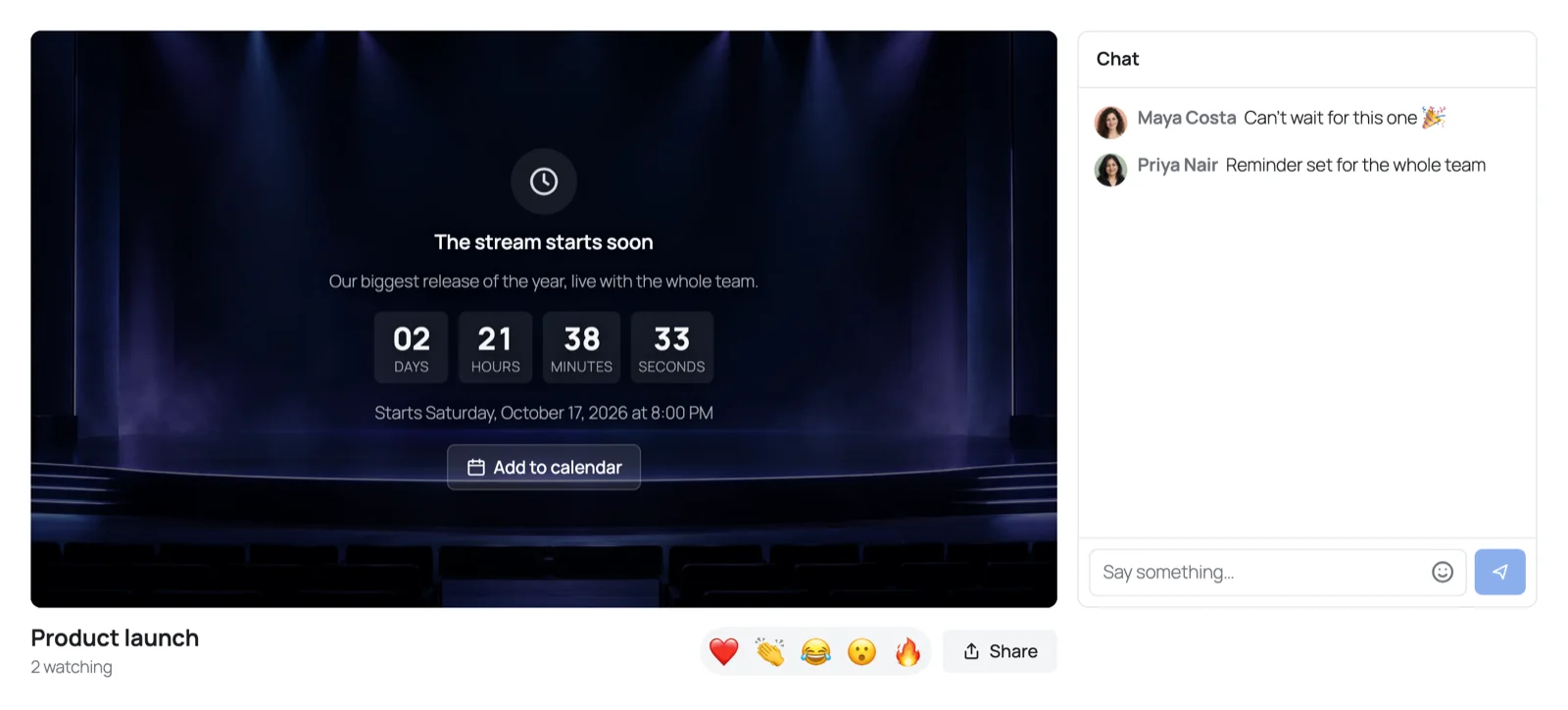
Until you go live, the player shows the cover, the date and time of the start, and in the last week a countdown to it. Each visitor reads the start in the time zone of their own device, which matters once the audience is in more than one country. When you go live, everyone waiting sees the webinar begin without reloading (A schedule).
A series keeps one stream with many times, each with a title of its own, on one page with one chat. How to run live classes and webinars on WordPress goes through a weekly one.
2. Sign-up
Live Stream has no registration form. It asks your site who is logged in, so registering for a webinar means having an account on your site. There are three ways to run it:
- Open to everyone. Set Who can watch to Everyone. Nobody signs up, and anyone with the page watches. If you want a list of addresses, put a form of your form or newsletter plugin on the page. It collects the addresses, and it does not hold the door.
- Free, with registration. Set Who can watch to Logged-in users, and turn on Anyone can register under Settings → General. WordPress then offers a registration form of its own, at
/wp-login.php?action=register, gives each new account the role chosen under New User Default Role, and emails the person a link to set a password (Settings General screen). The list of who registered is your Users screen. - Paid, or for members. A membership plugin sells the place and gives the buyer a role, and the stream is for Selected roles. How to run a private live stream for your members has the steps, and the filter for plugins that keep memberships in their own tables.
One thing to know about a webinar that needs an account: a visitor who is not logged in reads You do not have access to this stream where the player would be, with no countdown. So write the date and time in the text of the page too, and put a link to your registration page above the player.
3. Reminders
Live Stream sends no email: no confirmation, no reminder and no follow-up. What it has for the days before:
- Add to calendar, on the countdown: Google Calendar, or a calendar file for Apple Calendar and Outlook. The entry carries the title, the start and the address of the page, and the calendar of each person reminds them the way it reminds them of anything else.
- The Live now list, set to the streams coming up, for your home page or a sidebar. It shows each visitor only the streams they may watch.
- One address. The page is the same before, during and after the webinar, so every email you send links to it.
The reminder emails themselves come from the tool that already writes to your list, a newsletter plugin or an email service, a day before and an hour before. For a developer, the wordplus_stream_live action runs as the stream goes live, which is the moment for a message that it has started:
add_action( 'wordplus_stream_live', function ( $stream_id, $stream ) {
    // Stream 12 is the webinar, and its registrants are the subscribers of the site.
    if ( 12 !== $stream_id ) {
        return;
    }

    $people = get_users( array( 'role' => 'subscriber', 'fields' => array( 'user_email' ) ) );

    foreach ( $people as $person ) {
        wp_mail( $person->user_email, 'We are live: ' . $stream['title'], 'Join us here: ' . $stream['page'] );
    }
}, 10, 2 );
wp_mail() sends one email at a time from your own server, which is fine for a few dozen people. For a longer list, hand the addresses to your email service in that same place. The start planned for a stream is in its settings as scheduled, for a reminder sent ahead (Hooks, PHP).
4. Live video and a shared screen
Go live from Live Stream → Studio in the browser, with your camera, your microphone and Share screen for the slides, a window or a browser tab, in HD or Full HD. The room behind you can be blurred or replaced with a picture, and AI noise removal takes typing and fans out of the microphone. For the slides and the camera in one picture, or the name of the speaker under it, send a produced picture from OBS (How to stream from OBS to WordPress over WHIP).
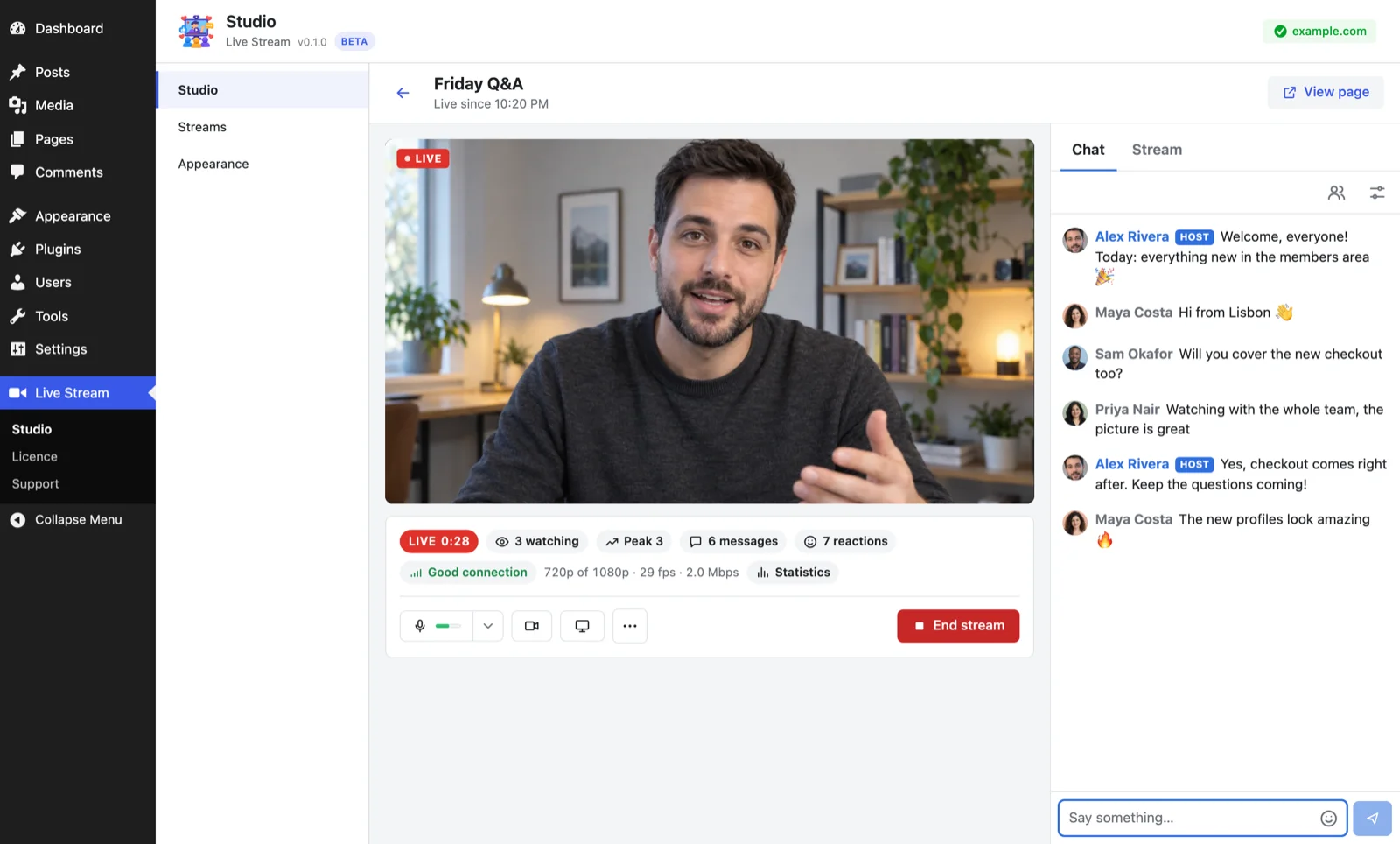
Attendees watch in the browser, on a phone too, with no app and nothing to install. They are about a second behind you on a smooth connection, so a question typed now is answered now (Low latency live streaming: why WebRTC).
Rehearse before the day. A test stream works with no subscription, and only you can see it. Going live from the browser walks through the studio.
5. Questions
The chat beside the player is where attendees ask, and a colleague can run it while you speak:
- Pin message holds the question being answered over the chat.
- Slow mode allows one message every 5, 10, 30 or 60 seconds, so a large audience does not bury the questions.
- Moderators are the hosts, the comment moderators of the site and the roles you choose. They delete messages, mute people and remove them.
- Visitors may write lets people who are not logged in ask too, as Guest, on a webinar for everyone.
There is no separate question box, no polls and no raised hands. Attendees write and react, and they do not speak or come on camera. The settings are in Chat and moderation, and How to add a live stream with chat to your website covers where the chat sits on the page. For questions that should stay after the webinar, with history and files, the chat can be a chat room saved on your site (A live stream inside a Better Messages chat room).
6. The replay
Press Record in the studio, or turn on Record every time this stream goes live. A few minutes after the end, the page of the webinar plays the replay in the same player, to everyone who may watch the stream, where the recording is for viewers. A transcript can be made with it, the files are kept on your own site, and recording takes a credit a minute (Recording and replays).
The replay is watched on demand. Live Stream does not play a recording at set times as if it were live. How the replay, its captions and its transcript reach those who missed the webinar is in Recording a live stream and showing the replay on its page.
7. Who came
When you end the stream, the studio sums it up: the time on air, the most watching at once, the messages and the reactions. While you are live, Who is here lists the logged-in people watching.
There is no attendee report to export. For a developer, two actions tell your code as each signed-in person starts and stops watching, wordplus_stream_joined and wordplus_stream_left, the second with the seconds they watched, and wordplus_stream_ended gives the peak and the time watched in all. A few lines keep that with each user, for a certificate or a follow-up (Hooks).
What Live Stream does not do for a webinar
- No registration form and no landing page builder. Registration is an account on your site, through WordPress or a membership plugin.
- No emails. Your email tool sends the confirmation, the reminders and the follow-up.
- No polls, no question box and no raised hands. Questions come through the chat.
- Nobody joins the speaker on camera. There are no guests on stage, so a panel of speakers in different places needs a meeting tool.
- No RTMP. Encoders send over WHIP, as OBS 30 and later do.
- No automated webinars. A replay is watched on demand.
- No checkout. A membership plugin sells the place.
- It needs a WordPlus Cloud subscription that includes live streaming.
When another kind fits better
- Everyone speaks. A workshop or a seminar where attendees come on camera is a meeting, and a connector to a meeting service fits it.
- The sign-up is the point. If the registration form, the confirmation and the emails after it must all live in one plugin, choose a plugin built around them, and accept the player it embeds.
- The webinar is a recording. A recording shown at set times as if it were live is the automated kind.
What it costs
Live Stream is free to download, and streaming runs on a WordPlus Cloud subscription. Each site streams to 50 viewers at once unmetered, however long the webinar lasts, and each viewer above that takes a credit a minute. Each WordPress site adds 5,000 credits a month to its account, and more are on the pricing page of WordPlus Cloud.
Two examples. A webinar of 45 minutes with 120 attendees at once: 50 of them are unmetered, and the 70 above them take 70 × 45 = 3,150 credits, out of the 5,000 the site adds that month. An hour with 300 attendees at once: the 250 above the 50 take 250 × 60 = 15,000 credits, more than the month adds, so the rest comes from bought credits. Recording takes a credit a minute besides. The speaker takes no credits, and neither do people waiting on the countdown. The details are in Viewers and credits.
Frequently asked questions
Does WordPress have webinars built in?
No. WordPress has pages, accounts and roles, and nothing that sends live video. A webinar plugin brings the video, or connects a service that does.
Which webinar plugin is best for WordPress?
The one whose kind matches the event. A connector to a meeting service fits a session where everyone speaks, a plugin built around the sign-up fits where registration and emails matter most, and a streaming plugin fits one speaker presenting to an audience on your own pages. Ask the seven questions above of each.
Can I run a webinar on WordPress without a meeting app?
Yes. With a plugin that streams on the page itself, the speaker goes live from the WordPress admin and attendees watch in the browser on a page of your site, with nothing to install.
Do attendees have to register?
Only if you want them to. With Live Stream, a stream for Everyone needs no account, and a stream for Logged-in users or Selected roles is watched only by accounts of your site.
Does Live Stream have a registration form?
No. It works with the accounts of your site. WordPress has a registration form of its own, and form and membership plugins can create the accounts too.
Does Live Stream send reminder emails?
No. The page has a countdown and Add to calendar, and the emails come from your own email tool. A developer can send one as the stream goes live with the wordplus_stream_live action.
Can attendees ask questions?
Yes, in the chat beside the player. Moderators pin the question being answered, and slow mode keeps a large audience readable.
Can I share my slides?
Yes. Share screen in the studio sends a screen, a window or a browser tab, and OBS sends a produced picture with the slides and the camera together.
Is there a replay?
Yes. A recorded webinar plays on its page a few minutes after it ends, to everyone who may watch the stream.
How many people can attend?
As many as come: a stream has no limit of viewers. The first 50 at once on each site are unmetered, and each viewer above them takes a credit a minute.
Can I charge for a webinar?
Through a membership plugin, yes. Live Stream has no checkout of its own: the membership plugin sells the place, and its role or the wordplus_stream_can_watch filter opens the stream to those who bought it.