Recording a Live Stream and Showing the Replay on Its Page
To record a live stream and show the replay, record it where the stream is made while it is live, then play the finished video on the page where the stream was, so whoever missed it finds it in the same place. With Live Stream on a WordPress site, you press Record in the studio, or let the stream record every time it goes live, and a few minutes after it ends its page plays the replay, with captions and a transcript.
This post goes through the three places a recording can be made, what to choose before you record, and how the replay reaches viewers. For every way to stream on WordPress, start with How to live stream on a WordPress site.
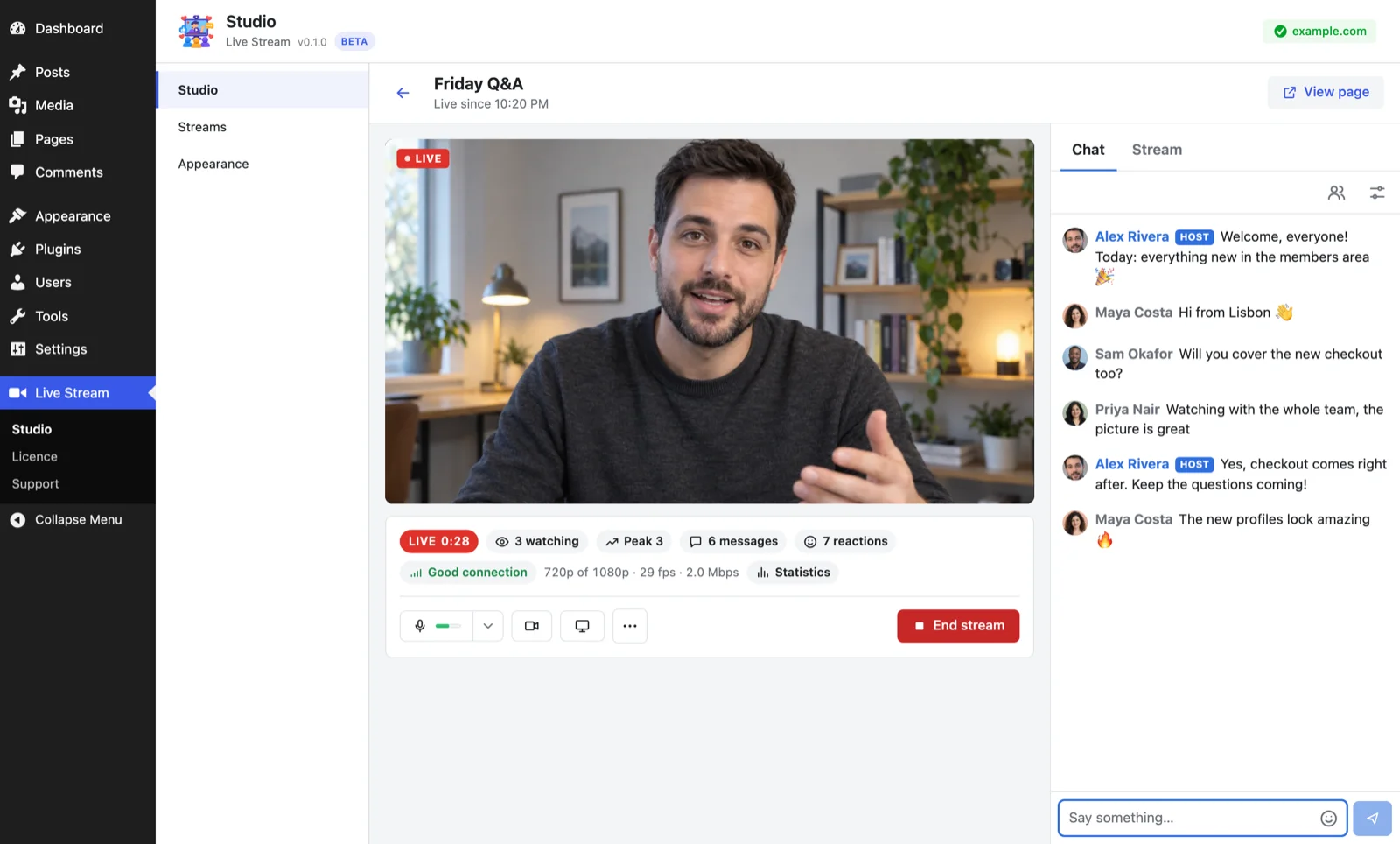
Three places a recording can be made
A stream passes through three places on its way to a viewer, and each can keep a copy of it.
On the computer of the host. An encoder such as OBS Studio has a Start Recording button of its own, which writes a file to your disk while it streams. The file is as good as what you sent, and it is yours at once. It is also only on that computer, it holds only what that computer sent, and turning it into a replay means uploading it somewhere and putting it on a page by hand.
On a video platform. A stream sent to a platform is usually kept there as a video afterwards. The replay then lives on the platform, under its rules, and a page of your site can only embed it, as How to embed a live stream on your website shows.
Where the stream is delivered from. The service that sends the stream to every viewer records what viewers see, and hands the files back to you. That is how Live Stream records: WordPlus Cloud makes the recording while the stream is live, whether the host is in the studio of the browser or in OBS, and your site takes the files once it ends.
The first two leave you with a video. The third leaves you with a replay already where your viewers look for it.
Before you record
Recording is off on every site until you turn it on. Open Live Stream → Recordings, where the settings for every recording are:
- The picture size. In 1080p, with copies in 720p and 480p for slower connections, or in 720p with a copy in 480p. The tab says how many gigabytes an hour takes in each.
- Who sees recordings. Show each recording on the page of the stream, or keep them for site administrators alone, who find every one in the same tab.
- Telling viewers. REC over the picture while it records, REC and a notice that the stream is recorded, or nothing for viewers, where only the hosts know. Where only the hosts know, the replay is not shown on the page either.
- A transcript. Each recording can be transcribed, in a language you choose or the one it hears, and the transcript also gives the replay its captions.
- Where the files go. Into a cloud storage you set up in the same tab, Amazon S3 or another S3-compatible storage, Cloudflare R2 or Bunny.net, or else into the uploads folder of the site. Video is large, so a cloud storage keeps your hosting plan out of it.
- How long they stay. Recordings stay until someone deletes them, or are deleted after the number of days you choose.
Recording a stream
In the studio of the stream, press Record, then Start recording. Stop recording stops it, and so does ending the stream, so a recording never runs on after the stream.
For a show that should always be kept, turn on Record every time this stream goes live before you go live. The recording then starts as the stream does and stops as it ends, with nobody needing to remember it. That suits a weekly show on a schedule, and a class whose students should be able to catch up (Live classes on LearnDash, Tutor LMS and other LMS plugins).
Everything viewers see and hear is recorded: the host, a shared screen, and the sound.
The replay on its page
A few minutes after the stream ends, the recording is ready. Where recordings are shown on the page of the stream, its player plays the newest one, so the address you shared before the stream keeps working after it, and nobody has to be sent a new link.
The replay has captions, and its transcript beside it, which a viewer can search for the moment something was said. That matters for a long talk, where the one answer someone needs is fifty minutes in.
The replay follows the stream: whoever may watch the stream may watch its recording, and nobody else. A stream for logged-in members keeps its replay for them alone, as How to run a private live stream for your members sets up, and the wordplus_stream_can_watch filter that lets a membership plugin decide who watches decides the replay too.
What recording costs
Recording takes 1 credit a minute, however many people watch, on top of the viewers above the 50 unmetered at once that a stream takes anyway. A weekly show of an hour, recorded every time, adds 240 credits a month, a small part of the 5,000 credits each WordPress site adds to its WordPlus Cloud account every month. Watching the replay later takes no credits, as it plays from your own storage. More credits are on the WordPlus Cloud pricing, and What a live stream on your website costs, worked out puts whole months through the sums.
What a replay does not do
- It is watched on demand. Live Stream does not play a recording at set times as if it were live. WordPress webinar plugin: what a webinar needs on your own site goes through what a webinar needs besides.
- It is the stream as viewers saw it. The chat is not part of the video. A light chat is not saved, and a Better Messages chat room keeps its messages on the site.
- The page plays the newest recording. Older ones stay in Live Stream → Recordings until they are deleted.
Each step is in the docs, in Recording and replays.
Frequently asked questions
Can I record a live stream on my WordPress site?
Yes. Turn recording on in Live Stream → Recordings, then press Record in the studio, or let the stream record every time it goes live.
Where do the replays play?
On the page of the stream, in the same player, a few minutes after it ends, where recordings are shown there. Otherwise site administrators watch them in Live Stream → Recordings.
Can I record when I stream from OBS?
Yes. The recording is made by WordPlus Cloud, not by the studio, so a stream sent from OBS over WHIP records the same way (Streaming from OBS to WordPress). OBS can also keep a copy on your own computer while it streams.
Where are the files kept?
In the cloud storage you set up for the site, or else in its uploads folder. WordPlus Cloud hands them to your site once the stream ends.
Does recording cost more?
It takes 1 credit a minute while it records. Watching the replay takes none.