How to Embed a Live Stream on Your Website
To embed a live stream on your website, copy the player code from whatever carries the stream, such as YouTube, Twitch, Facebook or a streaming service, and paste it into the HTML of your page. On WordPress you can skip the code: Live Stream puts the player on the page itself, with one block or a shortcode.
To stream live video on a website, you always need two things: something that takes the picture from your camera or encoder and carries it to viewers, and a player on your page. This post gives the code for each platform, goes through why a frame sometimes stays empty, then sets up a stream with Live Stream. For every way to stream on WordPress, start with How to live stream on a WordPress site.
The ways at a glance
| Where the stream runs | What goes on your page | Does it change with each new stream? |
|---|---|---|
| YouTube | A frame with the ID of the video | Yes, it names one video |
| Twitch | A frame with the channel and your domain | No, it names the channel |
| A short tag and the script of Facebook | Yes, it names one post | |
| A streaming service or your own server | The frame of the service, or a video player with an HLS address | It depends on the service |
| Live Stream on WordPress | A block or a shortcode, with no frame | No, the page stays the same |
Embed a YouTube live stream
Open the stream on YouTube, press Share, then Embed, and copy the code. It comes with a fixed width and height. Change those for a line of CSS, and the player fits a phone too:
<iframe
  src="https://www.youtube.com/embed/VIDEO_ID"
  title="Live stream"
  style="width: 100%; aspect-ratio: 16 / 9; border: 0"
  allow="autoplay; picture-in-picture"
  allowfullscreen></iframe>
The title tells a screen reader what the frame holds. On WordPress, this goes in a Custom HTML block, or paste the address of the stream into a YouTube block. What to know before you rely on it:
- One address, one stream. The frame names a video, and each YouTube broadcast is one video with an ID of its own, so a new broadcast means a new ID on your page. Guides often give
embed/live_stream?channel=with a channel ID as a way around this. YouTube does not list that address in its player documentation, so try it on a test page first. - Embedding can be off. The owner decides with Allow embedding in YouTube Studio, under Details and Show more. Age-restricted videos generally do not play on other sites.
- Size. YouTube asks for at least 200 by 200 pixels and recommends 480 by 270 for a wide player, with nothing covering any part of it.
- Autoplay. Add
?autoplay=1to the address. The same page says playback may start by itself only once more than half of the player is in view, and only one YouTube player on a page may do it.
Embed a Twitch stream
The Twitch player takes the name of the channel and the domain of your site, as its documentation shows:
<iframe
  src="https://player.twitch.tv/?channel=CHANNEL_NAME&parent=www.example.com"
  title="Live stream"
  style="width: 100%; aspect-ratio: 16 / 9; border: 0"
  allowfullscreen></iframe>
parentis required, once for each domain your site uses. Withwww.example.comandexample.comboth in use, write&parent=www.example.com&parent=example.com.- At least 400 by 300 pixels. A phone held upright is often narrower than 400 pixels, so try it on one.
- It follows the channel, so the address stays the same from one stream to the next.
- Autoplay is on by default. Add
&muted=trueto start without sound. On phones, the video waits for a tap.
Embed a Facebook live video
The embedded video player of Facebook covers live videos, and takes the address of the post. That post must be public:
<div
  class="fb-video"
  data-href="https://www.facebook.com/PAGE/videos/VIDEO_ID/"
  data-allowfullscreen="true"
  data-width="500"></div>
It also needs the script of the Facebook JavaScript SDK, which the same page gives you. The address names one post, so the next stream needs its own.
A streaming service, or your own server
A hosted streaming service gives you a frame or a script to copy from its dashboard, and it goes on the page in the same way. With a server of your own, or a service that gives only an HLS address ending in .m3u8, you bring the player. A video tag and hls.js are enough:
<video id="player" controls muted playsinline style="width: 100%"></video>
<script src="https://cdn.jsdelivr.net/npm/hls.js@1"></script>
<script>
  const video = document.getElementById('player');
  const address = 'https://streams.example.com/live/index.m3u8';

  if (Hls.isSupported()) {
    const hls = new Hls();
    hls.loadSource(address);
    hls.attachMedia(video);
  } else if (video.canPlayType('application/vnd.apple.mpegurl')) {
    video.src = address;
  }
</script>
Two things to check. The documentation of hls.js says every file of the stream must come with CORS headers that allow it, so the server has to let your site in. And the address sits in the code of the page, where anyone can read it, unless the service protects it with tokens.
Why the frame stays empty
| What you see | Why | What to do |
|---|---|---|
| YouTube shows error 153 | YouTube requires a Referer header, and the request for the player has none | Take referrerpolicy="no-referrer" off the frame, and check whether a security plugin sends a Referrer-Policy of no-referrer for your site |
| YouTube says the video cannot play here | Allow embedding is off, or the video is age-restricted | Turn it on in YouTube Studio |
| Twitch shows an error where the player should be | parent does not name the domain of this page | Add a parent for each domain, with and without www |
The frame is empty, and the browser console names frame-src or default-src | Your site sends a Content Security Policy that does not allow the host of the player | Add that host to frame-src |
| The code is gone after saving in WordPress | The account lacks the unfiltered_html capability, so WordPress strips iframe and script. Authors and Contributors lack it, and on a multisite network only Super Admins have it | Ask an administrator to add it, or use the YouTube block |
| The player waits, or plays with no sound | Browsers usually block autoplay with sound | Start it muted, or leave it to viewers to press play |
| The page shows the last stream, not this one | The address names one video | Put in the ID of the new one |
What a frame leaves out
A frame shows the stream, and leaves three things where they were:
- Who watches. A frame cannot check who is logged in to your site, so your members and everyone else get the same player.
- The delay. Players that fetch video in segments run several seconds behind the host, which matters once people talk back. More on this in Low latency live streaming: why WebRTC.
- The chat. It is one more frame, with its own accounts and moderators. How to add a live stream with chat to your website goes through the choices.
For a public show, none of that may matter, and a frame is the right tool.
A stream on a WordPress page, with no frame
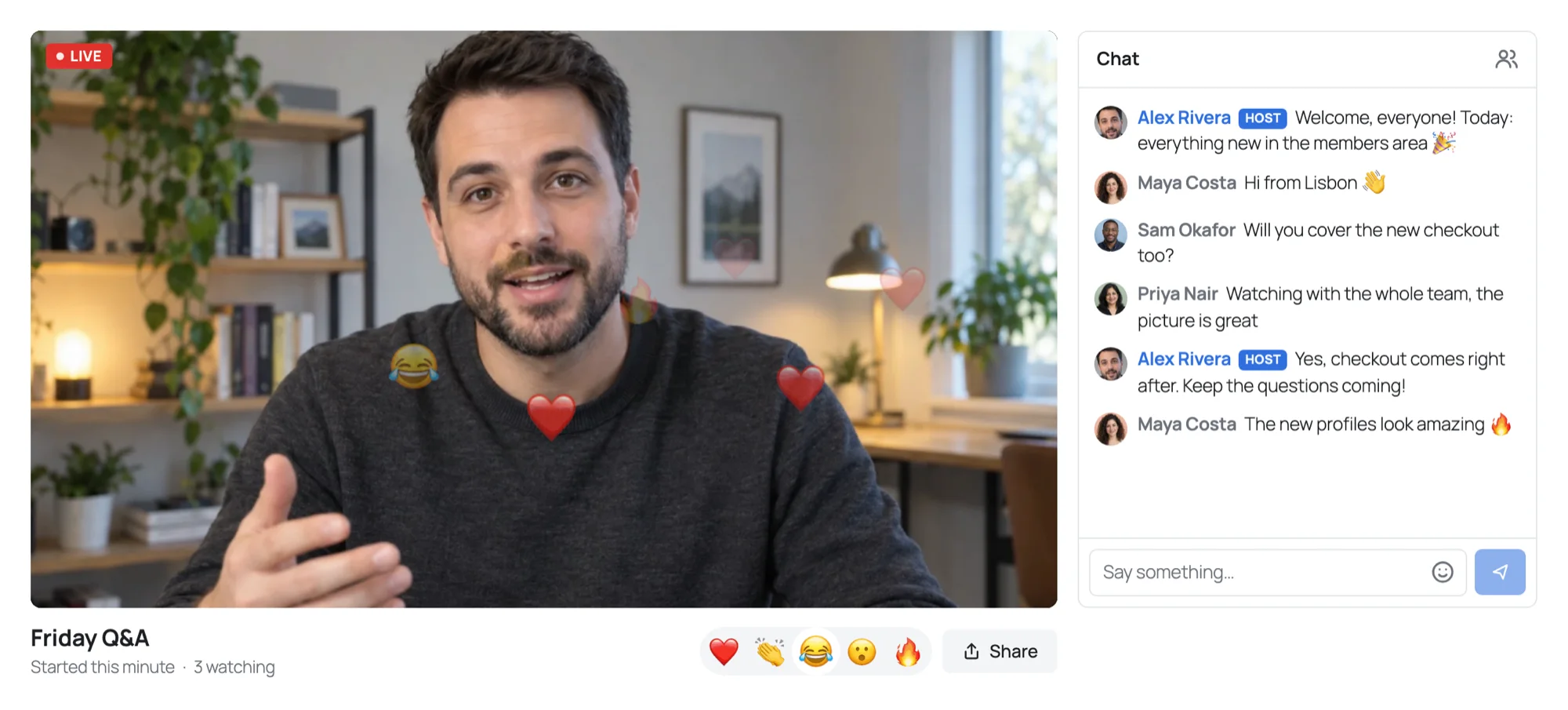
Live Stream works another way. The block or the shortcode marks a place on the page, and the script of the plugin draws the player there, so there is no frame, no domain to name and no address to change between streams. The video and the chat run on WordPlus Cloud, never through your web server.
1. Install it
In WordPress, go to Plugins → Add New Plugin, search for WordPlus Live Stream, install and activate it, then enter your licence key under Live Stream → Licence (Getting started). To see the page first, a test stream works with no subscription. Only you can see it.
2. Create a stream
Open Live Stream → Studio → Streams, press Create stream, give it a title, and choose Who can watch: everyone, logged-in users, or the roles you choose. A membership plugin can narrow it further with a filter.
3. Put it on a page
Press Create a page beside the stream in the Studio tab, and Live Stream publishes a page with the stream on it. Or place it yourself:
| To show | Block | Shortcode |
|---|---|---|
| The player and its details, with the chat beside them | Live stream, layout Chat beside | [wordplus_stream id="12" layout="side"] |
| The player and its details, with no chat | Live stream, layout Player only | [wordplus_stream id="12" layout="player"] |
| The player alone, in a fixed shape | Stream player, with its Shape | [wordplus_stream_player id="12" shape="16:9"] |
| An upright player, as from a phone, with the chat beside it | Live stream, layout Vertical video | [wordplus_stream id="12" layout="vertical"] |
| Your streams that are live now, anywhere on the site | Live now | [wordplus_stream_live] |
| A small Live badge for a header or a menu | Live now, shown as a badge | [wordplus_stream_live display="badge"] |
Each stream shows its shortcode in its settings, and shortcodes work in page builders, widgets and templates. The rest is in Putting a stream on a page.
4. Go live
In Live Stream → Studio, choose Go live beside the stream, and go live from the browser or from OBS over WHIP. Everyone on the page sees the stream begin, without reloading.
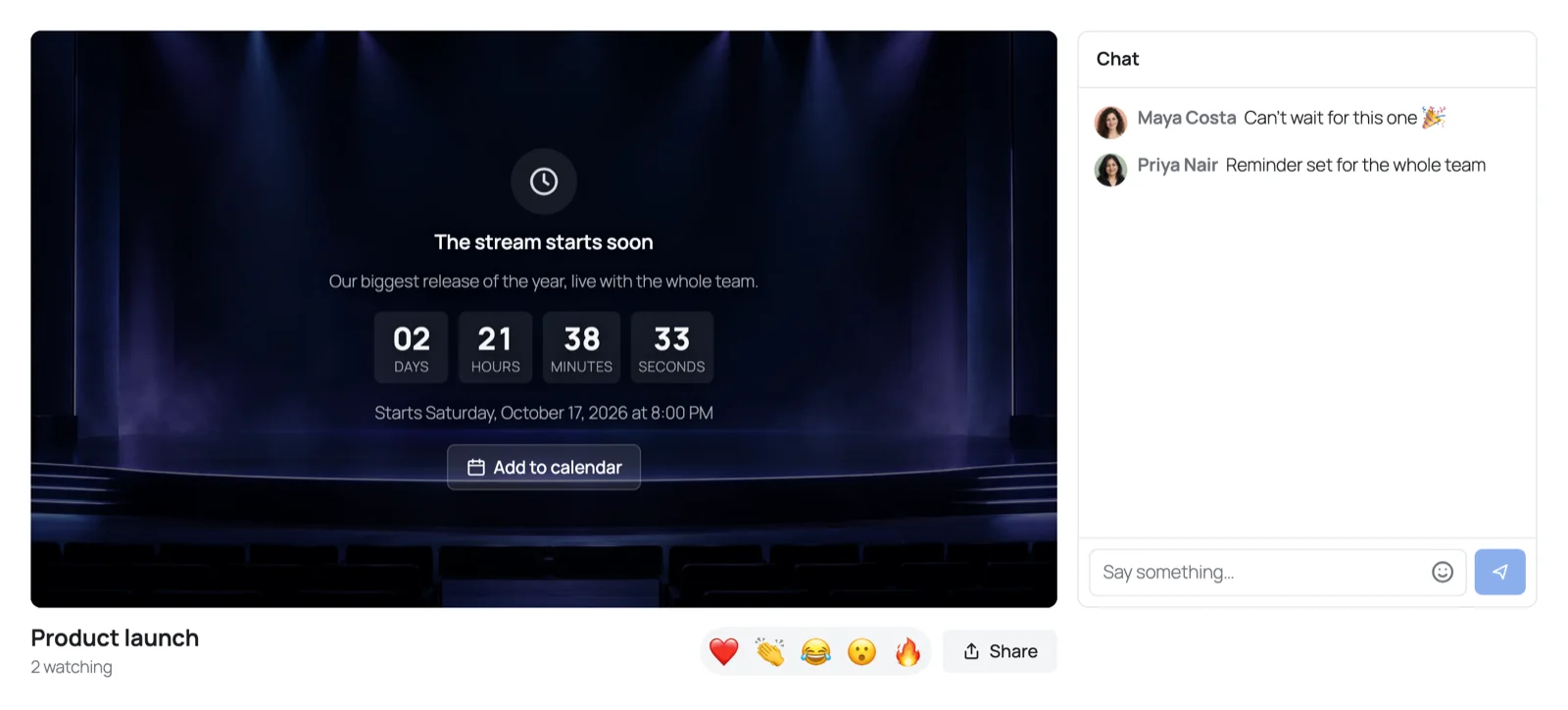
Before that, a stream with a start time shows a countdown with Add to calendar. A weekly show keeps one page, one OBS key and one chat, so nothing on the page changes between sessions, which suits live classes and webinars.
What it does not do
- It has no embed code for another website. A stream shows on the pages of the WordPress site the plugin runs on.
- It needs a WordPlus Cloud subscription that includes live streaming.
- Encoders send to it over WHIP, not RTMP, so an encoder that speaks only RTMP cannot stream to it.
- Hosts are on camera while viewers write and react. It has no guests on stage.
What it costs
Embedding a stream from YouTube, Twitch or Facebook costs nothing. Live Stream is free to download and streams on a WordPlus Cloud subscription. Each site streams to 50 viewers at once unmetered, however long they watch, and each viewer above that takes a credit a minute. Each WordPress site adds 5,000 credits a month to its account, and more are on the pricing page of WordPlus Cloud. The details are in Viewers and credits.
Frequently asked questions
Do I need a plugin to embed a live stream on WordPress?
No. A Custom HTML block takes the code of any frame above, and the YouTube block takes the address of a stream. A plugin is for a stream that runs on the page itself, with your own rules for who watches, and what to check before choosing one has its own post.
Can I embed a live stream for free?
Yes, from YouTube, Twitch or Facebook, which carry the video and show it in their own player. A streaming service or a server of your own has its own costs.
Will an embedded live stream slow down my website?
The video comes from the platform or the service and never passes through your server. The browser still loads the player, so on a long page, loading="lazy" on the frame holds it back until the reader gets near it. With Live Stream the video does not pass through your server either, and the page of a public stream works with page caching.
Can I embed a private live stream?
A frame cannot do that for you, as it does not know your members. With Live Stream, each stream is for everyone, for logged-in users or for the roles you choose, and a filter lets a membership plugin decide. The ways to keep a stream private, from a secret link to the login of your own site, are compared in the post on private streams for members.
Does the embed code change with each stream?
On YouTube and Facebook it does, as the address names one video or post. On Twitch it does not, as it names the channel. With Live Stream, a stream keeps its page, its OBS key and its chat, however many times it goes live.
Can I embed a stream from OBS?
OBS sends a stream and shows nothing on your page, so it needs somewhere to send to: a platform, a service or a plugin. To send it straight to a page of your site, see How to stream from OBS to WordPress over WHIP.
Can I show the same player on a site that is not on WordPress?
Not with the plugin, which has no code to paste on another site. On other stacks, the same player and chat come with the live streaming API of WordPlus Cloud.