How to Schedule a Live Stream: Countdown, Calendar and Weekly Shows
To schedule a live stream, give it a start time before you go live, so that its page shows a countdown and the date, and viewers can add it to their calendar and come back at that time. For a show that comes back every week, plan all its times on one stream, so the page, the link and the chat stay the same and only the countdown moves on.
This post goes through what a scheduled stream should show at each moment, how to plan one time and a weekly show on a WordPress site with Live Stream, the details that trip people up, such as time zones and a late host, and what it costs. For every way to stream on WordPress, start with How to live stream on a WordPress site.
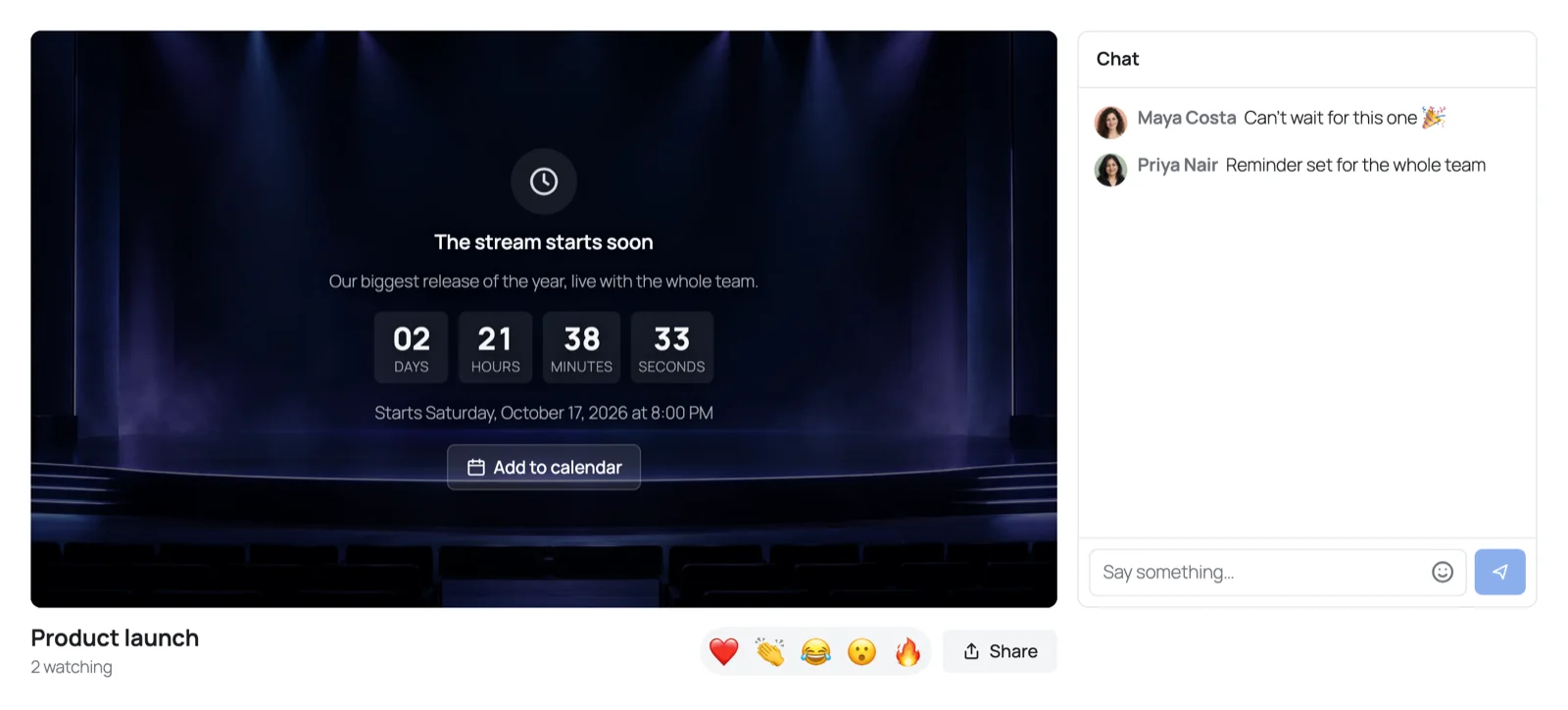
What a scheduled stream should show
A viewer can land on the page of a stream at any moment: a week before, an hour before, during it, just after it, or between two times of a weekly show. Each of those moments needs its own screen, or the page looks broken.
| When the viewer comes | What the page should say |
|---|---|
| Days before | The date and time, in the time zone of the viewer, and a way to add it to a calendar |
| The last days | A countdown, so the time feels close |
| Past the start, host not live yet | That it starts any moment, not that it ended |
| While live | The stream, with the chat |
| Just after | Thanks, and when the next time is |
| Between two times of a show | The countdown to the next time, with its own title |
| After the last time | That the stream has ended |
Most of the work of scheduling is these screens. The time itself is one field.
Plan one time
Live Stream is a live streaming plugin for WordPress. The host goes live from the browser or from OBS, and viewers watch on a page of the site, with chat beside the picture.
- Open Live Stream → Studio → Streams and open the stream, or press Create stream and give it a title.
- In its Schedule setting, enter the date and time. You enter it in the time zone of the site, as set in Settings → General.
- Press Save changes.
- Put the stream on a page, with Create a page in the Studio tab or the Live stream block (Putting a stream on a page), and share the page.
Until a host goes live, the player shows the cover of the stream and "The stream starts soon", or words of your own in the texts of the stream, then:
- The date and time, as "Starts" and the full date, written in the language of the page and shown in the time zone of each viewer. Someone in Sydney and someone in Toronto each read their own clock time, with nothing to convert.
- A countdown in days, hours, minutes and seconds, from seven days before the start. A stream planned further ahead shows the date alone until then.
- Add to calendar, with Google Calendar or a calendar file for Apple Calendar and Outlook.
A stream kept to logged-in users or chosen roles shows all this only to those who may watch it. Anyone else reads that they do not have access, with no countdown, so write the date and time in the text of the page too.
Scheduling does not start anything by itself. The stream goes live when a host presses Go live in the studio, whether the picture comes from the browser or from OBS, so you can test OBS before the start without anyone seeing it (How to stream from OBS to a WordPress site).
Add to calendar, and reminders
Add to calendar puts one event in the calendar of the viewer: the title of that time, an hour long, as the length of a stream is not known before it ends, with the link to the page of the stream. The calendar file carries the start in UTC, so the calendar of the viewer shows it at their own local time.
It adds the next time only, not a repeating series. A viewer of a weekly show adds each time they want, or simply bookmarks the page, as the page always shows the next one.
Live Stream sends no reminder emails and has no sign-up form for a stream. The calendar entry is the reminder it gives. If you want emails, send them with the newsletter or the email tool you already use, with the link to the page. A developer can also send one the moment the stream goes live, from the wordplus_stream_live action (Hooks). WordPress webinar plugin: what a webinar needs on your own site goes through the parts a webinar takes and which of them other tools bring.
A weekly show on one stream
A show that comes back, like a Q&A every Friday, a service every Sunday or a trading room every weekday, is one stream with many times planned, not a new stream each time. It keeps one page, one OBS key and one chat, so the link you shared last month still works, and nothing changes in OBS between times (A show that goes live again and again).
In the Schedule setting of the stream:
- Add a time adds one a day after the last, at the same clock time, which suits a daily show. Change its date for anything else.
- Repeat these weekly copies every time on for 1, 2, 3, 4, 6, 8 or 12 weeks, titles too, at the same clock time in the time zone of the site, so a show at 10:00 stays at 10:00 when the clocks change.
- A title for each time, such as "Weekly Q&A, No. 12" or "Advent, second Sunday". The player, the countdown and the calendar entry say it. Without one, the title of the stream.
A stream keeps up to 100 times planned. The Studio list says the next time with its title, and how many more are planned.
What viewers see between times
After a time ends, viewers see the thanks with the next time under it, such as "Next: Weekly Q&A, No. 13" and its date. Fifteen minutes later the page turns to the countdown to the next time. After the last time planned, the stream says it has ended. If a recording of the stream is on, the replay can play on the same page in between (Recording a live stream and showing the replay).
A host who is early or late
- Early: going live up to an hour before a time counts as that time, so a host can open with a slide or music a few minutes before.
- Late: a time stays the next one until 12 hours after its start, and its viewers see "Starting any moment now" in place of the countdown. After that it is gone from the schedule, and the next time takes its place.
- Off the schedule: a host can go live at any time, with or without a time planned. The schedule tells viewers when to come, it does not lock the studio.
Show what is coming up on the site
The Live now block, or [wordplus_stream_live], lists your streams live now, and with show="upcoming" or show="both" also the streams coming up, the soonest first, each at its next time with the title of that time (Live now). Put it on the homepage as cards with the covers, or in the header as a small Live badge that shows only while something is live. It lists only the streams each visitor may watch, so a stream for members stays out of the list of a visitor who is not one.
Plan the times from another tool
If the times come from somewhere else, such as an events calendar, a booking tool or a spreadsheet, an automation can write them into the stream. Make, Zapier, n8n or a script of your own sends the times to the REST API of the site, signed in with an application password of an administrator (From an automation):
curl -X PUT https://example.com/wp-json/wordplus/v1/streams/12 \
  --user 'admin:abcd efgh ijkl mnop qrst uvwx' \
  --header 'Content-Type: application/json' \
  --data '{"settings":{"sessions":[
    {"at":"2026-12-04T17:00","title":"Weekly Q&A, No. 13"},
    {"at":"2026-12-11T17:00","title":"Weekly Q&A, No. 14"}
  ]}}'
Each at is a date and time in the time zone of the site, or a timestamp. The list replaces the times planned, so one stream keeps its page and its chat however many weeks the automation plans.
What it costs
The plugin is free. Streaming runs on a WordPlus Cloud subscription, and each site streams to 50 viewers at once unmetered, however long they watch. Above them, each viewer takes one credit a minute. Each WordPress site adds 5,000 credits a month to its account. A schedule, a countdown and the viewers waiting on it take nothing: credits count only while the stream is live (Viewers and credits).
Two shows, each an hour long:
| Watching at once | Times a month | Credits a month | Beyond the 5,000 included | |
|---|---|---|---|---|
| A weekday trading room | 45 | 20 | None, all within 50 | None |
| A weekly Q&A | 80 | 4 | 7,200, for the 30 above 50 | 2,200 credits, about $0.44 |
Credits are bought on WordPlus Cloud, from 50,000 for $10. What a live stream on your website costs, worked out puts other months through the same sums.
Frequently asked questions
How do I schedule a live stream on my website?
Give the stream a start time in its settings and put it on a page. Until the host goes live, the page shows the date and time, a countdown in the last seven days and Add to calendar. At the time, the host presses Go live and the same page plays the stream.
Does a scheduled stream start by itself?
No. The schedule tells viewers when to come. The stream goes live when a host presses Go live in the studio, from the browser or with the picture from OBS.
What time zone does the countdown use?
You enter the time in the time zone of the site. Each viewer sees the date and time in their own time zone, and the countdown runs to the same moment for everyone.
Can a live stream repeat every week?
Yes. Plan its times on one stream, with Repeat these weekly for up to 12 weeks at once. The page, the OBS key and the chat stay the same for every time.
Can viewers get a reminder?
They can add the time to Google Calendar, Apple Calendar or Outlook from the page, and their calendar reminds them. Live Stream sends no reminder emails itself.
What if the host is late?
The page says the stream is starting any moment now for up to 12 hours past the start, then moves on to the next time planned.