<?xml version="1.0" encoding="utf-8"?>
<feed xmlns="http://www.w3.org/2005/Atom">
    <id>https://stream.wordplus.cloud/blog/</id>
    <title>Live Stream blog</title>
    <updated>2026-11-02T12:00:00.000Z</updated>
    <generator>https://github.com/jpmonette/feed</generator>
    <link rel="alternate" href="https://stream.wordplus.cloud/blog/"/>
    <subtitle>Guides to live streaming on WordPress, from the makers of Live Stream.</subtitle>
    <icon>https://stream.wordplus.cloud/img/favicon.ico</icon>
    <rights>© 2026 WordPlus</rights>
    <entry>
        <title type="html"><![CDATA[How to Live Stream on a WordPress Site]]></title>
        <id>https://stream.wordplus.cloud/blog/how-to-live-stream-on-wordpress/</id>
        <link href="https://stream.wordplus.cloud/blog/how-to-live-stream-on-wordpress/"/>
        <updated>2026-11-02T12:00:00.000Z</updated>
        <summary type="html"><![CDATA[Every way to live stream on a WordPress site, from embedding YouTube to a plugin that streams on your own pages, what each takes, and a step by step guide to going live from the WordPress admin or OBS.]]></summary>
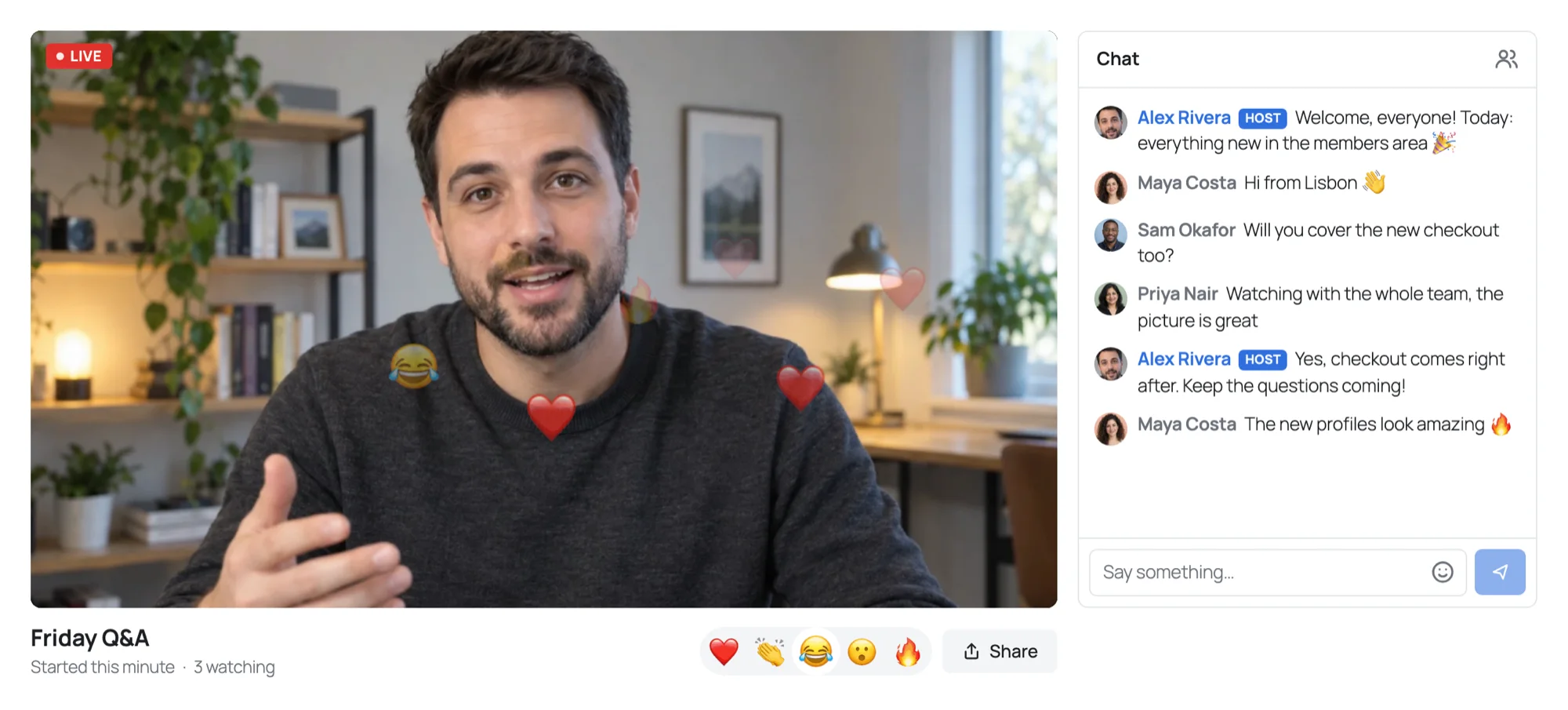
        <content type="html"><![CDATA[<p>Live streaming on a WordPress site sounds like one feature, and it is several. Someone goes live with a camera or an encoder. The picture travels to everyone watching, close enough to the moment that they can react. A player shows it on your page, a chat sits beside it, and your site decides who may watch and who may go live.</p>
<p>WordPress itself does none of that, so every way to stream on it hands the video to something else. This guide goes through each of them, what it takes to set up and to run, and then walks through going live with Live Stream, the plugin we make for it.</p>
<p><img decoding="async" loading="lazy" alt="A stream on a WordPress page: the host live on camera with hearts and fire rising over the picture, and the chat beside it" src="https://stream.wordplus.cloud/assets/images/stream-page-2c3c5178d15774b7832f144773c2962e.webp" width="2000" height="905" class="img_ev3q"></p>
<h2 class="anchor anchorTargetStickyNavbar_zFqj" id="the-ways-at-a-glance">The ways at a glance<a href="https://stream.wordplus.cloud/blog/how-to-live-stream-on-wordpress/#the-ways-at-a-glance" class="hash-link" aria-label="Direct link to The ways at a glance" title="Direct link to The ways at a glance" translate="no">​</a></h2>
<table><thead><tr><th>Way</th><th>What viewers get</th><th>What it takes</th></tr></thead><tbody><tr><td><a href="https://stream.wordplus.cloud/blog/how-to-live-stream-on-wordpress/#embed" class="">Embed a stream from YouTube, Facebook or Twitch</a></td><td>The player and chat of that platform, on your page</td><td>A channel there. Free</td></tr><tr><td><a href="https://stream.wordplus.cloud/blog/how-to-live-stream-on-wordpress/#streaming-service" class="">A paid streaming service</a></td><td>An embedded player, often without the platform around it</td><td>A plan, usually priced by viewing hours</td></tr><tr><td><a href="https://stream.wordplus.cloud/blog/how-to-live-stream-on-wordpress/#own-server" class="">Your own streaming server</a></td><td>Whatever player you build</td><td>Servers, bandwidth and someone to run them</td></tr><tr><td><a href="https://stream.wordplus.cloud/blog/how-to-live-stream-on-wordpress/#meeting-tool" class="">A meeting tool</a></td><td>A meeting or webinar, usually in its own app</td><td>A licence for each host</td></tr><tr><td><a href="https://stream.wordplus.cloud/blog/how-to-live-stream-on-wordpress/#plugin" class="">A live streaming plugin</a></td><td>A player and chat on your pages, for the people your site lets in</td><td>The plugin and the service behind it</td></tr></tbody></table>
<h2 class="anchor anchorTargetStickyNavbar_zFqj" id="embed">1. Embed a stream from YouTube, Facebook or Twitch<a href="https://stream.wordplus.cloud/blog/how-to-live-stream-on-wordpress/#embed" class="hash-link" aria-label="Direct link to 1. Embed a stream from YouTube, Facebook or Twitch" title="Direct link to 1. Embed a stream from YouTube, Facebook or Twitch" translate="no">​</a></h2>
<p>The quickest way needs no plugin at all. Go live on YouTube, Facebook or Twitch, copy the embed code of the stream, and paste it into a <strong>Custom HTML</strong> block. For YouTube, pasting the address of the stream into a <strong>YouTube</strong> block works too.</p>
<p><strong>Good:</strong> it costs nothing, these platforms carry any audience, and many people already know how to watch there.</p>
<p><strong>Not so good:</strong></p>
<ul>
<li class="">The stream lives on the platform. Viewers watch in its player, the chat and the audience belong to its account, and its rules decide what you may stream.</li>
<li class="">Your site cannot say who watches. Anyone with the link can, and a members only stream needs the private or unlisted settings of the platform, which know nothing of your members.</li>
<li class="">These platforms deliver video in segments of a few seconds, so viewers see the host several seconds after it happens, and a question in the chat is about a moment the host has already moved past.</li>
</ul>
<p><strong>Fits:</strong> a public show that should also reach people on the platform itself.</p>
<h2 class="anchor anchorTargetStickyNavbar_zFqj" id="streaming-service">2. A paid streaming service<a href="https://stream.wordplus.cloud/blog/how-to-live-stream-on-wordpress/#streaming-service" class="hash-link" aria-label="Direct link to 2. A paid streaming service" title="Direct link to 2. A paid streaming service" translate="no">​</a></h2>
<p>Hosted streaming services give you an ingest address for your encoder and a player to embed, without the branding and suggestions of a social platform. Many are priced by the hours watched, or by a plan with a monthly allowance.</p>
<p><strong>Good:</strong> a clean player on your page, and the service handles the scale.</p>
<p><strong>Not so good:</strong> the player still knows nothing of your members, so access needs tokens or passwords from the service. The chat is a separate product, if there is one. Most deliver over HLS, with the same few seconds of delay as the platforms above.</p>
<p><strong>Fits:</strong> a company that streams events to a large public audience and wants its own look.</p>
<h2 class="anchor anchorTargetStickyNavbar_zFqj" id="own-server">3. Your own streaming server<a href="https://stream.wordplus.cloud/blog/how-to-live-stream-on-wordpress/#own-server" class="hash-link" aria-label="Direct link to 3. Your own streaming server" title="Direct link to 3. Your own streaming server" translate="no">​</a></h2>
<p>Open source servers take an RTMP or WebRTC stream in and send it out to players. You rent a server, install one, and embed its player.</p>
<p><strong>Good:</strong> full control, and no service in between.</p>
<p><strong>Not so good:</strong> you run it. Every viewer is a stream out of your server, so bandwidth grows with the audience, and a crowd needs more servers in more places. The player, the chat, who may watch and keeping it all up to date are yours to build.</p>
<p><strong>Fits:</strong> a team with someone who runs servers, and a reason to.</p>
<h2 class="anchor anchorTargetStickyNavbar_zFqj" id="meeting-tool">4. A meeting tool<a href="https://stream.wordplus.cloud/blog/how-to-live-stream-on-wordpress/#meeting-tool" class="hash-link" aria-label="Direct link to 4. A meeting tool" title="Direct link to 4. A meeting tool" translate="no">​</a></h2>
<p>Zoom, Google Meet and Microsoft Teams run webinars, and a WordPress plugin can create the meetings for you and put the link on a page.</p>
<p><strong>Good:</strong> everyone can come on camera, and these tools record.</p>
<p><strong>Not so good:</strong> people leave your site for the app of the meeting, and a meeting is not a broadcast: it is built for people who talk to each other, and its webinar plans are priced by host and by audience size.</p>
<p><strong>Fits:</strong> a class where students speak on camera, a team meeting.</p>
<h2 class="anchor anchorTargetStickyNavbar_zFqj" id="plugin">5. A live streaming plugin<a href="https://stream.wordplus.cloud/blog/how-to-live-stream-on-wordpress/#plugin" class="hash-link" aria-label="Direct link to 5. A live streaming plugin" title="Direct link to 5. A live streaming plugin" translate="no">​</a></h2>
<p>A plugin can put the whole stream on your own pages: the host goes live from the WordPress admin, viewers watch on a page of your site, and the chat sits beside the player. The plugin needs a service behind it to carry the video, because a WordPress server cannot send a live picture to many viewers at once.</p>
<p>This is what Live Stream does. Its video and chat run on WordPlus Cloud, and your site keeps the decisions:</p>
<ul>
<li class=""><strong>Hosts go live from the browser</strong>, with a camera, a microphone and a shared screen, in <strong>Live Stream → Studio</strong>, or from <strong>OBS 30 or later</strong> over WHIP.</li>
<li class=""><strong>Viewers watch in the browser over WebRTC</strong>, with low delay and no app, on any page you put the stream on, with the block or the shortcode.</li>
<li class=""><strong>Your site decides who watches:</strong> everyone, logged-in users, or the roles you choose, and a membership plugin can decide with a filter.</li>
<li class=""><strong>The chat is beside the stream</strong>, with reactions and moderation, or a <a href="https://www.better-messages.com/" target="_blank" rel="noopener noreferrer" class="">Better Messages</a> chat room saved on your site.</li>
</ul>
<p><strong>Not so good:</strong> it needs a WordPlus Cloud subscription that includes live streaming, and it is a beta.</p>
<p><strong>Fits:</strong> streams for your own audience, on your own site: classes, members only shows, Q&amp;A sessions, launches, community streams.</p>
<h2 class="anchor anchorTargetStickyNavbar_zFqj" id="going-live-on-wordpress-with-live-stream">Going live on WordPress with Live Stream<a href="https://stream.wordplus.cloud/blog/how-to-live-stream-on-wordpress/#going-live-on-wordpress-with-live-stream" class="hash-link" aria-label="Direct link to Going live on WordPress with Live Stream" title="Direct link to Going live on WordPress with Live Stream" translate="no">​</a></h2>
<h3 class="anchor anchorTargetStickyNavbar_zFqj" id="what-you-need">What you need<a href="https://stream.wordplus.cloud/blog/how-to-live-stream-on-wordpress/#what-you-need" class="hash-link" aria-label="Direct link to What you need" title="Direct link to What you need" translate="no">​</a></h3>
<ul>
<li class="">WordPress 6.0 or later and PHP 7.4 or later.</li>
<li class="">Your site on HTTPS. Browsers let a page use the camera and the microphone only over HTTPS.</li>
<li class="">A <a href="https://www.wordplus.cloud/" target="_blank" rel="noopener noreferrer" class="">WordPlus Cloud</a> subscription that includes live streaming. Each site streams to 50 viewers at once unmetered, however long they watch, and each viewer above that takes a credit a minute (<a class="" href="https://stream.wordplus.cloud/docs/viewers-and-credits/">Viewers and credits</a>).</li>
<li class="">An upload that carries your picture: up to about 4 Mbps for HD, up to about 8 Mbps for Full HD.</li>
</ul>
<h3 class="anchor anchorTargetStickyNavbar_zFqj" id="1-install-the-plugin">1. Install the plugin<a href="https://stream.wordplus.cloud/blog/how-to-live-stream-on-wordpress/#1-install-the-plugin" class="hash-link" aria-label="Direct link to 1. Install the plugin" title="Direct link to 1. Install the plugin" translate="no">​</a></h3>
<p>In WordPress, go to <strong>Plugins → Add New Plugin</strong>, search for <strong>WordPlus Live Stream</strong>, press <strong>Install Now</strong>, then <strong>Activate</strong>. A <strong>Live Stream</strong> menu appears in the admin.</p>
<h3 class="anchor anchorTargetStickyNavbar_zFqj" id="2-activate-the-licence">2. Activate the licence<a href="https://stream.wordplus.cloud/blog/how-to-live-stream-on-wordpress/#2-activate-the-licence" class="hash-link" aria-label="Direct link to 2. Activate the licence" title="Direct link to 2. Activate the licence" translate="no">​</a></h3>
<p>Go to <strong>Live Stream → Licence</strong> and enter your WordPlus Cloud licence key. A site that already runs Better Messages on the subscription is connected already.</p>
<h3 class="anchor anchorTargetStickyNavbar_zFqj" id="3-create-a-stream">3. Create a stream<a href="https://stream.wordplus.cloud/blog/how-to-live-stream-on-wordpress/#3-create-a-stream" class="hash-link" aria-label="Direct link to 3. Create a stream" title="Direct link to 3. Create a stream" translate="no">​</a></h3>
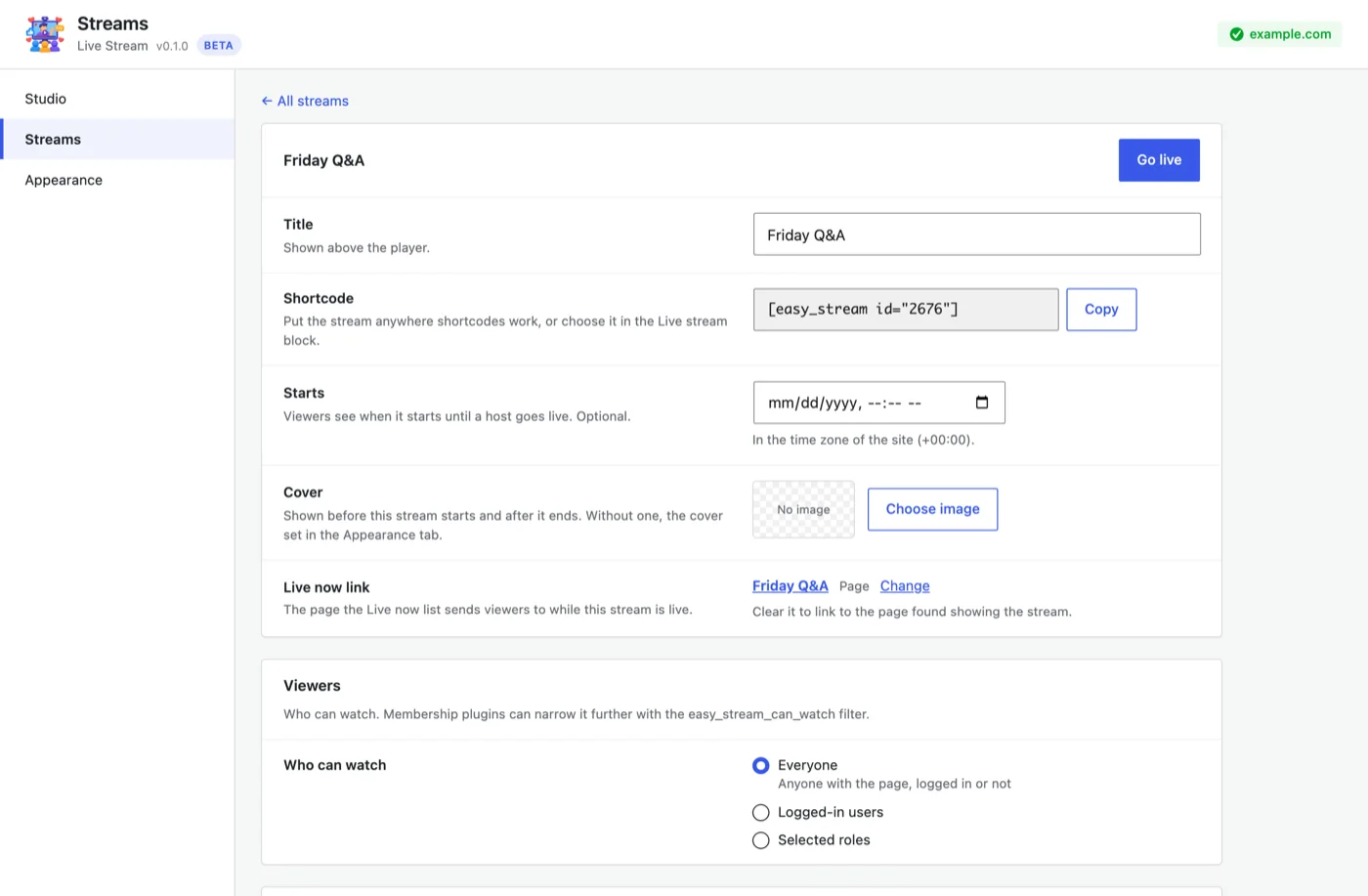
<p>Open <strong>Live Stream → Studio → Streams</strong> and press <strong>Create stream</strong>. Give it a title, a start time if you like, a cover, and choose who can watch. Press <strong>Save changes</strong>.</p>
<p><img decoding="async" loading="lazy" alt="The settings of a stream: its title, shortcode, start, cover, Live now link and who can watch" src="https://stream.wordplus.cloud/assets/images/stream-settings-dc45a3e47fcd0432f218aeb4814d2dc0.webp" width="1400" height="917" class="img_ev3q"></p>
<h3 class="anchor anchorTargetStickyNavbar_zFqj" id="4-put-it-on-a-page">4. Put it on a page<a href="https://stream.wordplus.cloud/blog/how-to-live-stream-on-wordpress/#4-put-it-on-a-page" class="hash-link" aria-label="Direct link to 4. Put it on a page" title="Direct link to 4. Put it on a page" translate="no">​</a></h3>
<p>Press <strong>Create a page</strong> beside the stream in the Studio tab, and Live Stream publishes a page with the stream on it, the chat beside the player. Or add the <strong>Live stream</strong> block to any page, or paste its shortcode, such as <code>[wordplus_stream id="12"]</code>, into a page builder.</p>
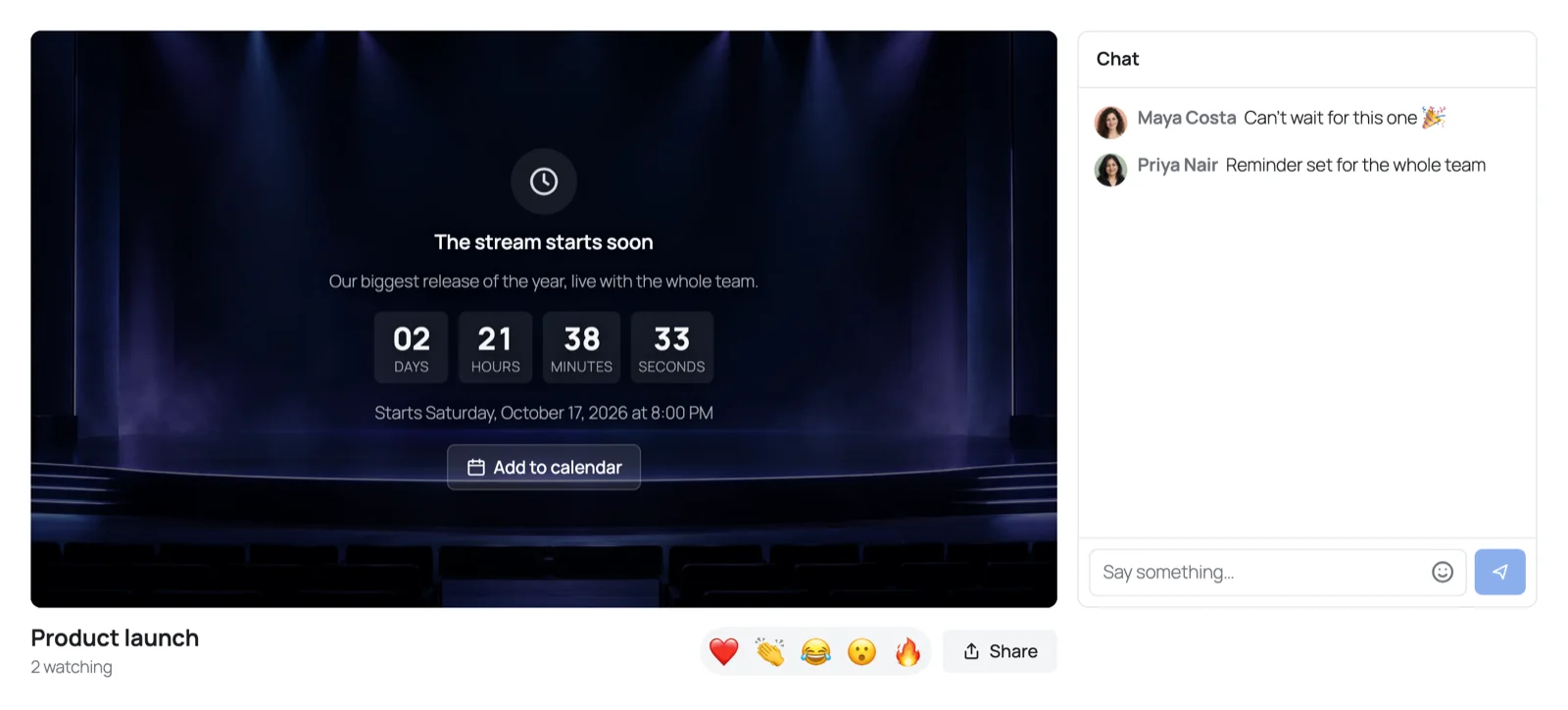
<p>A stream with a start time shows a countdown until you go live, with <strong>Add to calendar</strong>.</p>
<h3 class="anchor anchorTargetStickyNavbar_zFqj" id="5-go-live">5. Go live<a href="https://stream.wordplus.cloud/blog/how-to-live-stream-on-wordpress/#5-go-live" class="hash-link" aria-label="Direct link to 5. Go live" title="Direct link to 5. Go live" translate="no">​</a></h3>
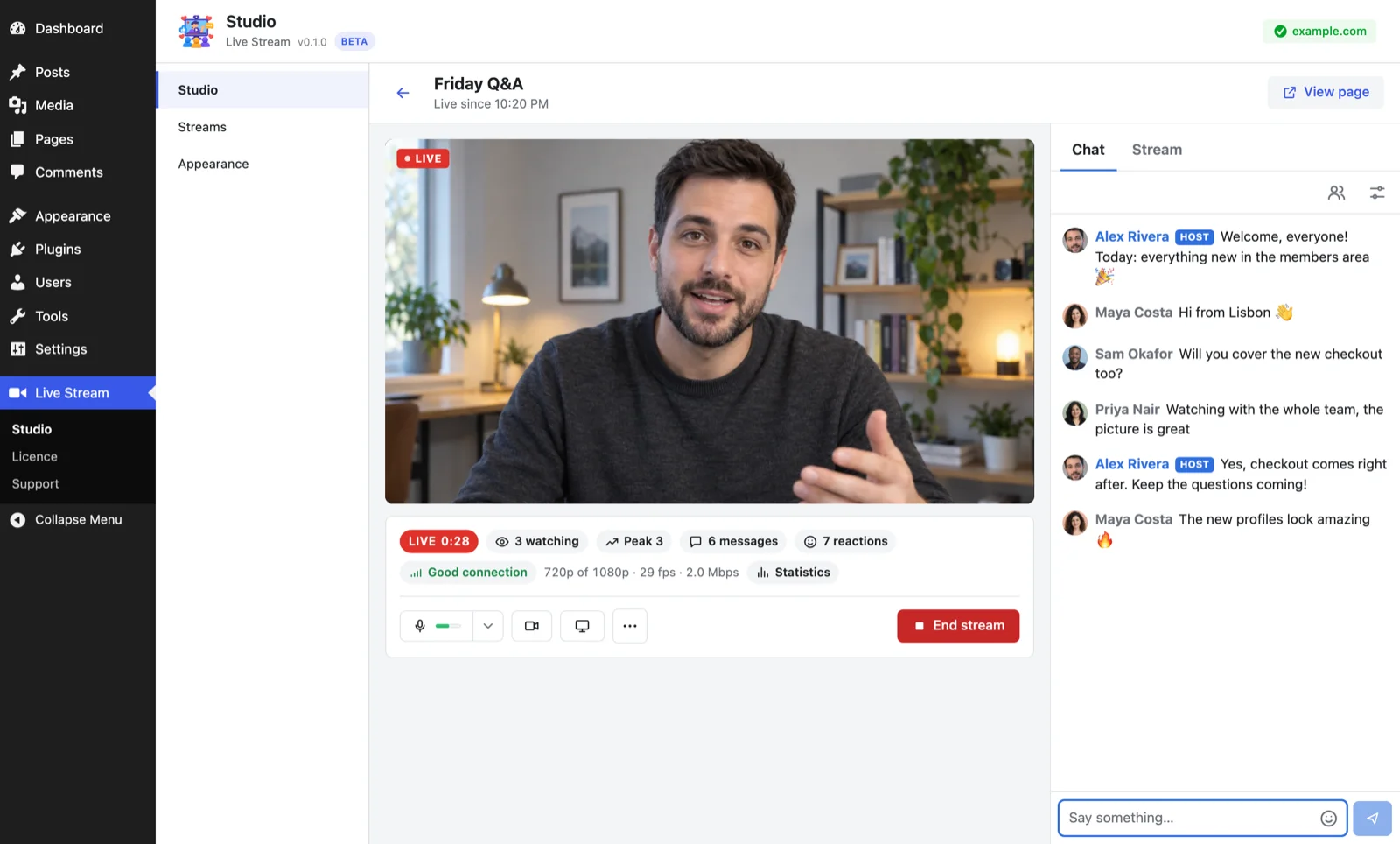
<p>In <strong>Live Stream → Studio</strong>, choose <strong>Go live</strong> beside the stream to open its studio. Choose <strong>Turn on camera and microphone</strong>, pick your devices and the quality, and press <strong>Go live</strong>. Everyone on the page sees the stream begin, without reloading.</p>
<p><img decoding="async" loading="lazy" alt="The studio while live: the camera of the host, the statistics, the controls and the chat beside them" src="https://stream.wordplus.cloud/assets/images/studio-live-969f66dcf1286ee835b2b22ecb8c0359.webp" width="1600" height="964" class="img_ev3q"></p>
<p>For scenes, overlays and several cameras, stream from OBS instead: <a class="" href="https://stream.wordplus.cloud/blog/stream-from-obs-to-wordpress/">How to stream from OBS to WordPress over WHIP</a>.</p>
<h2 class="anchor anchorTargetStickyNavbar_zFqj" id="before-your-first-stream">Before your first stream<a href="https://stream.wordplus.cloud/blog/how-to-live-stream-on-wordpress/#before-your-first-stream" class="hash-link" aria-label="Direct link to Before your first stream" title="Direct link to Before your first stream" translate="no">​</a></h2>
<ul>
<li class=""><strong>Try it on a page nobody else knows.</strong> Go live, and watch it from another device, on another network if you can.</li>
<li class=""><strong>Watch the statistics.</strong> While you are live, the studio shows how your picture goes out, and <strong>Statistics</strong> opens the details (<a class="" href="https://stream.wordplus.cloud/docs/going-live/#when-your-stream-goes-out-badly">When your stream goes out badly</a>).</li>
<li class=""><strong>Plan the start.</strong> A start time gives viewers a countdown and a calendar entry, and your page can collect them before you begin.</li>
<li class=""><strong>Choose the chat.</strong> The light chat is for the moment and is gone a day after. A Better Messages chat room keeps every message (<a class="" href="https://stream.wordplus.cloud/docs/chat/">Chat and moderation</a>).</li>
</ul>
<h2 class="anchor anchorTargetStickyNavbar_zFqj" id="frequently-asked-questions">Frequently asked questions<a href="https://stream.wordplus.cloud/blog/how-to-live-stream-on-wordpress/#frequently-asked-questions" class="hash-link" aria-label="Direct link to Frequently asked questions" title="Direct link to Frequently asked questions" translate="no">​</a></h2>
<h3 class="anchor anchorTargetStickyNavbar_zFqj" id="can-i-live-stream-on-wordpress-for-free">Can I live stream on WordPress for free?<a href="https://stream.wordplus.cloud/blog/how-to-live-stream-on-wordpress/#can-i-live-stream-on-wordpress-for-free" class="hash-link" aria-label="Direct link to Can I live stream on WordPress for free?" title="Direct link to Can I live stream on WordPress for free?" translate="no">​</a></h3>
<p>Embedding a stream from YouTube, Facebook or Twitch costs nothing. Live Stream is free to download, and streaming with it needs a WordPlus Cloud subscription, which streams to 50 viewers at once on each site unmetered.</p>
<h3 class="anchor anchorTargetStickyNavbar_zFqj" id="will-live-streaming-slow-down-my-wordpress-server">Will live streaming slow down my WordPress server?<a href="https://stream.wordplus.cloud/blog/how-to-live-stream-on-wordpress/#will-live-streaming-slow-down-my-wordpress-server" class="hash-link" aria-label="Direct link to Will live streaming slow down my WordPress server?" title="Direct link to Will live streaming slow down my WordPress server?" translate="no">​</a></h3>
<p>Not with a plugin built on a streaming service. The video goes from the host to WordPlus Cloud and from there to each viewer, never through your server, and the page of a public stream works with page caching, so a crowd of viewers is not a crowd of requests to WordPress.</p>
<h3 class="anchor anchorTargetStickyNavbar_zFqj" id="do-viewers-need-an-account">Do viewers need an account?<a href="https://stream.wordplus.cloud/blog/how-to-live-stream-on-wordpress/#do-viewers-need-an-account" class="hash-link" aria-label="Direct link to Do viewers need an account?" title="Direct link to Do viewers need an account?" translate="no">​</a></h3>
<p>Only if you want them to. Each stream is for everyone, for logged-in users, or for the roles you choose.</p>
<h3 class="anchor anchorTargetStickyNavbar_zFqj" id="can-i-go-live-from-my-phone">Can I go live from my phone?<a href="https://stream.wordplus.cloud/blog/how-to-live-stream-on-wordpress/#can-i-go-live-from-my-phone" class="hash-link" aria-label="Direct link to Can I go live from my phone?" title="Direct link to Can I go live from my phone?" translate="no">​</a></h3>
<p>Yes. The studio works in the browser of a phone, with its front or back camera.</p>
<h3 class="anchor anchorTargetStickyNavbar_zFqj" id="can-i-record-the-stream">Can I record the stream?<a href="https://stream.wordplus.cloud/blog/how-to-live-stream-on-wordpress/#can-i-record-the-stream" class="hash-link" aria-label="Direct link to Can I record the stream?" title="Direct link to Can I record the stream?" translate="no">​</a></h3>
<p>Yes. A stream can be recorded while live, and its page then plays the replay (<a class="" href="https://stream.wordplus.cloud/docs/recording/">Recording and replays</a>).</p>]]></content>
        <author>
            <name>Andrij Tkachenko</name>
        </author>
    </entry>
    <entry>
        <title type="html"><![CDATA[How to Stream from OBS to WordPress over WHIP]]></title>
        <id>https://stream.wordplus.cloud/blog/stream-from-obs-to-wordpress/</id>
        <link href="https://stream.wordplus.cloud/blog/stream-from-obs-to-wordpress/"/>
        <updated>2026-11-02T11:00:00.000Z</updated>
        <summary type="html"><![CDATA[Stream from OBS Studio to a page of your WordPress site over WHIP, with low delay and no RTMP server. The settings that matter, layers, keyframes and B-frames, and what to do when the picture stutters.]]></summary>
        <content type="html"><![CDATA[<p>OBS Studio is where most streams are made: scenes, overlays, a second camera, a slide deck beside your face. Since version 30, OBS can also send its stream over <strong>WHIP</strong>, the standard way to push a stream into a WebRTC service. That makes a new route possible: from OBS straight to a page of your WordPress site, watched in the browser with low delay, with no RTMP server in between.</p>
<p>This guide sets it up with Live Stream, step by step, with the OBS settings that decide how soon viewers see the picture and how smoothly it plays.</p>
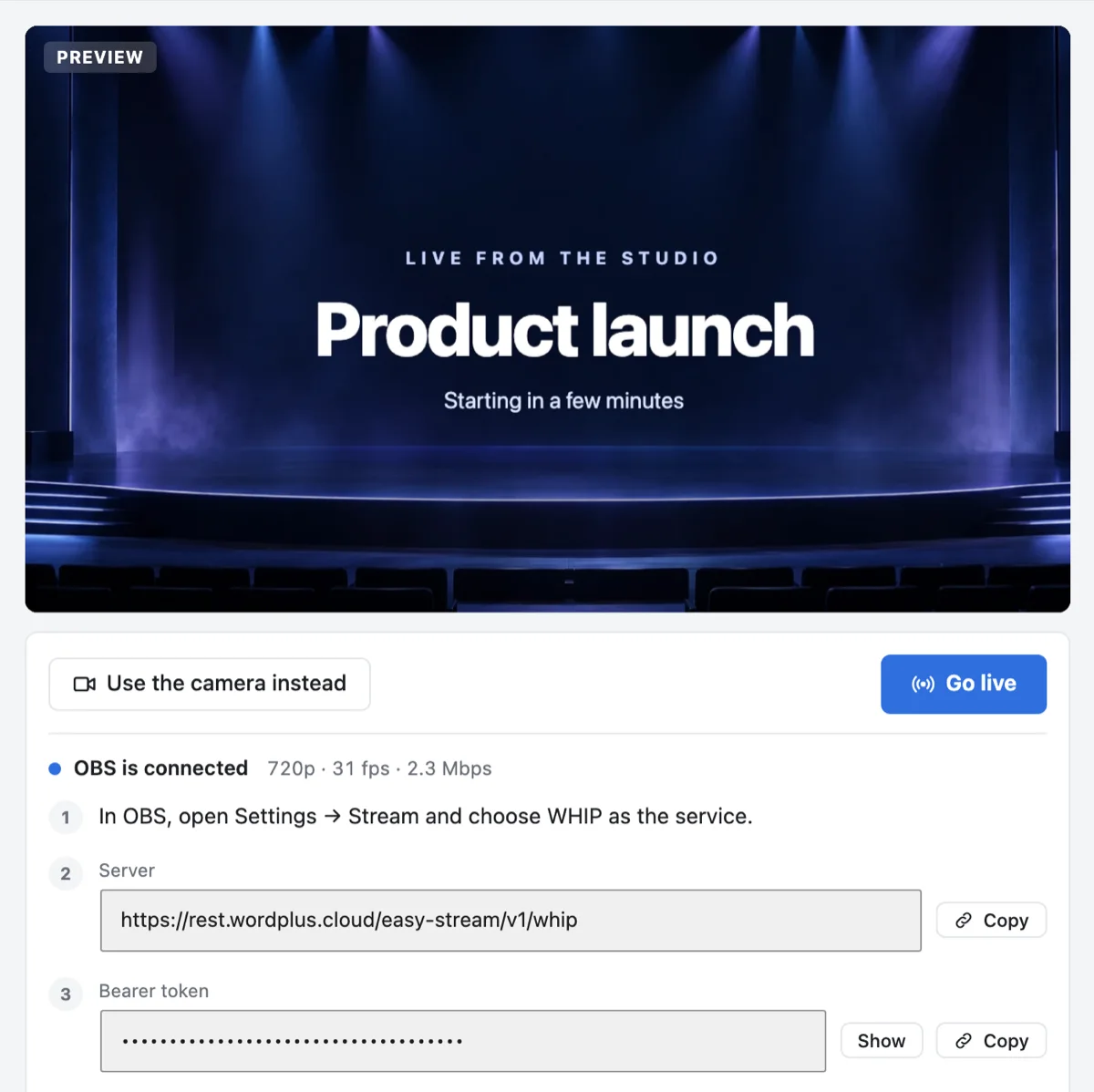
<p><img decoding="async" loading="lazy" alt="The studio with OBS connected: the picture from OBS previewed at 720p and 31 fps, with the steps, the server address and the bearer token to copy" src="https://stream.wordplus.cloud/assets/images/studio-obs-32da61c29aafaee0e31d284cb974c90f.webp" width="1200" height="1198" class="img_ev3q"></p>
<h2 class="anchor anchorTargetStickyNavbar_zFqj" id="what-whip-is-and-why-it-matters">What WHIP is, and why it matters<a href="https://stream.wordplus.cloud/blog/stream-from-obs-to-wordpress/#what-whip-is-and-why-it-matters" class="hash-link" aria-label="Direct link to What WHIP is, and why it matters" title="Direct link to What WHIP is, and why it matters" translate="no">​</a></h2>
<p>For years, encoders sent streams over <strong>RTMP</strong>. RTMP takes the stream to a server, which repackages it for viewers, usually as HLS: short files of a few seconds each, which players download one after another. It works at any scale, and it puts viewers several seconds behind the host.</p>
<p><strong>WHIP</strong>, the WebRTC-HTTP Ingestion Protocol, sends the stream over WebRTC instead, the technology browsers use for video calls. It is an IETF standard (RFC 9725). The encoder asks a WHIP server address, with a bearer token, to take its stream, and from then on the picture flows as WebRTC packets. A WebRTC service can pass those packets on to viewers as they arrive, so they see the host with low delay, close enough to react in the chat while the moment is still on screen. More on why: <a class="" href="https://stream.wordplus.cloud/blog/low-latency-live-streaming-webrtc/">Low latency live streaming: why WebRTC</a>.</p>
<p>OBS has had WHIP since version 30. FFmpeg has a WHIP output as well, from version 8.</p>
<h2 class="anchor anchorTargetStickyNavbar_zFqj" id="what-you-need">What you need<a href="https://stream.wordplus.cloud/blog/stream-from-obs-to-wordpress/#what-you-need" class="hash-link" aria-label="Direct link to What you need" title="Direct link to What you need" translate="no">​</a></h2>
<ul>
<li class=""><strong>OBS 30 or later.</strong> For layers (below), OBS 32.1 or later.</li>
<li class=""><strong>A WordPress site with Live Stream</strong> and a WordPlus Cloud subscription that includes live streaming (<a class="" href="https://stream.wordplus.cloud/blog/how-to-live-stream-on-wordpress/">How to live stream on a WordPress site</a> covers installing it).</li>
<li class=""><strong>A stream</strong> in <strong>Live Stream → Studio → Streams</strong>, on a page of your site.</li>
</ul>
<h2 class="anchor anchorTargetStickyNavbar_zFqj" id="connect-obs-step-by-step">Connect OBS, step by step<a href="https://stream.wordplus.cloud/blog/stream-from-obs-to-wordpress/#connect-obs-step-by-step" class="hash-link" aria-label="Direct link to Connect OBS, step by step" title="Direct link to Connect OBS, step by step" translate="no">​</a></h2>
<ol>
<li class=""><strong>Open the studio of the stream.</strong> In <strong>Live Stream → Studio</strong>, choose <strong>Go live</strong> beside the stream, then <strong>Stream from OBS</strong>. With the camera already on, it is under <strong>More</strong>. The studio shows the steps, with "Waiting for OBS…".</li>
<li class=""><strong>In OBS, open Settings → Stream</strong> and choose <strong>WHIP</strong> as the service.</li>
<li class=""><strong>Copy Server</strong> from the studio into the <strong>Server</strong> field of OBS.</li>
<li class=""><strong>Copy Bearer token</strong> from the studio into the <strong>Bearer Token</strong> field of OBS.</li>
<li class=""><strong>Set Total Layers to 3</strong>, in the same window, if your OBS has it (32.1 or newer).</li>
<li class=""><strong>Set the output of OBS</strong> as below, then press <strong>Start Streaming</strong> in OBS.</li>
<li class=""><strong>Check the picture.</strong> Once it arrives, the studio says <strong>OBS is connected</strong> and previews it with its size, frame rate and bitrate. Only you see it so far.</li>
<li class=""><strong>Press Go live</strong> in the studio. Viewers see the whole picture from OBS.</li>
</ol>
<p>The token is the key of the stream. Only its hosts see it, and <strong>New key</strong> in the studio makes a new one if it was seen by someone it should not have been.</p>
<h2 class="anchor anchorTargetStickyNavbar_zFqj" id="the-obs-settings-that-matter">The OBS settings that matter<a href="https://stream.wordplus.cloud/blog/stream-from-obs-to-wordpress/#the-obs-settings-that-matter" class="hash-link" aria-label="Direct link to The OBS settings that matter" title="Direct link to The OBS settings that matter" translate="no">​</a></h2>
<h3 class="anchor anchorTargetStickyNavbar_zFqj" id="layers-one-picture-in-three-sizes">Layers: one picture in three sizes<a href="https://stream.wordplus.cloud/blog/stream-from-obs-to-wordpress/#layers-one-picture-in-three-sizes" class="hash-link" aria-label="Direct link to Layers: one picture in three sizes" title="Direct link to Layers: one picture in three sizes" translate="no">​</a></h3>
<p>With <strong>Total Layers</strong> at <strong>3</strong>, OBS sends the full picture and two smaller copies of it at once. Each viewer gets the largest their screen and connection take, and a viewer whose connection slows down steps down to a smaller copy instead of stopping to wait.</p>
<p>Layers cost upload. OBS gives the full picture the bitrate you set and the copies two thirds and one third of it, so 4,500 kbps takes about 9 Mbit/s of upload in all. If your upload cannot carry that, set a lower bitrate, or 2 layers.</p>
<p>Without layers, every viewer gets the same picture, so choose a size that every connection can take.</p>
<h3 class="anchor anchorTargetStickyNavbar_zFqj" id="size-and-bitrate">Size and bitrate<a href="https://stream.wordplus.cloud/blog/stream-from-obs-to-wordpress/#size-and-bitrate" class="hash-link" aria-label="Direct link to Size and bitrate" title="Direct link to Size and bitrate" translate="no">​</a></h3>
<ul>
<li class=""><strong>Settings → Video:</strong> Output (Scaled) Resolution <strong>1920×1080</strong> at <strong>30 FPS</strong> with layers. Without layers, <strong>1280×720</strong> lets viewers on slow connections keep up.</li>
<li class=""><strong>Settings → Output:</strong> choose the <strong>Advanced</strong> output mode, and under <strong>Streaming</strong> set the bitrate to about <strong>4,500 kbps</strong> with layers, or <strong>2,500 kbps</strong> without.</li>
</ul>
<p>These are a starting point. What suits a stream depends on what it shows, on the computer that sends it and on its connection.</p>
<h3 class="anchor anchorTargetStickyNavbar_zFqj" id="keyframes-and-b-frames">Keyframes and B-frames<a href="https://stream.wordplus.cloud/blog/stream-from-obs-to-wordpress/#keyframes-and-b-frames" class="hash-link" aria-label="Direct link to Keyframes and B-frames" title="Direct link to Keyframes and B-frames" translate="no">​</a></h3>
<p>Two settings decide how soon viewers see the picture and how smoothly it plays, and only the <strong>Advanced</strong> output mode of OBS has them (<strong>Settings → Output → Output Mode</strong>, then the <strong>Streaming</strong> tab):</p>
<ul>
<li class=""><strong>Keyframe Interval: 1 s.</strong> A viewer sees the picture from the next keyframe on, when they arrive and when they come back to the page from another tab. The Simple output mode leaves the interval on auto, about one keyframe every 8 seconds, so viewers can wait that long. At 1 s, they wait a second at most.</li>
<li class=""><strong>Max B-frames: 0.</strong> Browsers skip B-frames, so a picture with them stutters. Some encoders start this setting at 2 in the Advanced mode.</li>
</ul>
<p>Keep the <strong>Video Encoder</strong> the Simple mode had, a hardware encoder of your graphics card where there is one, and leave the rest as it is.</p>
<p>The studio checks both while OBS sends, and says what to change, without stopping you from going live.</p>
<h2 class="anchor anchorTargetStickyNavbar_zFqj" id="try-it-before-your-audience-does">Try it before your audience does<a href="https://stream.wordplus.cloud/blog/stream-from-obs-to-wordpress/#try-it-before-your-audience-does" class="hash-link" aria-label="Direct link to Try it before your audience does" title="Direct link to Try it before your audience does" translate="no">​</a></h2>
<ol>
<li class="">Make a stream for trying, on a page nobody else knows, start streaming in OBS and press <strong>Go live</strong>.</li>
<li class="">Open its page on another device, on another network if you can, and watch for a few minutes, with the kind of picture you will stream.</li>
<li class="">Keep <strong>View → Stats</strong> open in OBS: it shows frames skipped by the encoder and frames dropped on the way out.</li>
</ol>
<p>Then change one thing at a time:</p>
<table><thead><tr><th>What you see</th><th>What it means</th><th>What to do</th></tr></thead><tbody><tr><td>The picture freezes and catches up</td><td>Your upload cannot carry what OBS sends</td><td>Lower the bitrate, or 2 layers</td></tr><tr><td>It stutters, and Stats shows frames skipped due to encoding lag</td><td>The encoder cannot keep up</td><td>A faster preset, or fewer layers</td></tr><tr><td>Detail pulses once a second on a busy picture</td><td>Each keyframe takes a large share of the bits</td><td>A higher bitrate, or a 2 s keyframe interval</td></tr><tr><td>Viewers wait seconds for the picture</td><td>Keyframes too far apart</td><td>Keyframe Interval 1 s</td></tr><tr><td>Everything plays smoothly</td><td></td><td>Keep it, or try a higher bitrate</td></tr></tbody></table>
<h2 class="anchor anchorTargetStickyNavbar_zFqj" id="a-stream-that-runs-by-itself">A stream that runs by itself<a href="https://stream.wordplus.cloud/blog/stream-from-obs-to-wordpress/#a-stream-that-runs-by-itself" class="hash-link" aria-label="Direct link to A stream that runs by itself" title="Direct link to A stream that runs by itself" translate="no">​</a></h2>
<p>For a stream sent from a computer that is always on, such as a demo or a camera on a view, turn on <strong>Go live when OBS connects</strong> in the settings of the stream. It then goes live as soon as OBS starts streaming with its token, with nobody in the studio, and stays live for as long as OBS sends. If OBS stops, the stream stays live while anyone watches, ends after five minutes with nobody watching, and goes live again as soon as OBS is back.</p>
<h2 class="anchor anchorTargetStickyNavbar_zFqj" id="when-obs-does-not-connect">When OBS does not connect<a href="https://stream.wordplus.cloud/blog/stream-from-obs-to-wordpress/#when-obs-does-not-connect" class="hash-link" aria-label="Direct link to When OBS does not connect" title="Direct link to When OBS does not connect" translate="no">​</a></h2>
<ul>
<li class=""><strong>The studio stays on "Waiting for OBS…":</strong> check that the service in OBS is WHIP, and that the server and the token were copied whole.</li>
<li class=""><strong>OBS says it could not access the stream key:</strong> OBS says this whatever the server answered. Check that the token is the one the studio shows now.</li>
<li class=""><strong>OBS cannot connect after the stream ended:</strong> an ended stream keeps OBS out. Choose <strong>Stream from OBS</strong> in its studio again, then start streaming in OBS.</li>
</ul>
<p>The full reference is in the docs: <a class="" href="https://stream.wordplus.cloud/docs/obs/">Streaming from OBS</a>.</p>
<h2 class="anchor anchorTargetStickyNavbar_zFqj" id="frequently-asked-questions">Frequently asked questions<a href="https://stream.wordplus.cloud/blog/stream-from-obs-to-wordpress/#frequently-asked-questions" class="hash-link" aria-label="Direct link to Frequently asked questions" title="Direct link to Frequently asked questions" translate="no">​</a></h2>
<h3 class="anchor anchorTargetStickyNavbar_zFqj" id="can-i-stream-to-wordpress-from-obs-over-rtmp">Can I stream to WordPress from OBS over RTMP?<a href="https://stream.wordplus.cloud/blog/stream-from-obs-to-wordpress/#can-i-stream-to-wordpress-from-obs-over-rtmp" class="hash-link" aria-label="Direct link to Can I stream to WordPress from OBS over RTMP?" title="Direct link to Can I stream to WordPress from OBS over RTMP?" translate="no">​</a></h3>
<p>Not with Live Stream yet. It takes OBS and other encoders over WHIP. Streaming in over RTMP is planned.</p>
<h3 class="anchor anchorTargetStickyNavbar_zFqj" id="do-i-need-obs-to-go-live">Do I need OBS to go live?<a href="https://stream.wordplus.cloud/blog/stream-from-obs-to-wordpress/#do-i-need-obs-to-go-live" class="hash-link" aria-label="Direct link to Do I need OBS to go live?" title="Direct link to Do I need OBS to go live?" translate="no">​</a></h3>
<p>No. Live Stream also goes live from the browser, with a camera, a microphone and a shared screen. OBS is for scenes, overlays and several cameras.</p>
<h3 class="anchor anchorTargetStickyNavbar_zFqj" id="what-quality-reaches-viewers">What quality reaches viewers?<a href="https://stream.wordplus.cloud/blog/stream-from-obs-to-wordpress/#what-quality-reaches-viewers" class="hash-link" aria-label="Direct link to What quality reaches viewers?" title="Direct link to What quality reaches viewers?" translate="no">​</a></h3>
<p>Up to the picture OBS sends, and no more than 1080p. If OBS sends a bigger picture than the stream takes, the studio says so and waits until it is changed. Each viewer gets the largest layer that their player and connection need.</p>]]></content>
        <author>
            <name>Andrij Tkachenko</name>
        </author>
    </entry>
    <entry>
        <title type="html"><![CDATA[Low Latency Live Streaming: Why WebRTC]]></title>
        <id>https://stream.wordplus.cloud/blog/low-latency-live-streaming-webrtc/</id>
        <link href="https://stream.wordplus.cloud/blog/low-latency-live-streaming-webrtc/"/>
        <updated>2026-11-02T10:00:00.000Z</updated>
        <summary type="html"><![CDATA[Where the delay of a live stream comes from, why HLS players run many seconds behind the host, how WebRTC brings it down to about a second, and when each is the right choice for a stream on your website.]]></summary>
        <content type="html"><![CDATA[<p>Every live stream runs a little behind the moment it shows. The camera sees the host wave, and viewers see the wave some time later: that gap is the <strong>latency</strong>, or delay, of the stream. For a stream that nobody answers, a few seconds do not matter. For a stream whose audience talks back, a Q&amp;A, a class, a launch with questions, an auction, the delay decides whether the chat is a conversation or a string of answers to questions the host has already moved past.</p>
<p>This post goes through where the delay comes from, why the usual way of delivering video runs many seconds behind, and how WebRTC, the technology of video calls, brings it down. It is also how Live Stream delivers its streams.</p>
<h2 class="anchor anchorTargetStickyNavbar_zFqj" id="where-the-delay-comes-from">Where the delay comes from<a href="https://stream.wordplus.cloud/blog/low-latency-live-streaming-webrtc/#where-the-delay-comes-from" class="hash-link" aria-label="Direct link to Where the delay comes from" title="Direct link to Where the delay comes from" translate="no">​</a></h2>
<p>A live picture passes through five stages, and each adds to the delay:</p>
<ol>
<li class=""><strong>Capture and encoding.</strong> The camera takes the frame, and the encoder, a browser or OBS, compresses it.</li>
<li class=""><strong>The way in.</strong> The stream travels to a server.</li>
<li class=""><strong>The server.</strong> It may change the stream into other sizes or formats before passing it on.</li>
<li class=""><strong>The way out.</strong> The stream travels to each viewer.</li>
<li class=""><strong>The player.</strong> It holds some of the stream before playing it, a buffer, so that a late packet does not stop the picture.</li>
</ol>
<p>The network part is usually the small part: a fraction of a second, even across an ocean. The big differences come from what the server does with the stream, and how much the player holds.</p>
<h2 class="anchor anchorTargetStickyNavbar_zFqj" id="hls-and-dash-built-for-scale">HLS and DASH: built for scale<a href="https://stream.wordplus.cloud/blog/low-latency-live-streaming-webrtc/#hls-and-dash-built-for-scale" class="hash-link" aria-label="Direct link to HLS and DASH: built for scale" title="Direct link to HLS and DASH: built for scale" translate="no">​</a></h2>
<p>Most video on the web is delivered with <strong>HLS</strong> or <strong>DASH</strong>. The server cuts the stream into short files, <strong>segments</strong> of a few seconds each, and lists them in a playlist. The player downloads one segment after another, like any other file, and holds a few of them before it starts, so the picture never runs dry.</p>
<p>That is why it scales so well: segments are plain files, which a CDN caches near every viewer, for any number of them. It is also why it runs behind. A segment exists only once its seconds have been recorded, and the player waits for several. An HLS stream often plays ten seconds or more behind the host. <strong>Low-Latency HLS</strong> and <strong>Low-Latency DASH</strong> cut segments into smaller parts and bring it down to a few seconds.</p>
<h2 class="anchor anchorTargetStickyNavbar_zFqj" id="rtmp-the-way-in-not-the-way-out">RTMP: the way in, not the way out<a href="https://stream.wordplus.cloud/blog/low-latency-live-streaming-webrtc/#rtmp-the-way-in-not-the-way-out" class="hash-link" aria-label="Direct link to RTMP: the way in, not the way out" title="Direct link to RTMP: the way in, not the way out" translate="no">​</a></h2>
<p><strong>RTMP</strong> is how encoders have sent streams to servers for years. It once played in browsers too, through Flash, and today it carries the stream only to the server, which repackages it for viewers as HLS. So an RTMP workflow has the delay of HLS.</p>
<h2 class="anchor anchorTargetStickyNavbar_zFqj" id="webrtc-built-for-conversation">WebRTC: built for conversation<a href="https://stream.wordplus.cloud/blog/low-latency-live-streaming-webrtc/#webrtc-built-for-conversation" class="hash-link" aria-label="Direct link to WebRTC: built for conversation" title="Direct link to WebRTC: built for conversation" translate="no">​</a></h2>
<p><strong>WebRTC</strong> is what browsers use for video calls, where a delay of seconds would make talking impossible. It sends the picture as a stream of small packets, which the receiving side plays as they arrive, holding only enough to smooth out the network. There are no segments to wait for.</p>
<p>For a stream with an audience, a <strong>media server</strong> sits in the middle: the host sends one stream to it, and it passes the packets on to each viewer. Two techniques make that work for many viewers with different screens and connections:</p>
<ul>
<li class=""><strong>Layers.</strong> The host sends the picture in several sizes at once, such as 720p, 540p and 360p, and the media server gives each viewer the size their player and connection need. Nothing is re-encoded on the server, so nothing waits for it.</li>
<li class=""><strong>Repair.</strong> When a packet is lost, the viewer asks for it again, and the media server keeps the last moments of the stream to resend it.</li>
</ul>
<p>The cost is on the side of whoever runs the media servers. A CDN cannot cache a WebRTC stream: every viewer has a live connection, and the servers must be close enough to the audience and large enough for it.</p>
<h2 class="anchor anchorTargetStickyNavbar_zFqj" id="hls-and-webrtc-side-by-side">HLS and WebRTC side by side<a href="https://stream.wordplus.cloud/blog/low-latency-live-streaming-webrtc/#hls-and-webrtc-side-by-side" class="hash-link" aria-label="Direct link to HLS and WebRTC side by side" title="Direct link to HLS and WebRTC side by side" translate="no">​</a></h2>
<table><thead><tr><th></th><th>HLS and DASH</th><th>Low-Latency HLS and DASH</th><th>WebRTC</th></tr></thead><tbody><tr><td>Delay behind the host</td><td>Often ten seconds or more</td><td>A few seconds</td><td>About a second</td></tr><tr><td>Delivered by</td><td>Any CDN, as files</td><td>A CDN that supports it</td><td>Media servers, a connection for each viewer</td></tr><tr><td>Rewinding and catching up</td><td>Yes</td><td>Yes</td><td>No, always at the live moment</td></tr><tr><td>A chat in step with the picture</td><td>No</td><td>Almost</td><td>Yes</td></tr><tr><td>Plays in</td><td>Every browser, with a player script in some</td><td>Every browser, with a player script in some</td><td>Every current browser</td></tr></tbody></table>
<h2 class="anchor anchorTargetStickyNavbar_zFqj" id="how-live-stream-streams-over-webrtc">How Live Stream streams over WebRTC<a href="https://stream.wordplus.cloud/blog/low-latency-live-streaming-webrtc/#how-live-stream-streams-over-webrtc" class="hash-link" aria-label="Direct link to How Live Stream streams over WebRTC" title="Direct link to How Live Stream streams over WebRTC" translate="no">​</a></h2>
<p>Live Stream delivers every stream over WebRTC, through the media servers of WordPlus Cloud:</p>
<ul>
<li class=""><strong>The host sends in layers.</strong> A host going live from the browser sends the picture in several sizes, and OBS sends up to three with its <strong>Total Layers</strong> setting (<a class="" href="https://stream.wordplus.cloud/blog/stream-from-obs-to-wordpress/">How to stream from OBS to WordPress over WHIP</a>). Each viewer gets the size their player and connection need, so a phone gets less than a big screen.</li>
<li class=""><strong>The camera is checked as it goes live.</strong> The browser of the host tries H.264 first, which plays on the most devices, and moves to VP9, then VP8, if the computer cannot keep up with it.</li>
<li class=""><strong>Each viewer holds about a second</strong> while their connection plays smoothly. If the picture freezes while packets of it are lost, the player holds two seconds, then three, and comes back down after minutes without trouble. The sound follows the picture, so lips and voice stay together. The <strong>Statistics</strong> of the player show the buffer as it changes.</li>
<li class=""><strong>No app.</strong> Viewers watch on the page of your site, in the browser.</li>
</ul>
<p>The whole delay is that buffer plus the way through the network, so on a smooth connection viewers stay within a couple of seconds of the host, and the chat beside the picture is about what is on screen.</p>
<h2 class="anchor anchorTargetStickyNavbar_zFqj" id="when-hls-is-the-better-choice">When HLS is the better choice<a href="https://stream.wordplus.cloud/blog/low-latency-live-streaming-webrtc/#when-hls-is-the-better-choice" class="hash-link" aria-label="Direct link to When HLS is the better choice" title="Direct link to When HLS is the better choice" translate="no">​</a></h2>
<p>WebRTC is not always the answer:</p>
<ul>
<li class=""><strong>Rewinding.</strong> HLS players can go back to an earlier moment of a live stream. A WebRTC stream is always at the live moment.</li>
<li class=""><strong>A passive audience of millions.</strong> If nobody needs to talk back, files on a CDN are the cheapest way to reach a huge crowd.</li>
<li class=""><strong>Recordings.</strong> A recorded stream is played as files anyway.</li>
</ul>
<p>Live Stream plays over WebRTC only today. Its replays are recordings, played after the stream ends.</p>
<h2 class="anchor anchorTargetStickyNavbar_zFqj" id="frequently-asked-questions">Frequently asked questions<a href="https://stream.wordplus.cloud/blog/low-latency-live-streaming-webrtc/#frequently-asked-questions" class="hash-link" aria-label="Direct link to Frequently asked questions" title="Direct link to Frequently asked questions" translate="no">​</a></h2>
<h3 class="anchor anchorTargetStickyNavbar_zFqj" id="is-webrtc-only-for-small-audiences">Is WebRTC only for small audiences?<a href="https://stream.wordplus.cloud/blog/low-latency-live-streaming-webrtc/#is-webrtc-only-for-small-audiences" class="hash-link" aria-label="Direct link to Is WebRTC only for small audiences?" title="Direct link to Is WebRTC only for small audiences?" translate="no">​</a></h3>
<p>No. With media servers passing the stream on, one host reaches many viewers. A stream in Live Stream has no limit of viewers: each site streams to 50 at once unmetered, and each viewer above that takes a credit a minute (<a class="" href="https://stream.wordplus.cloud/docs/viewers-and-credits/">Viewers and credits</a>).</p>
<h3 class="anchor anchorTargetStickyNavbar_zFqj" id="does-a-lower-delay-cost-picture-quality">Does a lower delay cost picture quality?<a href="https://stream.wordplus.cloud/blog/low-latency-live-streaming-webrtc/#does-a-lower-delay-cost-picture-quality" class="hash-link" aria-label="Direct link to Does a lower delay cost picture quality?" title="Direct link to Does a lower delay cost picture quality?" translate="no">​</a></h3>
<p>A small buffer leaves less time to ask for a lost packet again. That is why the buffer of a Live Stream player grows when its connection loses packets, and why layers let a slow connection step down to a smaller picture instead of stopping.</p>
<h3 class="anchor anchorTargetStickyNavbar_zFqj" id="do-viewers-need-a-special-browser">Do viewers need a special browser?<a href="https://stream.wordplus.cloud/blog/low-latency-live-streaming-webrtc/#do-viewers-need-a-special-browser" class="hash-link" aria-label="Direct link to Do viewers need a special browser?" title="Direct link to Do viewers need a special browser?" translate="no">​</a></h3>
<p>No. Every current browser plays WebRTC, on computers and phones.</p>
<h3 class="anchor anchorTargetStickyNavbar_zFqj" id="what-delay-can-i-expect-from-youtube-or-facebook-live">What delay can I expect from YouTube or Facebook Live?<a href="https://stream.wordplus.cloud/blog/low-latency-live-streaming-webrtc/#what-delay-can-i-expect-from-youtube-or-facebook-live" class="hash-link" aria-label="Direct link to What delay can I expect from YouTube or Facebook Live?" title="Direct link to What delay can I expect from YouTube or Facebook Live?" translate="no">​</a></h3>
<p>These platforms deliver over HLS or DASH, and some offer a low latency mode. Expect a few seconds at best, more for viewers far away or on slow connections.</p>]]></content>
        <author>
            <name>Andrij Tkachenko</name>
        </author>
    </entry>
    <entry>
        <title type="html"><![CDATA[A Live Stream Inside a Better Messages Chat Room]]></title>
        <id>https://stream.wordplus.cloud/blog/live-stream-in-a-better-messages-chat-room/</id>
        <link href="https://stream.wordplus.cloud/blog/live-stream-in-a-better-messages-chat-room/"/>
        <updated>2026-11-02T09:00:00.000Z</updated>
        <summary type="html"><![CDATA[Broadcast live into a Better Messages chat room on your WordPress site. The stream shows beside the messages like a group video call, and the room is its chat, with history, moderation and everything else a chat room has.]]></summary>
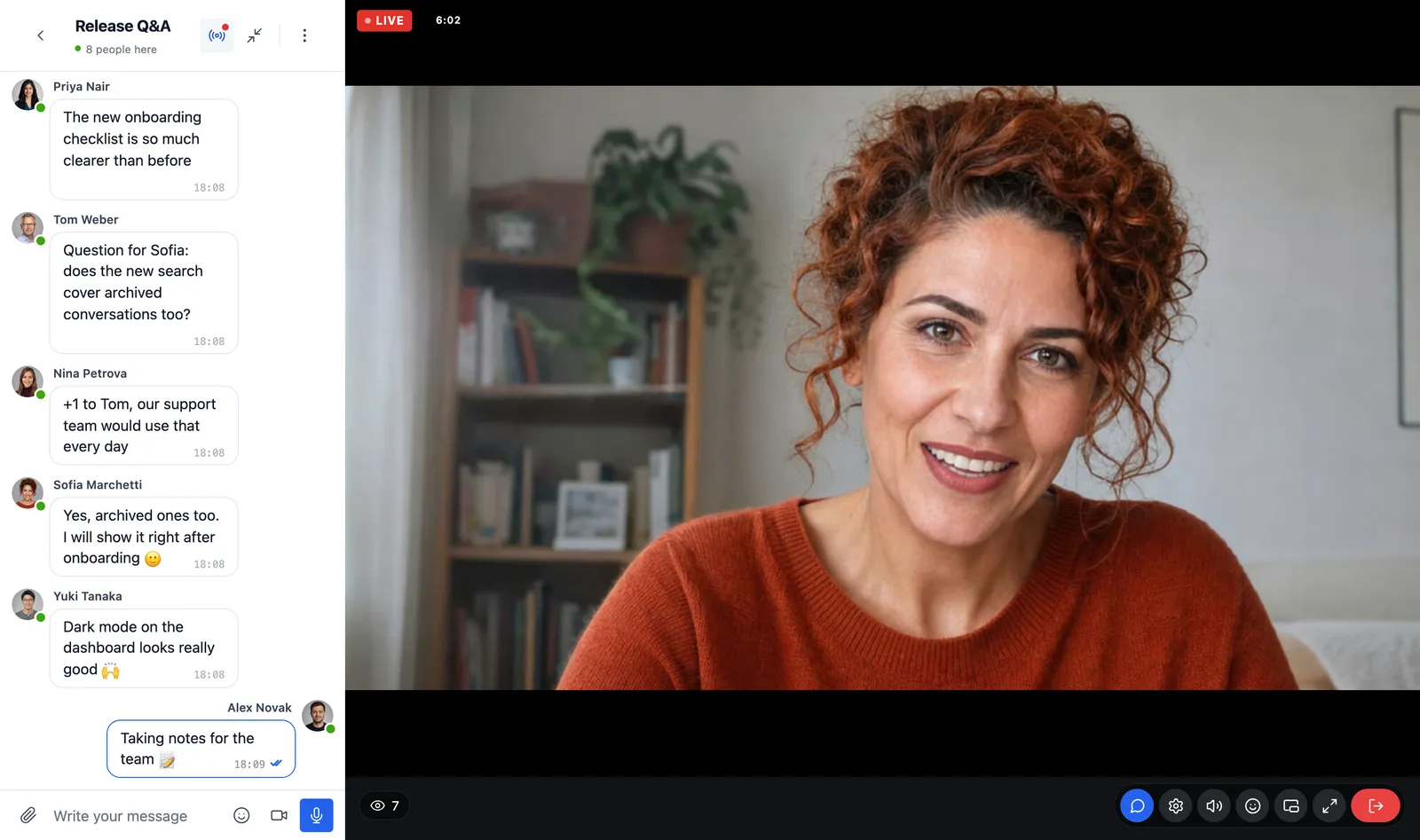
        <content type="html"><![CDATA[<p>A community already talks in its chat rooms. When someone goes live, the natural place to watch is right there, beside the conversation the members are already in. With Live Stream and <a href="https://www.better-messages.com/" target="_blank" rel="noopener noreferrer" class="">Better Messages</a>, a chat room can host a live stream: it shows in the room the way a group video call does, and the room is the chat of the stream, with its history, its moderation and its members.</p>
<p>This post shows what members see, how a host goes live from the room, and how to set it up.</p>
<p><img decoding="async" loading="lazy" alt="A Better Messages chat room with a live stream: the host on camera with a Live badge and seven watching, the messages of the room beside the stream, and the controls of the player among those of a call" src="https://stream.wordplus.cloud/assets/images/better-messages-room-0240b7a11da0f3e0bca7e023c436c561.webp" width="1600" height="947" class="img_ev3q"></p>
<h2 class="anchor anchorTargetStickyNavbar_zFqj" id="why-stream-in-a-chat-room">Why stream in a chat room<a href="https://stream.wordplus.cloud/blog/live-stream-in-a-better-messages-chat-room/#why-stream-in-a-chat-room" class="hash-link" aria-label="Direct link to Why stream in a chat room" title="Direct link to Why stream in a chat room" translate="no">​</a></h2>
<p>Live Stream has its own <strong>light chat</strong>: text and emoji for the moment, with moderation, run by WordPlus Cloud and gone a day after the last message. That suits a public show. A community usually wants more:</p>
<ul>
<li class=""><strong>The conversation stays.</strong> Messages are saved on your site, with history and export, so what was said during the stream is there the next day.</li>
<li class=""><strong>Everything a chat room has:</strong> files, GIFs, stickers, mentions, and the notifications and moderation of Better Messages.</li>
<li class=""><strong>The people are already there.</strong> Members do not go to another page to watch, and the room is where they talk about the stream before it starts and after it ends.</li>
</ul>
<h2 class="anchor anchorTargetStickyNavbar_zFqj" id="what-members-see">What members see<a href="https://stream.wordplus.cloud/blog/live-stream-in-a-better-messages-chat-room/#what-members-see" class="hash-link" aria-label="Direct link to What members see" title="Direct link to What members see" translate="no">​</a></h2>
<ul>
<li class=""><strong>The stream beside the messages.</strong> While the stream of a room is live, it opens by itself where a group video call would, beside the messages of the room.</li>
<li class=""><strong>A Live banner</strong> over the messages and a button in the header of the room bring it back after someone closes it.</li>
<li class=""><strong>The player among the call controls:</strong> sound and volume, the quality of the picture, reactions, picture-in-picture and full screen.</li>
<li class=""><strong>On a phone,</strong> the stream sits on top and the chat under it.</li>
</ul>
<p>A member who closes the stream stays in the chat, and is not counted as watching until they open it again. Where the stream should not be closed while it is live, <strong>Always on screen in the room</strong> keeps it there.</p>
<h2 class="anchor anchorTargetStickyNavbar_zFqj" id="going-live-from-the-room">Going live from the room<a href="https://stream.wordplus.cloud/blog/live-stream-in-a-better-messages-chat-room/#going-live-from-the-room" class="hash-link" aria-label="Direct link to Going live from the room" title="Direct link to Going live from the room" translate="no">​</a></h2>
<p>The host goes live without leaving the conversation. The button in the header of the room opens their preview, with the camera, the microphone and screen sharing in the call controls, then <strong>Go live</strong> and, at the end, <strong>End stream</strong>. While live, the host sees how the picture goes out and how many watch, and a summary once it ends.</p>
<p>For scenes, overlays and several cameras, the host streams from OBS in <strong>Live Stream → Studio</strong> instead, and the stream still shows in the room (<a class="" href="https://stream.wordplus.cloud/blog/stream-from-obs-to-wordpress/">How to stream from OBS to WordPress over WHIP</a>).</p>
<h2 class="anchor anchorTargetStickyNavbar_zFqj" id="setting-it-up">Setting it up<a href="https://stream.wordplus.cloud/blog/live-stream-in-a-better-messages-chat-room/#setting-it-up" class="hash-link" aria-label="Direct link to Setting it up" title="Direct link to Setting it up" translate="no">​</a></h2>
<h3 class="anchor anchorTargetStickyNavbar_zFqj" id="what-you-need">What you need<a href="https://stream.wordplus.cloud/blog/live-stream-in-a-better-messages-chat-room/#what-you-need" class="hash-link" aria-label="Direct link to What you need" title="Direct link to What you need" translate="no">​</a></h3>
<ul>
<li class=""><strong>Better Messages 3.1 or later, its WebSocket version</strong> with an active licence. Its free version has no realtime connection, so every viewer would keep asking your site for new messages.</li>
<li class=""><strong>Live Stream</strong>, on the same WordPlus Cloud subscription. A site whose Better Messages already runs on it is connected without entering a key again.</li>
</ul>
<h3 class="anchor anchorTargetStickyNavbar_zFqj" id="from-the-room">From the room<a href="https://stream.wordplus.cloud/blog/live-stream-in-a-better-messages-chat-room/#from-the-room" class="hash-link" aria-label="Direct link to From the room" title="Direct link to From the room" translate="no">​</a></h3>
<ol>
<li class="">Open <strong>Better Messages → Chat Rooms</strong> and edit the room.</li>
<li class="">Below the group call settings, choose <strong>Stream in this room</strong>. Live Stream makes a stream for the room, named after it, with the room as its chat.</li>
<li class="">The room now has a <strong>Live streaming</strong> section with <strong>Go live</strong>, <strong>Stream settings</strong>, <strong>Always on screen in the room</strong> and <strong>Stop streaming here</strong>.</li>
</ol>
<h3 class="anchor anchorTargetStickyNavbar_zFqj" id="from-the-stream">From the stream<a href="https://stream.wordplus.cloud/blog/live-stream-in-a-better-messages-chat-room/#from-the-stream" class="hash-link" aria-label="Direct link to From the stream" title="Direct link to From the stream" translate="no">​</a></h3>
<p>Or start in Live Stream: open <strong>Live Stream → Studio → Streams</strong>, choose the stream, and set its chat to <strong>Better Messages chat room</strong>. The room is made when you save. A new stream gets one by itself where Better Messages runs its WebSocket version with an active licence.</p>
<p><strong>Stop streaming here</strong> takes the stream out of the room, and the stream keeps a light chat of its own.</p>
<h2 class="anchor anchorTargetStickyNavbar_zFqj" id="who-can-watch-and-who-can-write">Who can watch and who can write<a href="https://stream.wordplus.cloud/blog/live-stream-in-a-better-messages-chat-room/#who-can-watch-and-who-can-write" class="hash-link" aria-label="Direct link to Who can watch and who can write" title="Direct link to Who can watch and who can write" translate="no">​</a></h2>
<p>Each stream chooses who watches: everyone, logged-in members, or the roles you choose. Who writes in the room, guests, files and moderators are the settings of the room, under <strong>Better Messages → Chat Rooms</strong>. On a public stream, visitors chat as guests where the room allows them.</p>
<p>The room shows wherever the chat of the stream does: beside the player on the page of the stream, in the studio of the host, and in Better Messages itself.</p>
<h2 class="anchor anchorTargetStickyNavbar_zFqj" id="ideas-for-a-community">Ideas for a community<a href="https://stream.wordplus.cloud/blog/live-stream-in-a-better-messages-chat-room/#ideas-for-a-community" class="hash-link" aria-label="Direct link to Ideas for a community" title="Direct link to Ideas for a community" translate="no">​</a></h2>
<ul>
<li class=""><strong>A weekly Q&amp;A</strong> in the main room of the community, the questions saved for those who missed it.</li>
<li class=""><strong>A members only room</strong> for paying members, with a stream only their role may watch.</li>
<li class=""><strong>A course cohort</strong> whose teacher goes live in the room of the class, with the files of the lesson shared in the same chat.</li>
<li class=""><strong>A launch or an event</strong> where the room fills up before the start, and keeps talking after the end.</li>
</ul>
<h2 class="anchor anchorTargetStickyNavbar_zFqj" id="frequently-asked-questions">Frequently asked questions<a href="https://stream.wordplus.cloud/blog/live-stream-in-a-better-messages-chat-room/#frequently-asked-questions" class="hash-link" aria-label="Direct link to Frequently asked questions" title="Direct link to Frequently asked questions" translate="no">​</a></h2>
<h3 class="anchor anchorTargetStickyNavbar_zFqj" id="does-live-stream-need-better-messages">Does Live Stream need Better Messages?<a href="https://stream.wordplus.cloud/blog/live-stream-in-a-better-messages-chat-room/#does-live-stream-need-better-messages" class="hash-link" aria-label="Direct link to Does Live Stream need Better Messages?" title="Direct link to Does Live Stream need Better Messages?" translate="no">​</a></h3>
<p>No. Live Stream works on its own, with its light chat. Better Messages adds the chat room.</p>
<h3 class="anchor anchorTargetStickyNavbar_zFqj" id="does-better-messages-carry-anything-of-live-stream-when-it-is-not-installed">Does Better Messages carry anything of Live Stream when it is not installed?<a href="https://stream.wordplus.cloud/blog/live-stream-in-a-better-messages-chat-room/#does-better-messages-carry-anything-of-live-stream-when-it-is-not-installed" class="hash-link" aria-label="Direct link to Does Better Messages carry anything of Live Stream when it is not installed?" title="Direct link to Does Better Messages carry anything of Live Stream when it is not installed?" translate="no">​</a></h3>
<p>No. Better Messages shows a row about Live Stream in the room editor of its WebSocket version, and nothing else until Live Stream is installed.</p>
<h3 class="anchor anchorTargetStickyNavbar_zFqj" id="can-members-go-live-in-a-room">Can members go live in a room?<a href="https://stream.wordplus.cloud/blog/live-stream-in-a-better-messages-chat-room/#can-members-go-live-in-a-room" class="hash-link" aria-label="Direct link to Can members go live in a room?" title="Direct link to Can members go live in a room?" translate="no">​</a></h3>
<p>Administrators host streams. Another plugin can let more people host with the hooks of Live Stream (<a class="" href="https://stream.wordplus.cloud/docs/developers/">Live streams in your plugin</a>).</p>
<h3 class="anchor anchorTargetStickyNavbar_zFqj" id="where-are-the-docs">Where are the docs?<a href="https://stream.wordplus.cloud/blog/live-stream-in-a-better-messages-chat-room/#where-are-the-docs" class="hash-link" aria-label="Direct link to Where are the docs?" title="Direct link to Where are the docs?" translate="no">​</a></h3>
<p>On both sides: <a class="" href="https://stream.wordplus.cloud/docs/chat/">Chat and moderation</a> in the docs of Live Stream, and <a href="https://www.better-messages.com/docs/websocket/live-streaming/" target="_blank" rel="noopener noreferrer" class="">Live streaming in chat rooms</a> in the docs of Better Messages.</p>]]></content>
        <author>
            <name>Andrij Tkachenko</name>
        </author>
    </entry>
    <entry>
        <title type="html"><![CDATA[How to Run Live Classes and Webinars on WordPress]]></title>
        <id>https://stream.wordplus.cloud/blog/live-classes-and-webinars-on-wordpress/</id>
        <link href="https://stream.wordplus.cloud/blog/live-classes-and-webinars-on-wordpress/"/>
        <updated>2026-11-02T08:00:00.000Z</updated>
        <summary type="html"><![CDATA[Host live classes and webinars on your own WordPress pages, with a schedule and countdown, members only access, screen sharing, a moderated chat for questions, and streams for each course of your LMS.]]></summary>
        <content type="html"><![CDATA[<p>A live class and a webinar have the same shape. A teacher or a speaker goes live at a set time, shows their face and their slides, and talks to people who signed up for it. Those people ask questions in a chat, and someone keeps the chat friendly. Afterwards, everyone wants to know when the next one is.</p>
<p>Most sites run them on a meeting tool and send people a link. This post shows how to run them on your own WordPress pages instead, with Live Stream, for the people your site already knows: what each part takes, how to set it up, and where a meeting tool is still the better choice.</p>
<p><img decoding="async" loading="lazy" alt="The page of a scheduled stream before it starts: a countdown over the cover of the stream, with Add to calendar, and the chat beside it" src="https://stream.wordplus.cloud/assets/images/countdown-20d2ec786c8973f6535aaecd38bb9ca1.webp" width="1600" height="724" class="img_ev3q"></p>
<h2 class="anchor anchorTargetStickyNavbar_zFqj" id="what-a-live-class-needs">What a live class needs<a href="https://stream.wordplus.cloud/blog/live-classes-and-webinars-on-wordpress/#what-a-live-class-needs" class="hash-link" aria-label="Direct link to What a live class needs" title="Direct link to What a live class needs" translate="no">​</a></h2>
<ul>
<li class=""><strong>A time, and a way to remember it.</strong> A countdown on the page, and an entry in the calendar of each student.</li>
<li class=""><strong>Only the right people in.</strong> Students of the course, members of a plan, or everyone with an account.</li>
<li class=""><strong>The teacher and the slides.</strong> A camera, and a screen to share, or a produced picture from OBS.</li>
<li class=""><strong>Questions.</strong> A chat beside the picture, close enough to the moment that the teacher answers while it still matters, and tools to keep it on topic.</li>
<li class=""><strong>A page for each class</strong>, and a list of what is coming up.</li>
</ul>
<h2 class="anchor anchorTargetStickyNavbar_zFqj" id="schedule-the-class-with-a-countdown">Schedule the class, with a countdown<a href="https://stream.wordplus.cloud/blog/live-classes-and-webinars-on-wordpress/#schedule-the-class-with-a-countdown" class="hash-link" aria-label="Direct link to Schedule the class, with a countdown" title="Direct link to Schedule the class, with a countdown" translate="no">​</a></h2>
<p>Create a stream in <strong>Live Stream → Studio → Streams</strong> and give it a time in its <strong>Schedule</strong> setting. Until the teacher goes live, its page shows the cover, a countdown to the start with its date and time, and <strong>Add to calendar</strong>, for Google Calendar or a calendar file for Apple Calendar and Outlook. When the teacher goes live, everyone waiting sees the class begin without reloading.</p>
<p>A weekly class or a webinar series keeps one stream with many times: one page, one chat and one OBS key, with nothing to change between sessions.</p>
<ul>
<li class="">Give each time a title of its own, such as "Spanish for beginners, lesson 4", and the countdown says it.</li>
<li class=""><strong>Repeat these weekly</strong> copies the times on for the weeks you choose.</li>
<li class="">After a session ends, viewers see the thanks with the next time under it, then the countdown to it.</li>
</ul>
<p>The <strong>Live now</strong> block, or <code>[wordplus_stream_live show="both"]</code>, lists the classes live right now and those coming up, each at its next time.</p>
<h2 class="anchor anchorTargetStickyNavbar_zFqj" id="let-only-your-students-in">Let only your students in<a href="https://stream.wordplus.cloud/blog/live-classes-and-webinars-on-wordpress/#let-only-your-students-in" class="hash-link" aria-label="Direct link to Let only your students in" title="Direct link to Let only your students in" translate="no">​</a></h2>
<p>Each stream has a <strong>Who can watch</strong> setting: everyone, logged-in users, or selected roles. For a class of paying members, choose their role.</p>
<p>Membership and course plugins can decide more finely with the <code>wordplus_stream_can_watch</code> filter, which gets the decision of the stream and the ID of the user, and returns whether that user may watch:</p>
<div class="language-php codeBlockContainer_Ckt0 theme-code-block" style="--prism-color:#393A34;--prism-background-color:#f6f8fa"><div class="codeBlockContent_QJqH"><pre tabindex="0" class="prism-code language-php codeBlock_bY9V thin-scrollbar" style="color:#393A34;background-color:#f6f8fa"><code class="codeBlockLines_e6Vv"><span class="token-line" style="color:#393A34"><span class="token function" style="color:#d73a49">add_filter</span><span class="token punctuation" style="color:#393A34">(</span><span class="token plain"> </span><span class="token string single-quoted-string" style="color:#e3116c">'wordplus_stream_can_watch'</span><span class="token punctuation" style="color:#393A34">,</span><span class="token plain"> </span><span class="token keyword" style="color:#00009f">function</span><span class="token plain"> </span><span class="token punctuation" style="color:#393A34">(</span><span class="token plain"> </span><span class="token variable" style="color:#36acaa">$can</span><span class="token punctuation" style="color:#393A34">,</span><span class="token plain"> </span><span class="token variable" style="color:#36acaa">$rules</span><span class="token punctuation" style="color:#393A34">,</span><span class="token plain"> </span><span class="token variable" style="color:#36acaa">$user_id</span><span class="token plain"> </span><span class="token punctuation" style="color:#393A34">)</span><span class="token plain"> </span><span class="token punctuation" style="color:#393A34">{</span><span class="token plain"></span><br></span><span class="token-line" style="color:#393A34"><span class="token plain">    </span><span class="token comment" style="color:#999988;font-style:italic">// Only students with an active membership watch.</span><span class="token plain"></span><br></span><span class="token-line" style="color:#393A34"><span class="token plain">    </span><span class="token keyword" style="color:#00009f">return</span><span class="token plain"> </span><span class="token variable" style="color:#36acaa">$can</span><span class="token plain"> </span><span class="token operator" style="color:#393A34">&amp;&amp;</span><span class="token plain"> </span><span class="token function" style="color:#d73a49">my_membership_is_active</span><span class="token punctuation" style="color:#393A34">(</span><span class="token plain"> </span><span class="token variable" style="color:#36acaa">$user_id</span><span class="token plain"> </span><span class="token punctuation" style="color:#393A34">)</span><span class="token punctuation" style="color:#393A34">;</span><span class="token plain"></span><br></span><span class="token-line" style="color:#393A34"><span class="token plain"></span><span class="token punctuation" style="color:#393A34">}</span><span class="token punctuation" style="color:#393A34">,</span><span class="token plain"> </span><span class="token number" style="color:#36acaa">10</span><span class="token punctuation" style="color:#393A34">,</span><span class="token plain"> </span><span class="token number" style="color:#36acaa">3</span><span class="token plain"> </span><span class="token punctuation" style="color:#393A34">)</span><span class="token punctuation" style="color:#393A34">;</span><br></span></code></pre></div></div>
<p>Nobody else can join it.</p>
<h2 class="anchor anchorTargetStickyNavbar_zFqj" id="teach-with-your-camera-and-your-screen">Teach with your camera and your screen<a href="https://stream.wordplus.cloud/blog/live-classes-and-webinars-on-wordpress/#teach-with-your-camera-and-your-screen" class="hash-link" aria-label="Direct link to Teach with your camera and your screen" title="Direct link to Teach with your camera and your screen" translate="no">​</a></h2>
<p>The teacher goes live from <strong>Live Stream → Studio</strong> in the browser: the camera, the microphone, and <strong>Share screen</strong> for slides, a document or a browser tab. The microphone is tuned for speech, with echo and background noise removed by the browser. The room behind the teacher can be blurred or replaced with a picture, and <strong>AI noise removal</strong> takes typing and fans out of the microphone (<a class="" href="https://stream.wordplus.cloud/docs/effects/">Background blur, backgrounds and noise removal</a>).</p>
<p>For a produced class, with the slides and the camera in one picture, a lower third with the name of the teacher, or a second camera on a whiteboard, stream from OBS instead (<a class="" href="https://stream.wordplus.cloud/blog/stream-from-obs-to-wordpress/">How to stream from OBS to WordPress over WHIP</a>).</p>
<p>Viewers watch in the browser over WebRTC, about a second behind the teacher on a smooth connection, so the chat is about what is on screen (<a class="" href="https://stream.wordplus.cloud/blog/low-latency-live-streaming-webrtc/">Low latency live streaming: why WebRTC</a>).</p>
<h2 class="anchor anchorTargetStickyNavbar_zFqj" id="questions-and-a-chat-that-stays-on-topic">Questions, and a chat that stays on topic<a href="https://stream.wordplus.cloud/blog/live-classes-and-webinars-on-wordpress/#questions-and-a-chat-that-stays-on-topic" class="hash-link" aria-label="Direct link to Questions, and a chat that stays on topic" title="Direct link to Questions, and a chat that stays on topic" translate="no">​</a></h2>
<p>The chat beside the player is where students ask. For a class, these tools help:</p>
<ul>
<li class=""><strong>Pin message</strong> holds the topic, a link to the slides or the question being answered over the chat.</li>
<li class=""><strong>Slow mode</strong> allows one message every 5, 10, 30 or 60 seconds, so a big class does not drown the questions.</li>
<li class=""><strong>Links</strong> only from moderators keep spam out.</li>
<li class=""><strong>Moderators</strong> are the hosts, the comment moderators of the site, and the roles you choose, such as teaching assistants. They delete messages, mute someone for a minute or a day, remove them from the stream or ban them.</li>
</ul>
<p>For a class whose conversation should stay, with files and history, make the chat a Better Messages chat room (<a class="" href="https://stream.wordplus.cloud/blog/live-stream-in-a-better-messages-chat-room/">A live stream inside a Better Messages chat room</a>).</p>
<h2 class="anchor anchorTargetStickyNavbar_zFqj" id="a-page-for-each-class">A page for each class<a href="https://stream.wordplus.cloud/blog/live-classes-and-webinars-on-wordpress/#a-page-for-each-class" class="hash-link" aria-label="Direct link to A page for each class" title="Direct link to A page for each class" translate="no">​</a></h2>
<p><strong>Create a page</strong> beside the stream in the Studio publishes a page with the stream and the chat beside it. Or start a page from the <strong>Webinar</strong> or <strong>Live event</strong> block pattern, or add the <strong>Live stream</strong> block to the page of a course or a lesson.</p>
<p>Course plugins can go further with the API of Live Stream, which gives each course its own stream, made and found by the course:</p>
<div class="language-php codeBlockContainer_Ckt0 theme-code-block" style="--prism-color:#393A34;--prism-background-color:#f6f8fa"><div class="codeBlockContent_QJqH"><pre tabindex="0" class="prism-code language-php codeBlock_bY9V thin-scrollbar" style="color:#393A34;background-color:#f6f8fa"><code class="codeBlockLines_e6Vv"><span class="token-line" style="color:#393A34"><span class="token variable" style="color:#36acaa">$stream_id</span><span class="token plain"> </span><span class="token operator" style="color:#393A34">=</span><span class="token plain"> </span><span class="token function" style="color:#d73a49">wordplus_streams</span><span class="token punctuation" style="color:#393A34">(</span><span class="token punctuation" style="color:#393A34">)</span><span class="token operator" style="color:#393A34">-&gt;</span><span class="token function" style="color:#d73a49">create</span><span class="token punctuation" style="color:#393A34">(</span><span class="token plain"> </span><span class="token keyword" style="color:#00009f">array</span><span class="token punctuation" style="color:#393A34">(</span><span class="token plain"></span><br></span><span class="token-line" style="color:#393A34"><span class="token plain">	</span><span class="token string single-quoted-string" style="color:#e3116c">'title'</span><span class="token plain">       </span><span class="token operator" style="color:#393A34">=&gt;</span><span class="token plain"> </span><span class="token string single-quoted-string" style="color:#e3116c">'Weekly class'</span><span class="token punctuation" style="color:#393A34">,</span><span class="token plain"></span><br></span><span class="token-line" style="color:#393A34"><span class="token plain">	</span><span class="token string single-quoted-string" style="color:#e3116c">'object_type'</span><span class="token plain"> </span><span class="token operator" style="color:#393A34">=&gt;</span><span class="token plain"> </span><span class="token string single-quoted-string" style="color:#e3116c">'my_course'</span><span class="token punctuation" style="color:#393A34">,</span><span class="token plain"></span><br></span><span class="token-line" style="color:#393A34"><span class="token plain">	</span><span class="token string single-quoted-string" style="color:#e3116c">'object_id'</span><span class="token plain">   </span><span class="token operator" style="color:#393A34">=&gt;</span><span class="token plain"> </span><span class="token number" style="color:#36acaa">42</span><span class="token punctuation" style="color:#393A34">,</span><span class="token plain"></span><br></span><span class="token-line" style="color:#393A34"><span class="token plain">	</span><span class="token string single-quoted-string" style="color:#e3116c">'settings'</span><span class="token plain">    </span><span class="token operator" style="color:#393A34">=&gt;</span><span class="token plain"> </span><span class="token keyword" style="color:#00009f">array</span><span class="token punctuation" style="color:#393A34">(</span><span class="token plain"> </span><span class="token string single-quoted-string" style="color:#e3116c">'access'</span><span class="token plain"> </span><span class="token operator" style="color:#393A34">=&gt;</span><span class="token plain"> </span><span class="token string single-quoted-string" style="color:#e3116c">'logged_in'</span><span class="token punctuation" style="color:#393A34">,</span><span class="token plain"> </span><span class="token string single-quoted-string" style="color:#e3116c">'chat_with'</span><span class="token plain"> </span><span class="token operator" style="color:#393A34">=&gt;</span><span class="token plain"> </span><span class="token string single-quoted-string" style="color:#e3116c">'light'</span><span class="token plain"> </span><span class="token punctuation" style="color:#393A34">)</span><span class="token punctuation" style="color:#393A34">,</span><span class="token plain"></span><br></span><span class="token-line" style="color:#393A34"><span class="token plain"></span><span class="token punctuation" style="color:#393A34">)</span><span class="token plain"> </span><span class="token punctuation" style="color:#393A34">)</span><span class="token punctuation" style="color:#393A34">;</span><br></span></code></pre></div></div>
<p>Hooks decide who hosts each stream, so the teacher of a course can go live from the page of the course, without access to the WordPress admin (<a class="" href="https://stream.wordplus.cloud/docs/developers/">Live streams in your plugin</a>).</p>
<h2 class="anchor anchorTargetStickyNavbar_zFqj" id="where-a-meeting-tool-is-still-better">Where a meeting tool is still better<a href="https://stream.wordplus.cloud/blog/live-classes-and-webinars-on-wordpress/#where-a-meeting-tool-is-still-better" class="hash-link" aria-label="Direct link to Where a meeting tool is still better" title="Direct link to Where a meeting tool is still better" translate="no">​</a></h2>
<ul>
<li class=""><strong>Students on camera.</strong> Live Stream is a broadcast: the teacher is on camera, and students write. For a seminar where everyone speaks, use a meeting tool.</li>
<li class=""><strong>Recordings.</strong> Live Stream records a class and plays the replay on its page (<a class="" href="https://stream.wordplus.cloud/docs/recording/">Recording and replays</a>).</li>
<li class=""><strong>Hosts.</strong> Administrators host every stream, unless a plugin lets more people host with the hooks above.</li>
</ul>
<h2 class="anchor anchorTargetStickyNavbar_zFqj" id="what-it-costs">What it costs<a href="https://stream.wordplus.cloud/blog/live-classes-and-webinars-on-wordpress/#what-it-costs" class="hash-link" aria-label="Direct link to What it costs" title="Direct link to What it costs" translate="no">​</a></h2>
<p>Live Stream is free to download and streams on a WordPlus Cloud subscription. Each site streams to 50 viewers at once unmetered, however long the class lasts, and each viewer above that takes a credit a minute. Each WordPress site adds 5,000 credits a month to its account (<a class="" href="https://stream.wordplus.cloud/docs/viewers-and-credits/">Viewers and credits</a>).</p>
<h2 class="anchor anchorTargetStickyNavbar_zFqj" id="frequently-asked-questions">Frequently asked questions<a href="https://stream.wordplus.cloud/blog/live-classes-and-webinars-on-wordpress/#frequently-asked-questions" class="hash-link" aria-label="Direct link to Frequently asked questions" title="Direct link to Frequently asked questions" translate="no">​</a></h2>
<h3 class="anchor anchorTargetStickyNavbar_zFqj" id="can-students-join-without-an-account">Can students join without an account?<a href="https://stream.wordplus.cloud/blog/live-classes-and-webinars-on-wordpress/#can-students-join-without-an-account" class="hash-link" aria-label="Direct link to Can students join without an account?" title="Direct link to Can students join without an account?" translate="no">​</a></h3>
<p>Yes, if you let them: a stream for everyone needs no account. Students who are not logged in read the chat, and write in it as Guest where the stream allows it.</p>
<h3 class="anchor anchorTargetStickyNavbar_zFqj" id="how-many-students-can-watch">How many students can watch?<a href="https://stream.wordplus.cloud/blog/live-classes-and-webinars-on-wordpress/#how-many-students-can-watch" class="hash-link" aria-label="Direct link to How many students can watch?" title="Direct link to How many students can watch?" translate="no">​</a></h3>
<p>As many as come: a stream has no limit of viewers. The first 50 at once on each site are unmetered.</p>
<h3 class="anchor anchorTargetStickyNavbar_zFqj" id="can-i-run-a-class-every-week-on-the-same-page">Can I run a class every week on the same page?<a href="https://stream.wordplus.cloud/blog/live-classes-and-webinars-on-wordpress/#can-i-run-a-class-every-week-on-the-same-page" class="hash-link" aria-label="Direct link to Can I run a class every week on the same page?" title="Direct link to Can I run a class every week on the same page?" translate="no">​</a></h3>
<p>Yes. Give the stream a time for each session, or <strong>Repeat these weekly</strong>, and it keeps its page, its chat and its OBS key.</p>
<h3 class="anchor anchorTargetStickyNavbar_zFqj" id="does-it-work-with-my-lms">Does it work with my LMS?<a href="https://stream.wordplus.cloud/blog/live-classes-and-webinars-on-wordpress/#does-it-work-with-my-lms" class="hash-link" aria-label="Direct link to Does it work with my LMS?" title="Direct link to Does it work with my LMS?" translate="no">​</a></h3>
<p>Any course or membership plugin can decide who watches with the <code>wordplus_stream_can_watch</code> filter, and its pages can show a stream with the block or the shortcode. The developer API gives each course a stream of its own.</p>]]></content>
        <author>
            <name>Andrij Tkachenko</name>
        </author>
    </entry>
</feed>